
BIOS updates can fix hardware compatibility issues, improve system stability, and add new features. Only update the BIOS if you are experiencing a specific problem that a newer version addresses, or if our support team has recommended it.
If the update process is interrupted — by a power loss, for example — the motherboard can become unbootable. Make sure the ZimaCube is plugged into a reliable power source before you begin.
What You Need
- A USB flash drive (empty, formatted as FAT32)
- A monitor connected via Mini DisplayPort
- A USB keyboard
- The correct BIOS package for your ZimaCube model (see below)
Step 1: Identify Your Model
Check which ZimaCube you have before downloading. The model name is printed on a label on the bottom of the device. It will be one of:
| Model | BIOS Package |
|---|---|
| ZimaCube N100 | Google Drive Link |
| ZimaCube Pro 1235u | Google Drive Link |
| ZimaCube Pro 1235u with Resizable BAR | Google Drive Link |
The Resizable BAR feature is already included in ZimaCube 2 BIOS — no update is needed for that model.
Step 2: Prepare the USB Drive
- Format your USB flash drive as FAT32.
- Download the BIOS package for your model from the table above.
- Extract the downloaded archive. You should see an
EFIfolder inside. - Copy the entire
EFIfolder to the root of the USB drive.
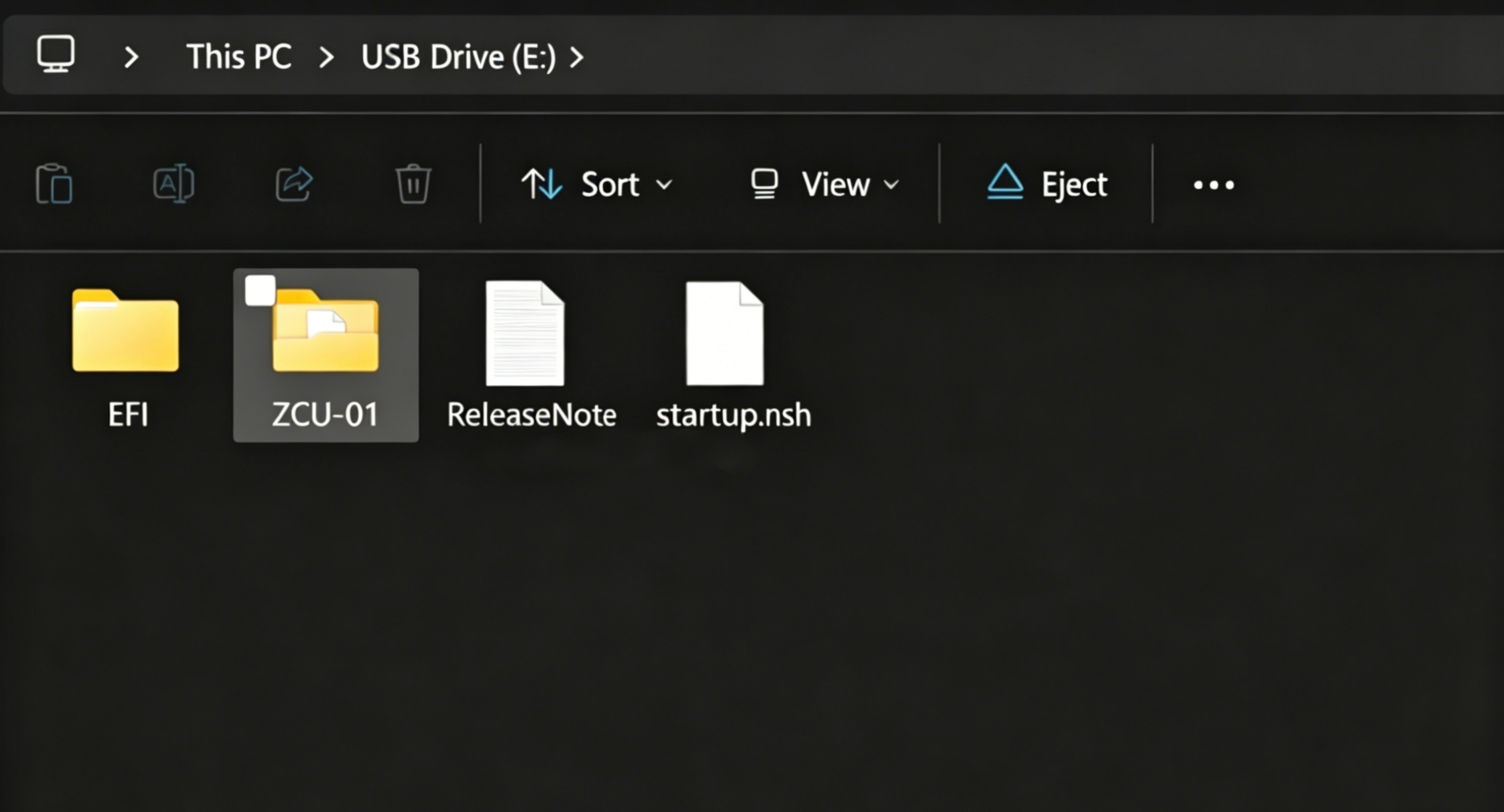
Step 3: Boot from USB
- Plug the USB drive, keyboard, and monitor into the ZimaCube.
- Power on and press F11 repeatedly until the boot menu appears.
- Use the arrow keys to select UEFI: (your USB drive) and press Enter.
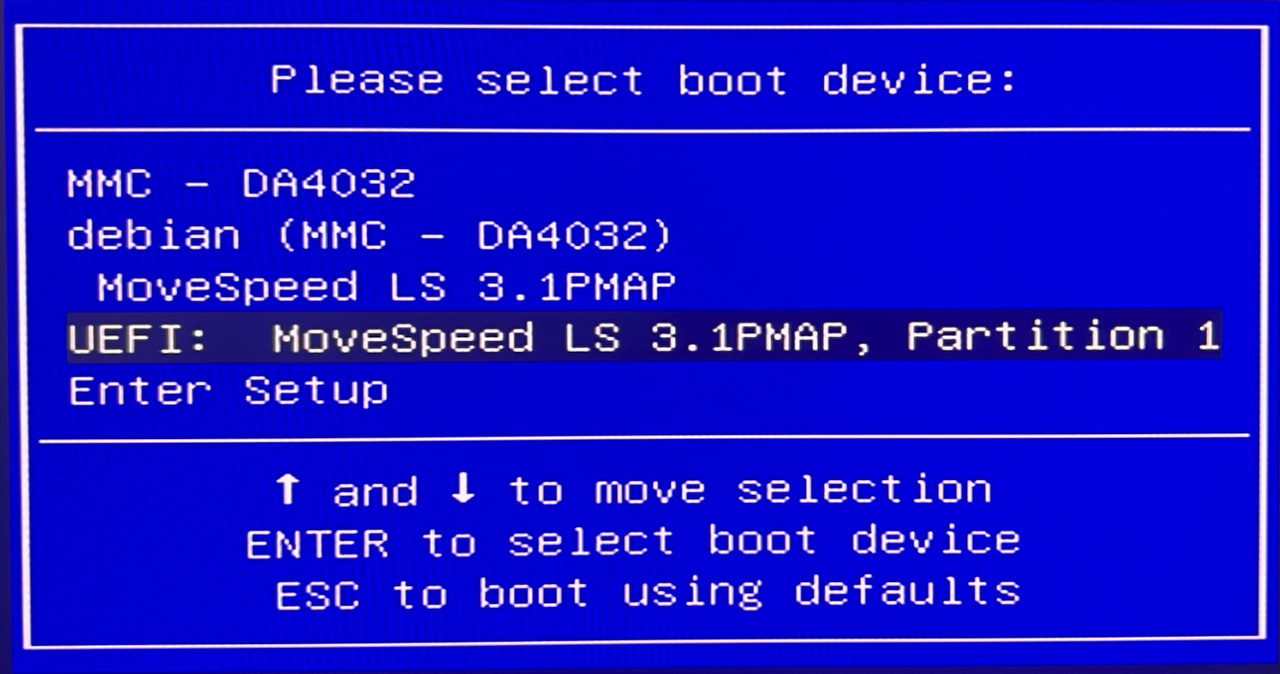
Step 4: Run the Update
The BIOS update will start automatically. You will see a progress screen. Do not turn off the power or remove the USB drive during this process — it usually takes less than two minutes.
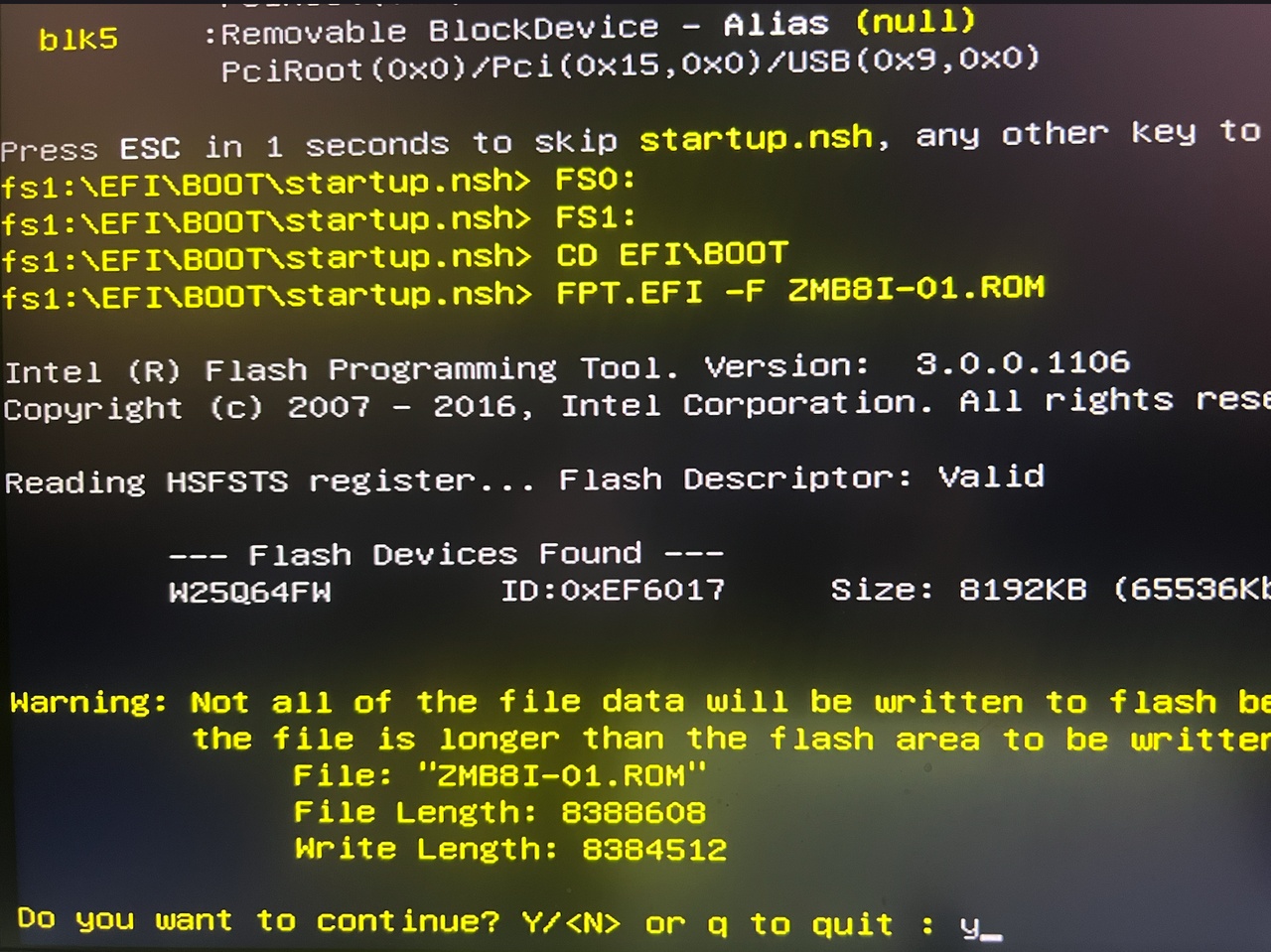
Step 5: Finish
When the update completes, you will see a confirmation screen.
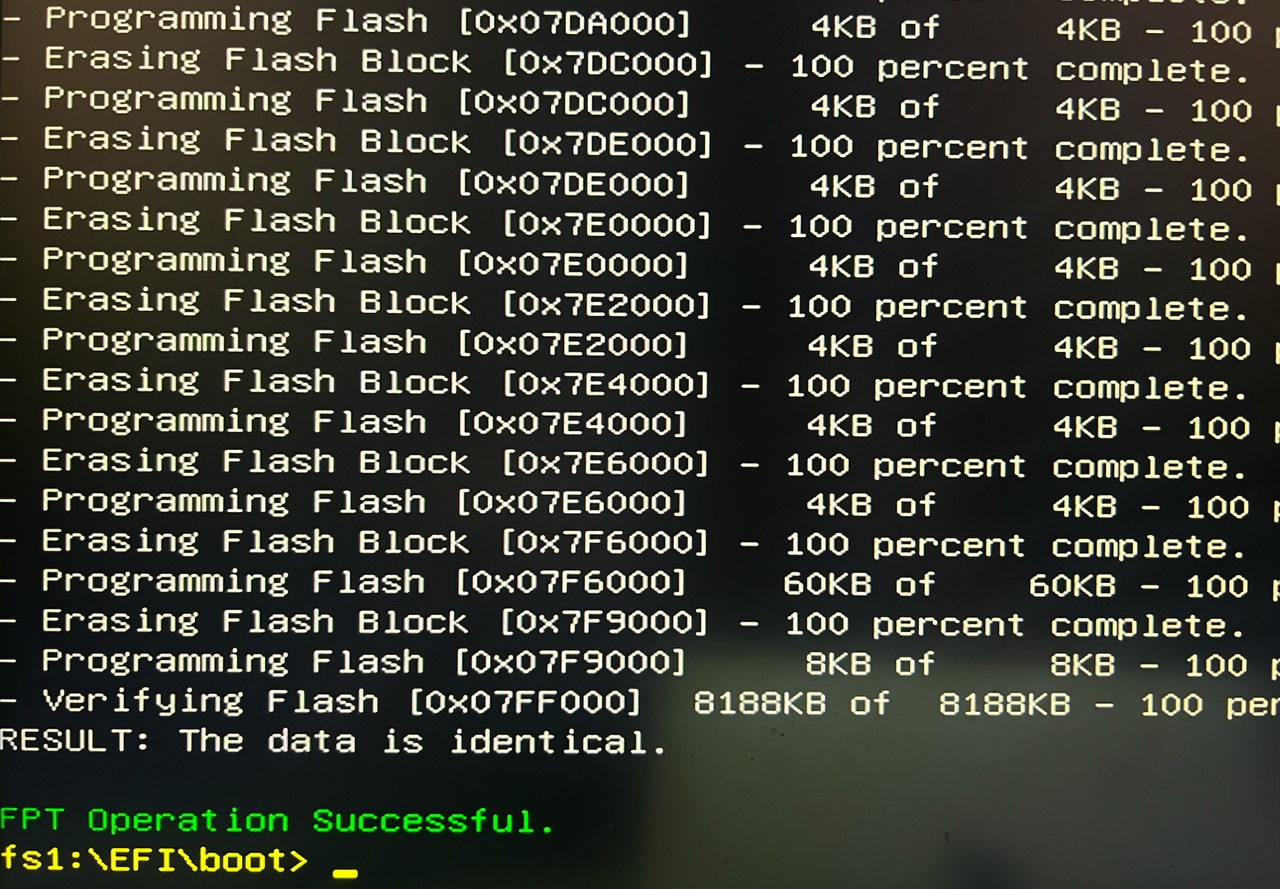
Press the power button to shut down. Remove the USB drive. Press the power button again to boot normally.
The first boot after a BIOS update may take longer than usual — the system is reinitializing hardware. This is normal.
Troubleshooting
- Boot menu does not appear: Try a different USB port. The rear USB 2.0 ports tend to be the most reliable for BIOS updates. Also try Delete or F2 instead of F11.
- USB drive not detected in boot menu: Make sure the drive is formatted as FAT32 and the EFI folder is at the root level, not inside another folder.
- Update appears to hang: Wait at least five minutes before assuming it has frozen. Some BIOS updates have long pauses between steps.
- System will not boot after update: Try the CMOS Reset procedure to restore BIOS defaults.