
Remote access is the quiet feature you use every day without thinking about it. Your home server sits at home, and you reach it from a cafe, an office, or another country. The connection was set up the moment you signed in for the first time.
How Remote Access Works
ZimaClient and ZimaOS establish an encrypted peer-to-peer channel between your device and the home server. Your data travels directly from one to the other. No third-party server sits in the middle, and no one can read what passes through.
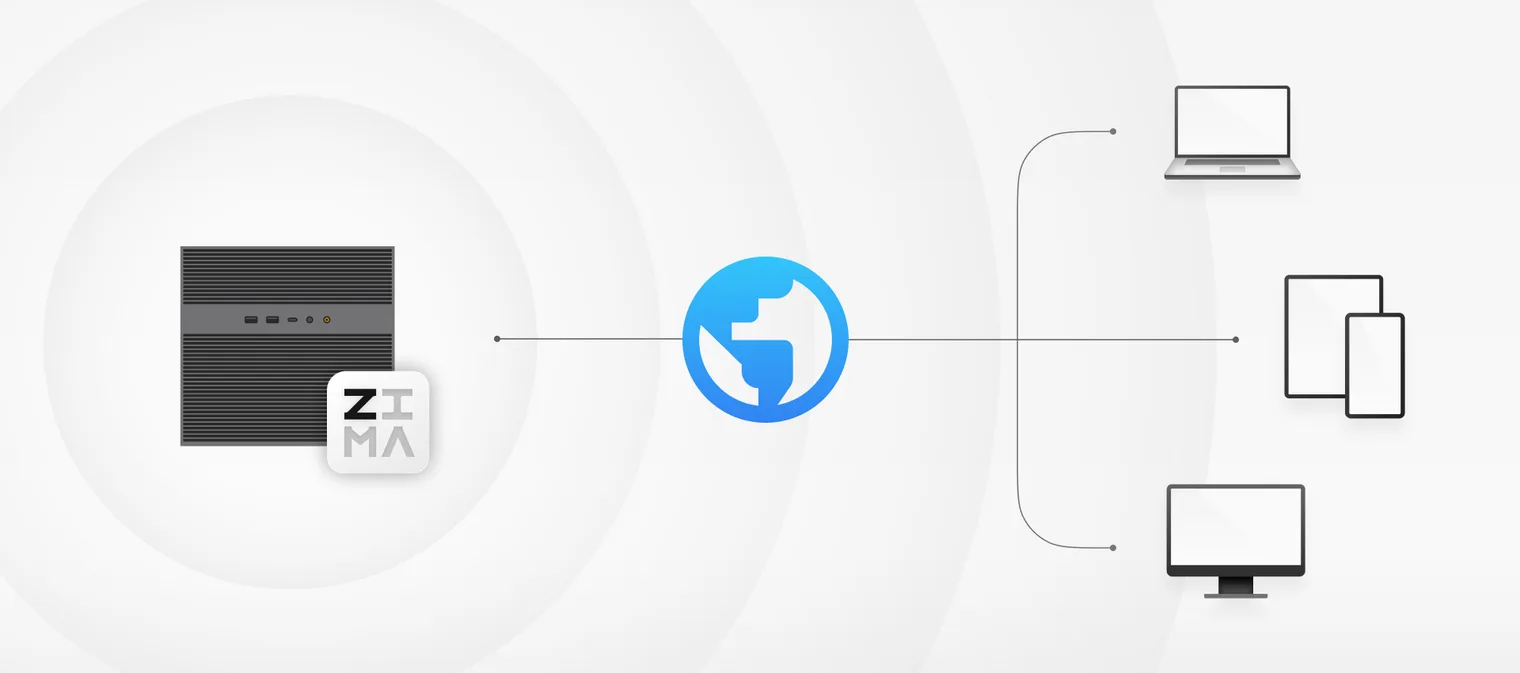
The connection also picks the fastest path for you. On the home network it uses the local LAN. Plug in Thunderbolt and it switches to the direct cable. Away from home it works over the internet or a hotspot. You do not configure any of this. ZimaClient finds the fastest path and takes it.
Control stays on your device. ZimaOS runs its own network controller for remote connections, so no outside party holds administrative rights over your network. ZimaOS does not collect, store, or have access to your files, connection logs, or usage data.
You can also turn remote access off entirely. Open Settings > Network on the dashboard and switch it off. Remote connections stop there, while your home network and local connections keep working as usual. Turn it back on whenever you want the channel open again.
Connect from Phone and Computer
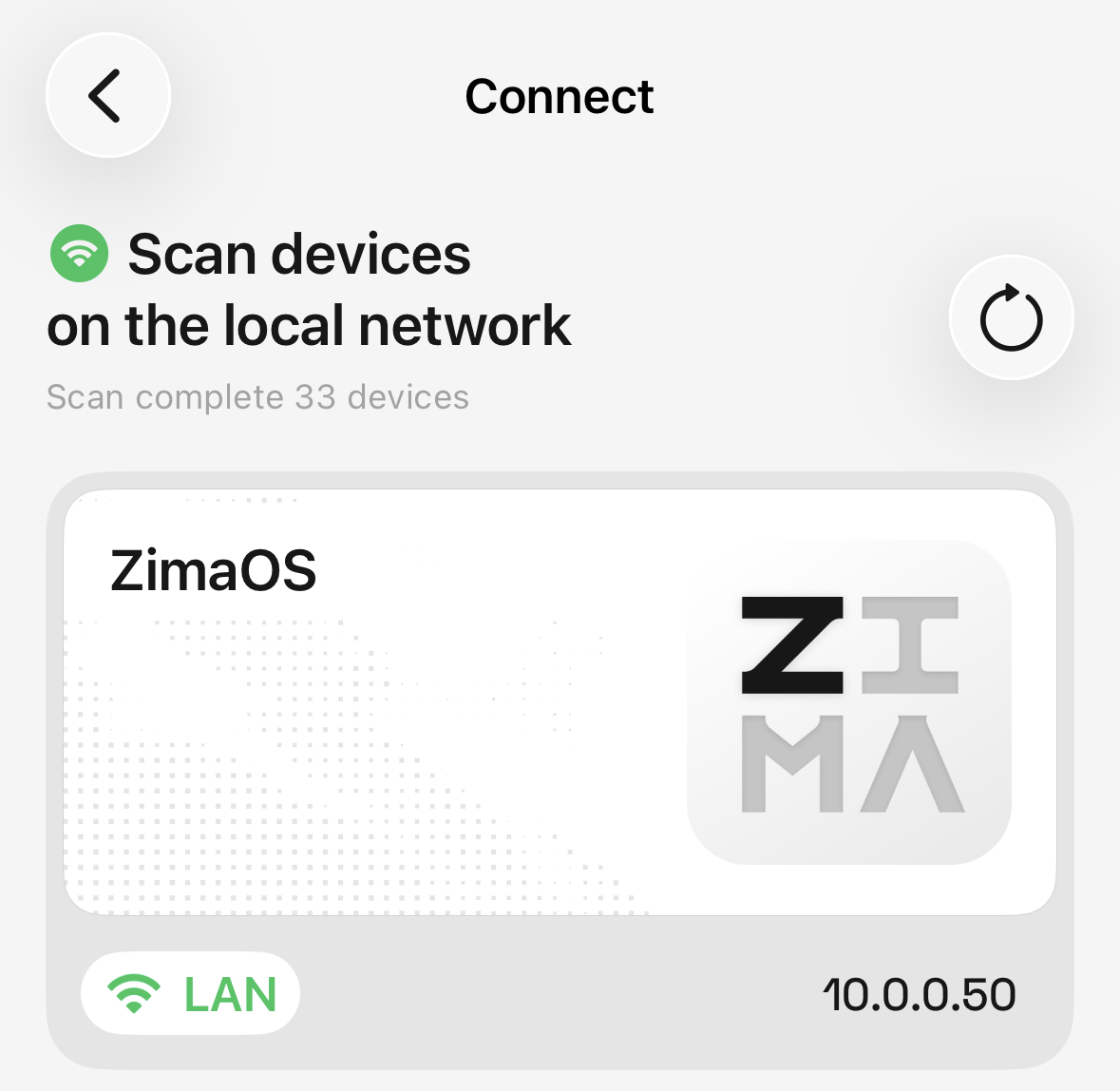
The first sign-in on a new device sets everything up. After that, the connection is automatic. Open ZimaClient and you are connected, at home or away. See Get Started if your device is fresh out of the box.
Open the client and you get more than a connection. The device panel shows your home server’s IP and connection status, with a button that opens the ZimaOS dashboard in one click. Wherever you are, the dashboard is one tap away.
On the phone, the same client carries the features you use daily. Files and Photos keep your content in reach, and backups keep working when you leave the house. See Phone Backup and Photos for those.
On the computer, ZimaClient mounts your storage in Finder or File Explorer and keeps your backup folders running. See Computer Backup for the full flow.
Your Device Remote ID
The Remote ID is your device’s unique identity for remote connections. Other people reach your device through it, so treat it like a password for your shared folders.
To find it, open Settings on the ZimaOS dashboard, switch to the Network tab, and copy the Remote ID.
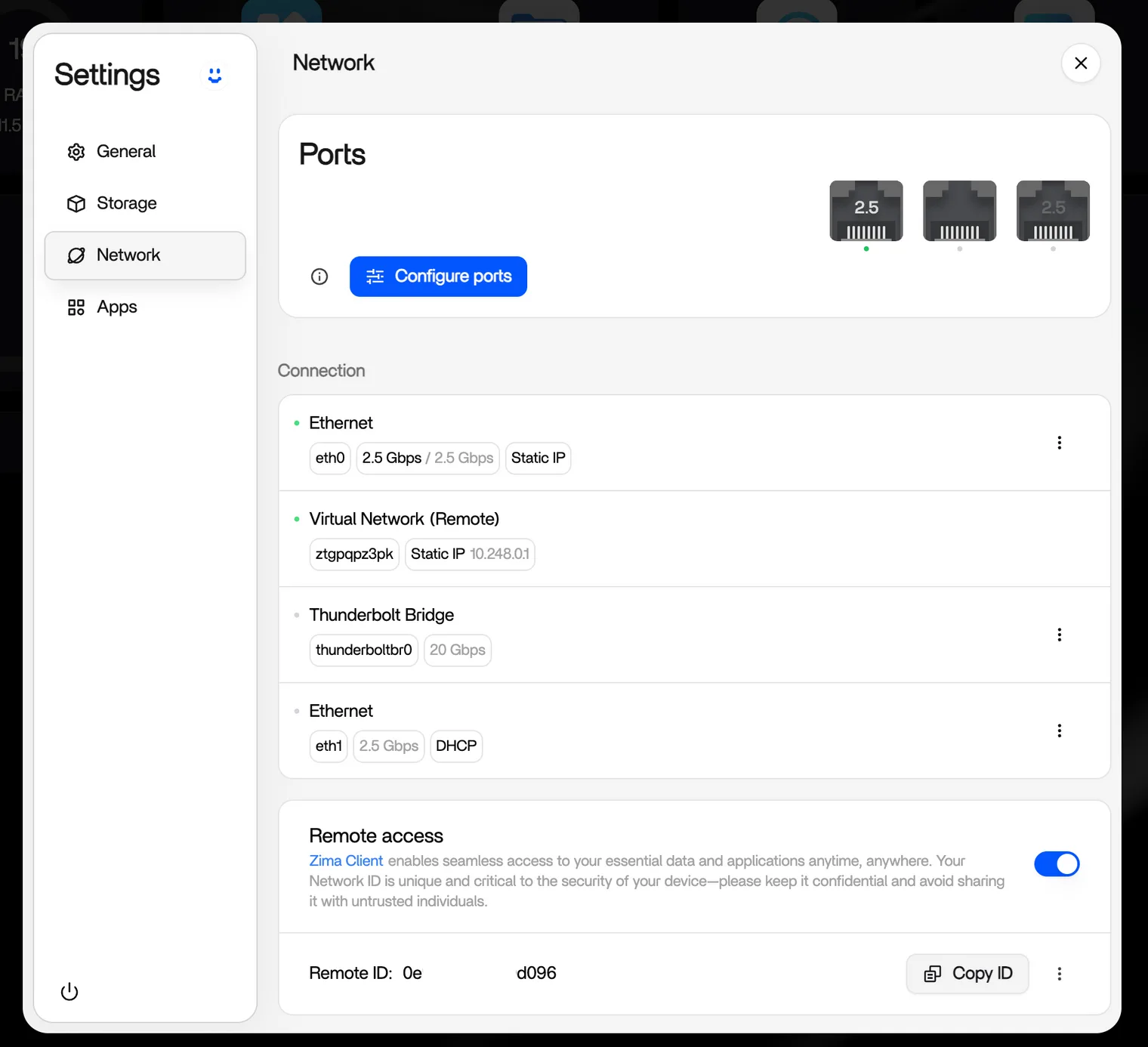
Two things to know about keeping it safe:
- If the Remote ID leaks, your shared folders may be exposed. Keep it to yourself.
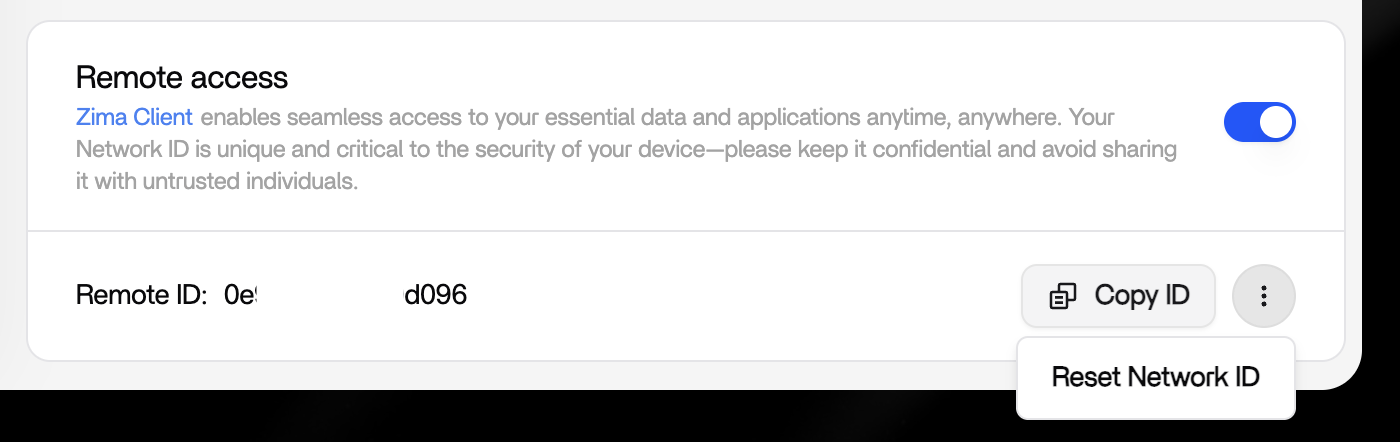
- If you suspect a leak, reset it by clicking the … button next to the Remote ID. The leak stops working immediately. Existing connections and shares become invalid, so devices need to reconnect after a reset.
Multiple Devices
More than one ZimaOS device in your life is the norm, not the exception. ZimaClient lists them all, and switching is one tap in the device list.
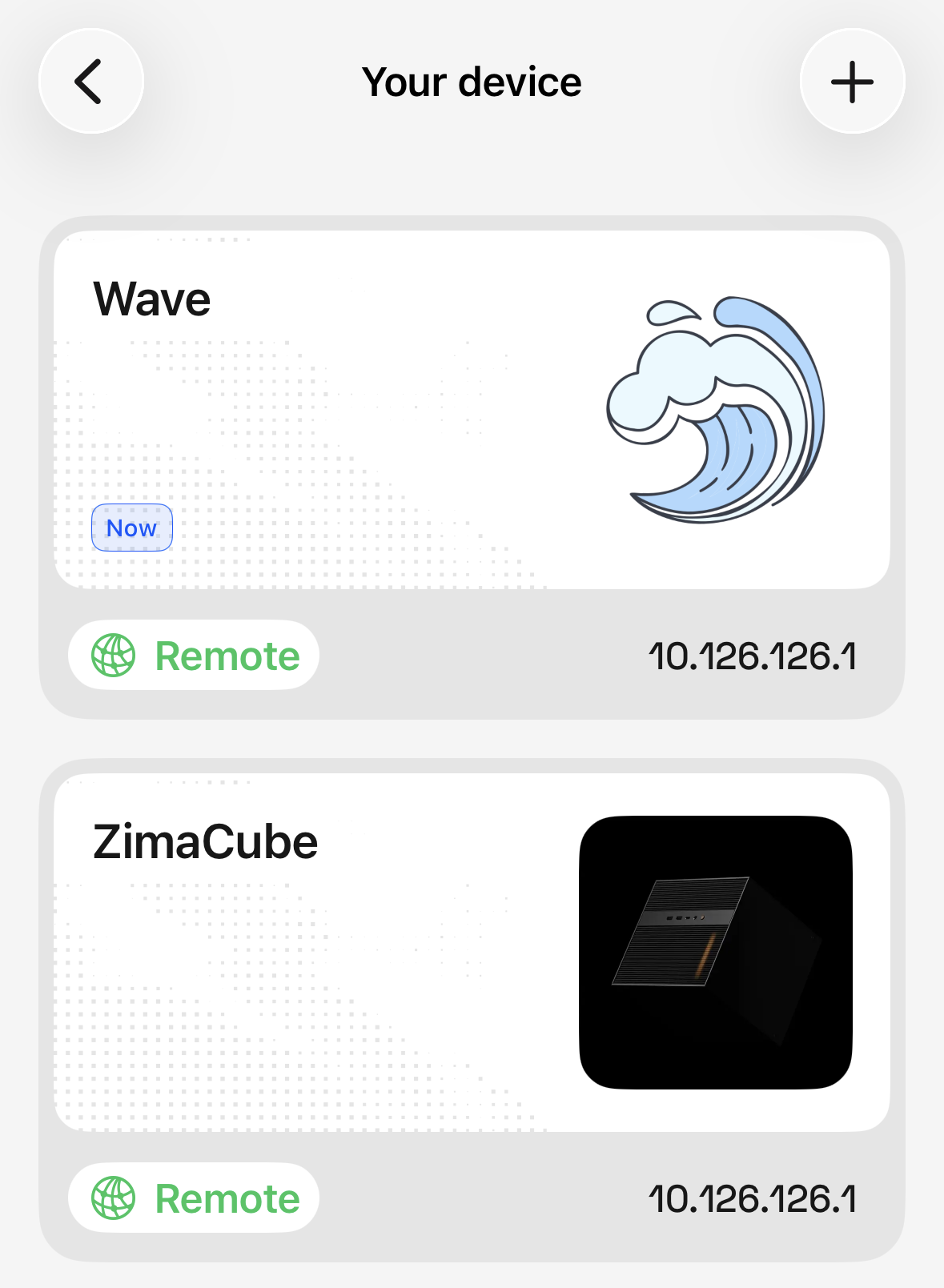
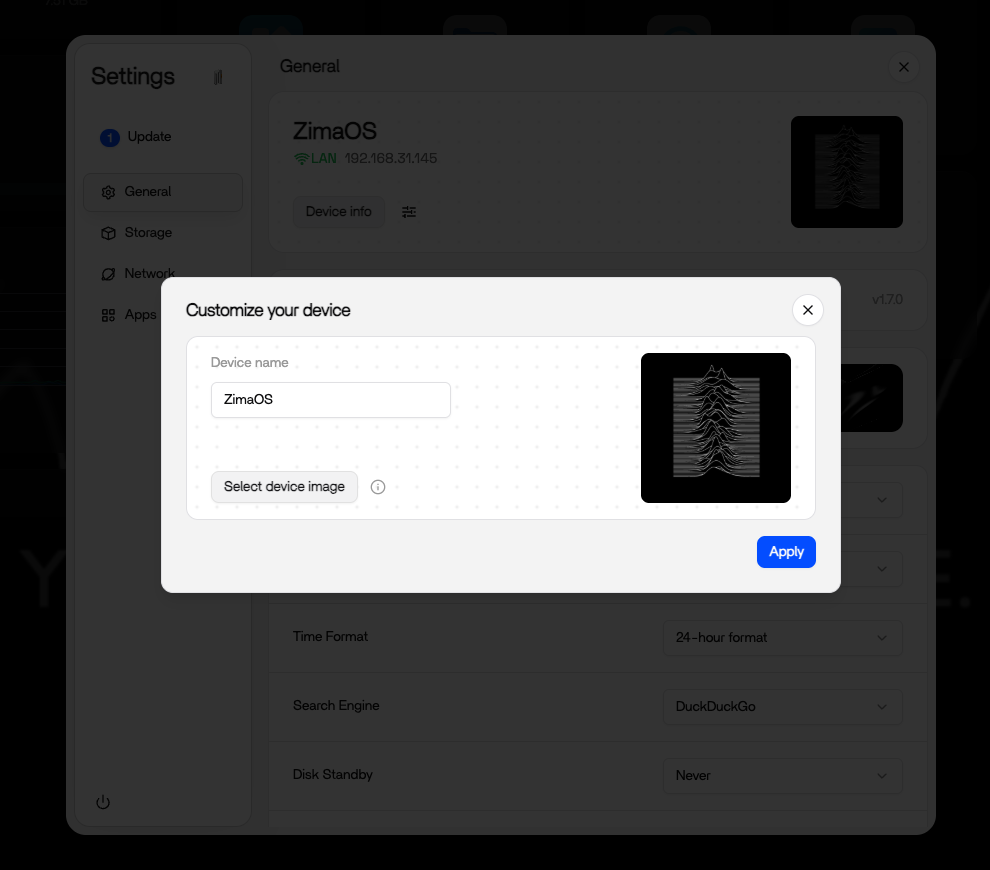
Give each device its own icon so they are easy to tell apart. On the ZimaOS dashboard, open Settings > General and click the configure button next to Device Info. The icon travels with the device, so the client shows the same identity on every screen you use.
For a second computer, Connect ID covers the case where your device is not nearby. Sign in with the Connect ID instead of a local scan, and the connection works the same way. Find more in Features.
ZimaClient or a Standard Protocol
ZimaClient is the built-in path. You sign in, and the remote connection works without any network setup on your side. The connection is peer to peer, so your data moves directly between devices.
If you prefer to run the connection on open protocols, the official App Store has four apps for that: Tailscale, WireGuard Easy, Firefly, and NetBird. You bring your own account or keys, and the connection works with standard clients on Linux, Android, and other platforms. See Tailscale and WireGuard Remote Access for the comparison and the setup steps.
Next
- Download ZimaClient — the client for every device you carry
- Tailscale and WireGuard Remote Access — the standard protocol path
- SMB File Sharing — sharing on the local network