
What you’ll learn
ZimaOS is a lightweight NAS operating system designed for generic x86-64.
This guide provides a complete step-by-step process to help you download, flash, and install ZimaOS quickly and successfully.
For a virtual machine, follow Install ZimaOS on Proxmox VE.
What you’ll need
- A Zima device or a generic x86-64 with at least 25GB of storage space.
- A flash drive (4GB or above recommended).
- ZimaOS USB Creator or balenaEtcher.
Getting Started
To boot ZimaOS, the BIOS needs to have UEFI boot mode enabled and Secure Boot disabled.
Step 1: Prepare the ZimaOS Installation Image
ZimaOS USB Creator downloads the version you select in the app. If you use balenaEtcher, download the file ending in _installer.img from ZimaOS GitHub Releases. The .raucb file is an update package, not a USB installation image.
Step 2: Create a Bootable ZimaOS USB Drive
Choose one of the following methods, then continue with Step 3.
Version numbers, filenames, drive names, and interface details in the screenshots are examples.
Writing an image erases all data on the selected USB drive. Back up important files and check the drive name and capacity before continuing.
Option A: ZimaOS USB Creator
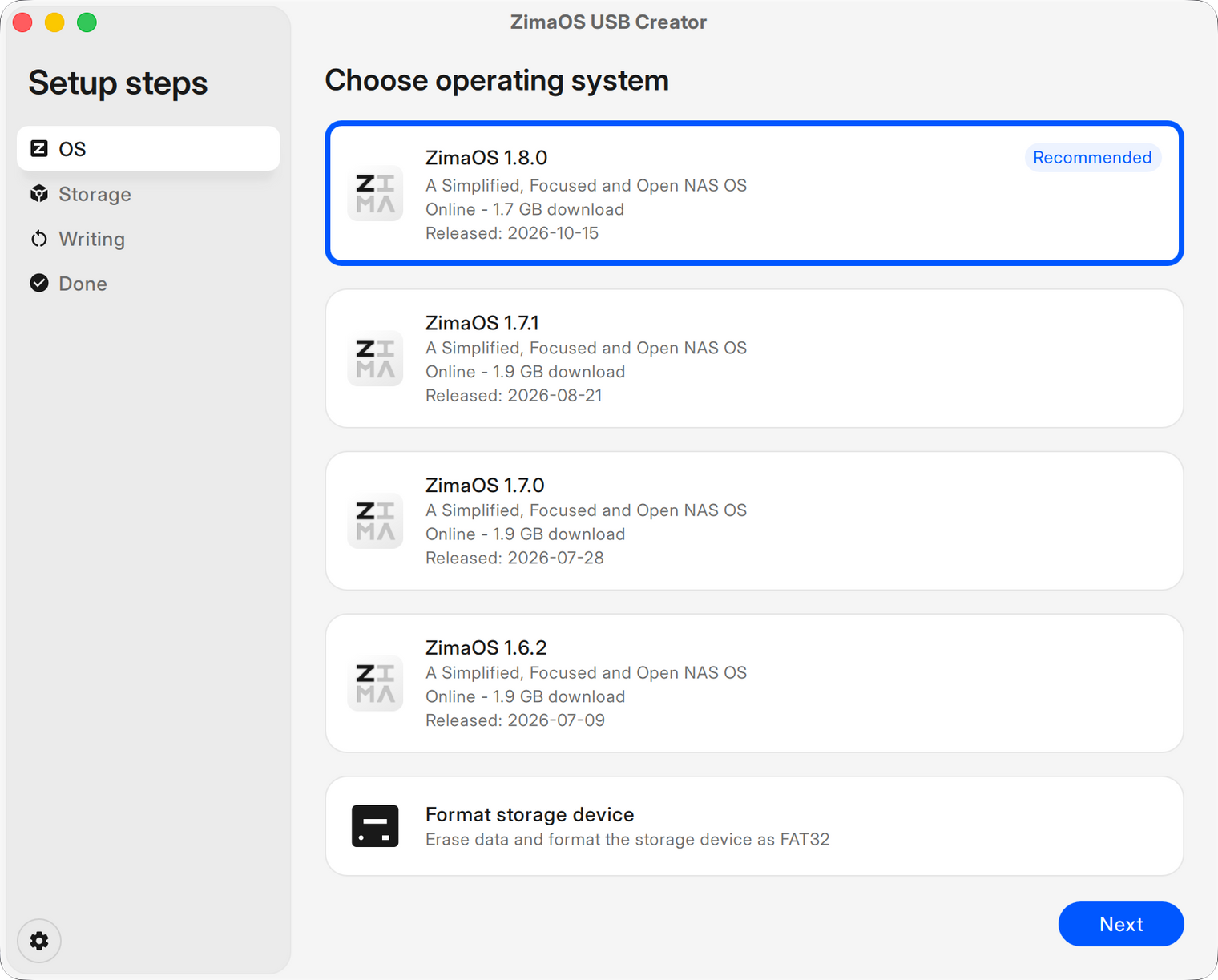
- Insert the USB drive and open ZimaOS USB Creator. On Choose operating system, select the ZimaOS version you want to install, then click Next.
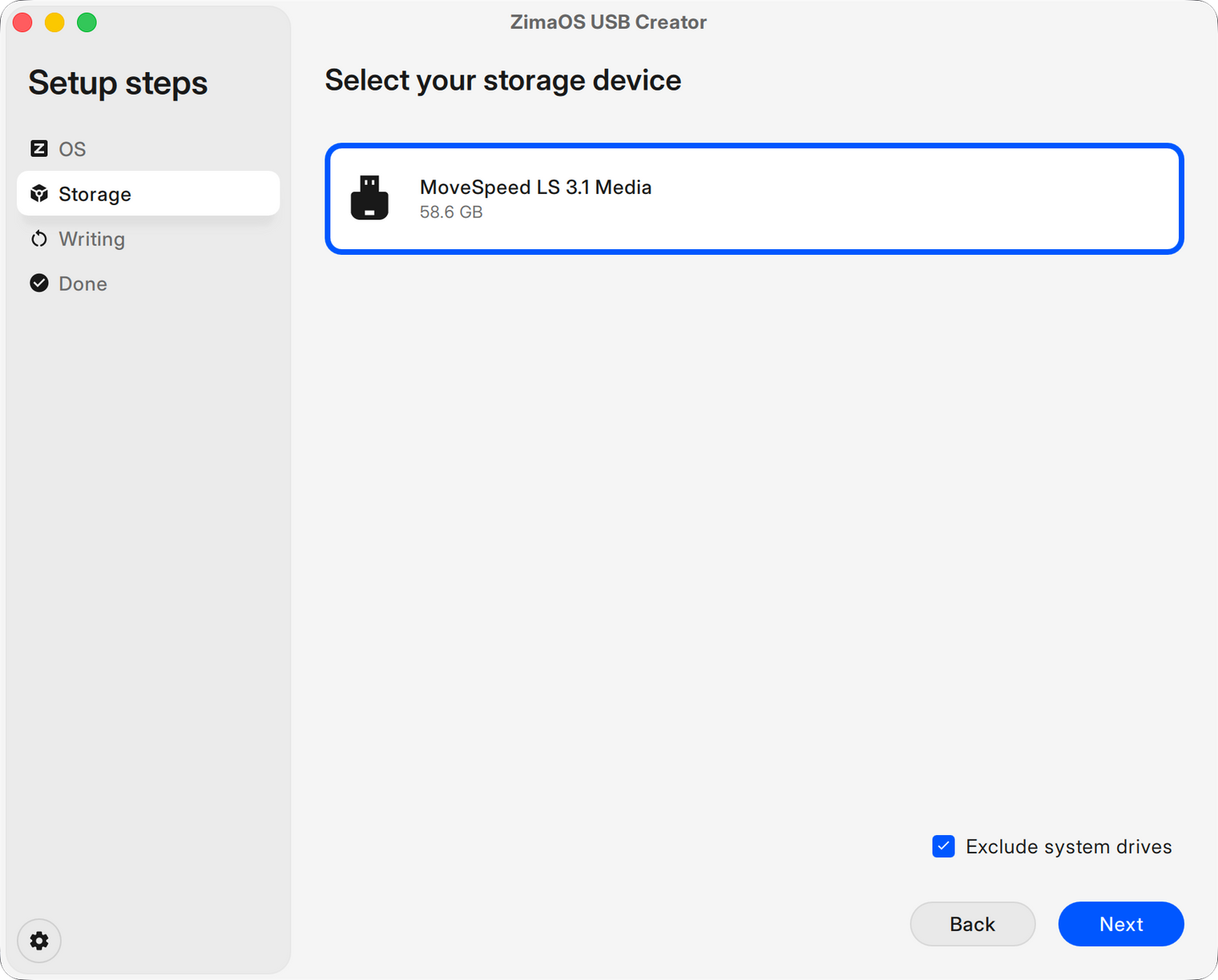
- Select the USB drive. Check its name and capacity, keep Exclude system drives selected, then click Next.
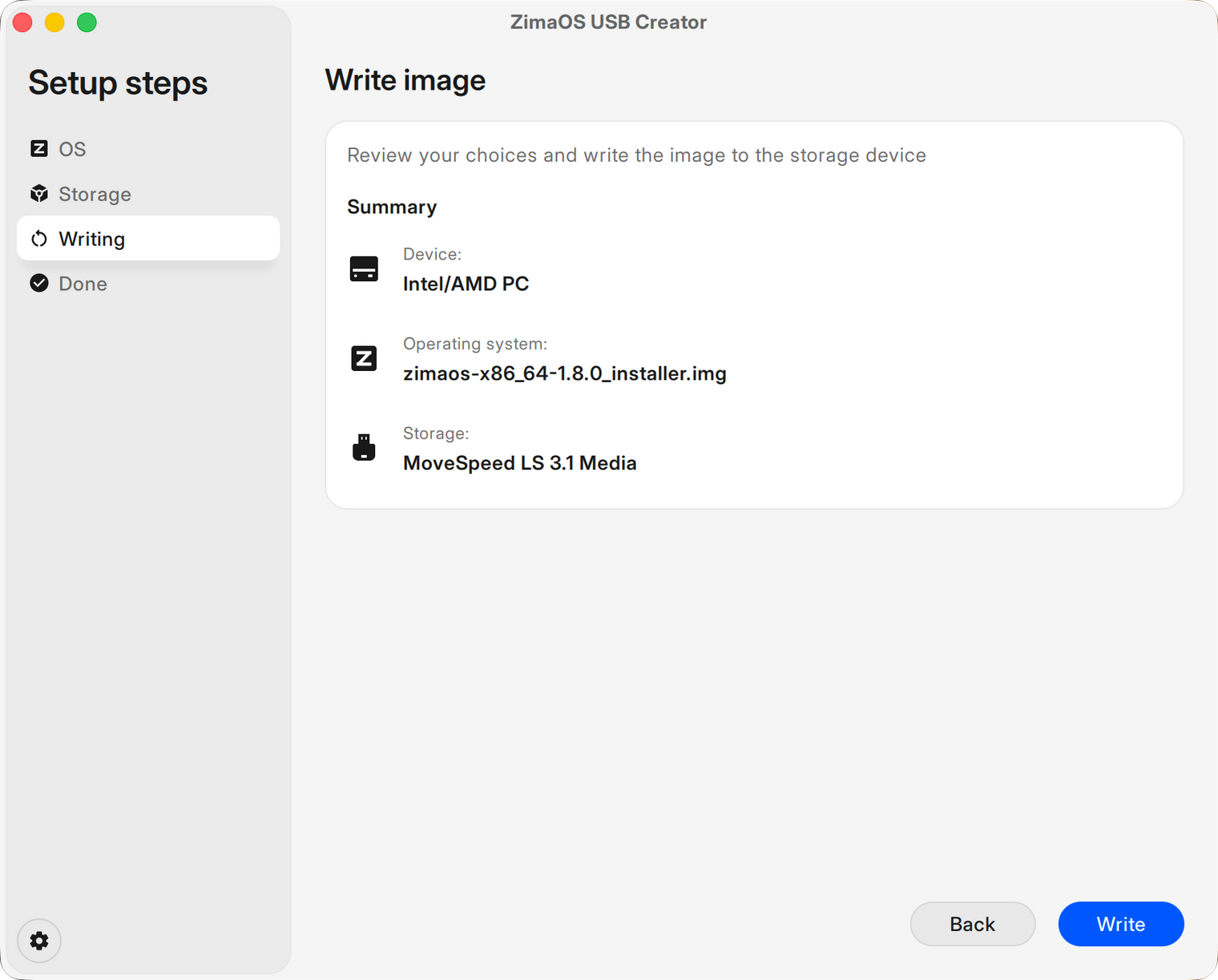
- Review the operating system image and storage device in the summary, then click Write.
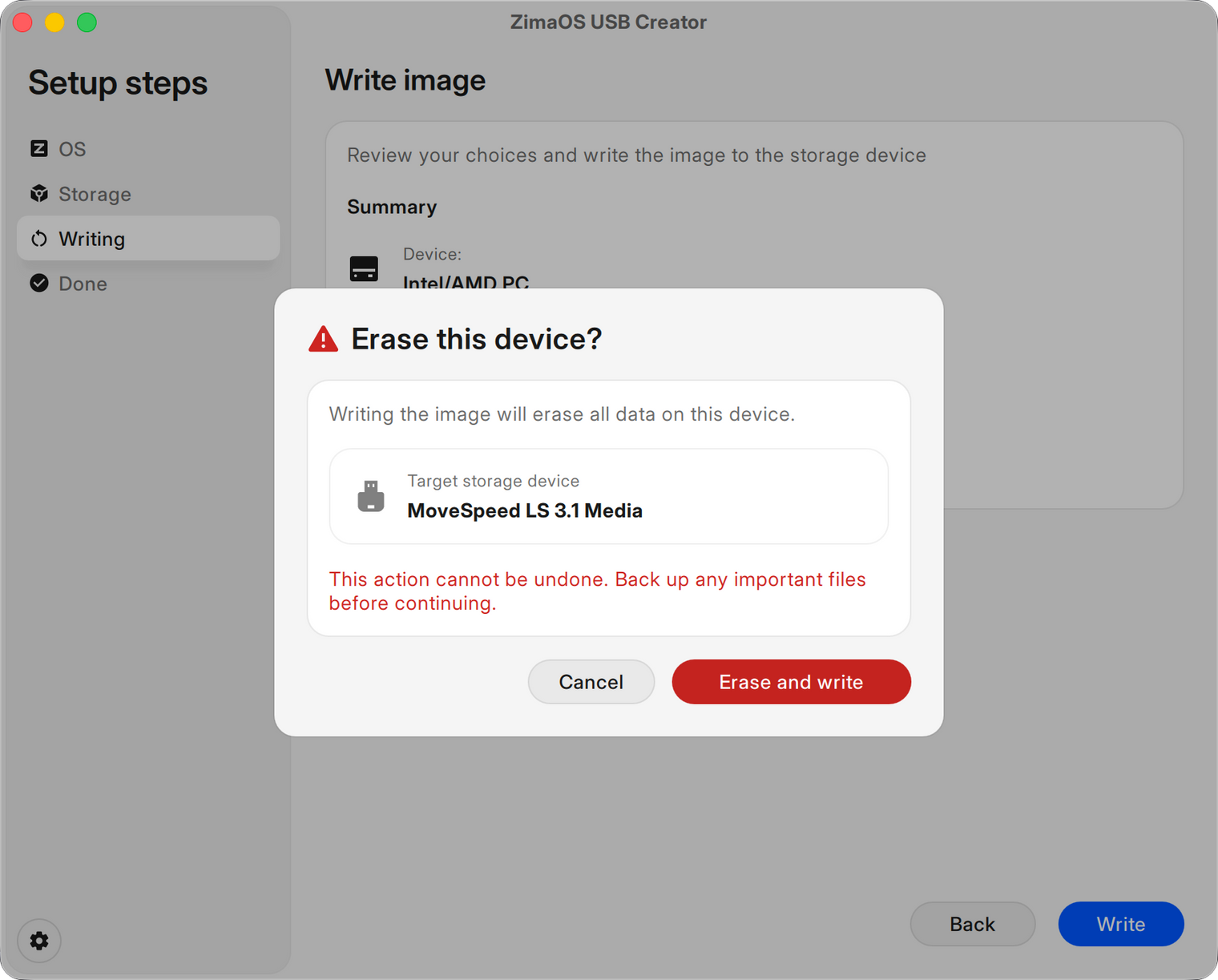
- Check the target drive in the Erase this device? dialog, then click Erase and write.
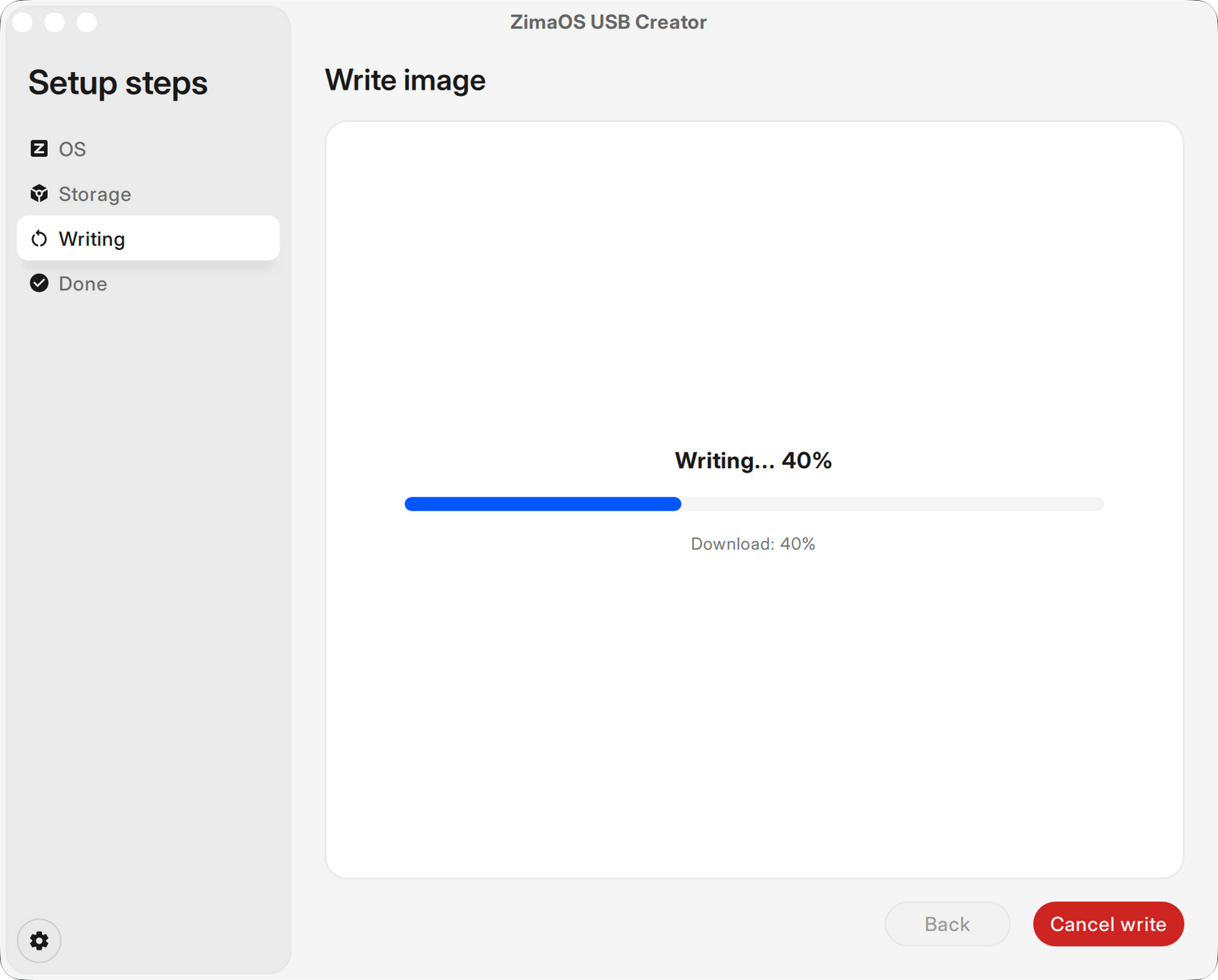
- Complete administrator authorization if prompted. Wait while USB Creator downloads and writes the image; leave the USB drive connected.
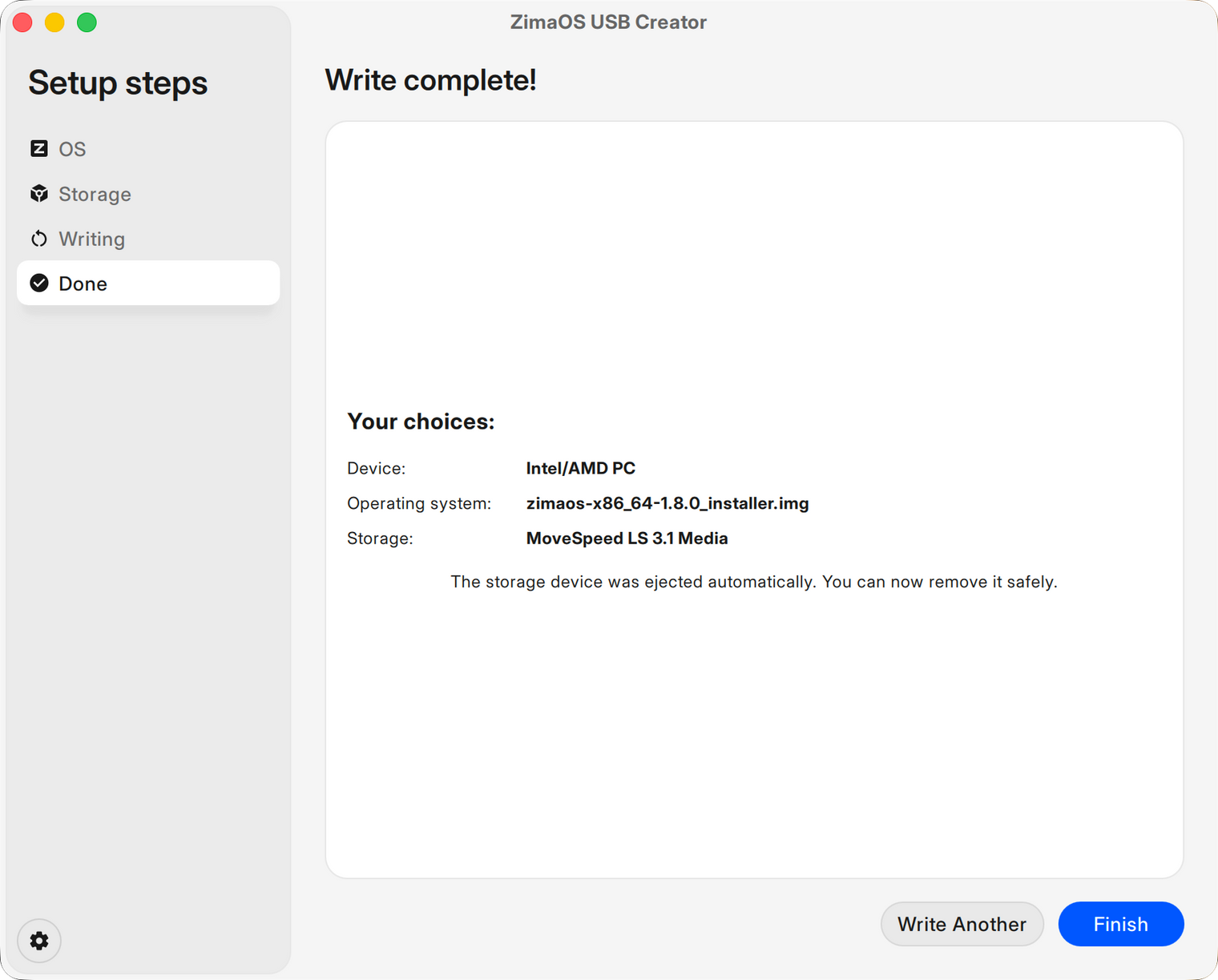
- When Write complete! appears, the drive has been ejected automatically. Click Finish and remove it safely.
Option B: balenaEtcher
Download and install balenaEtcher.
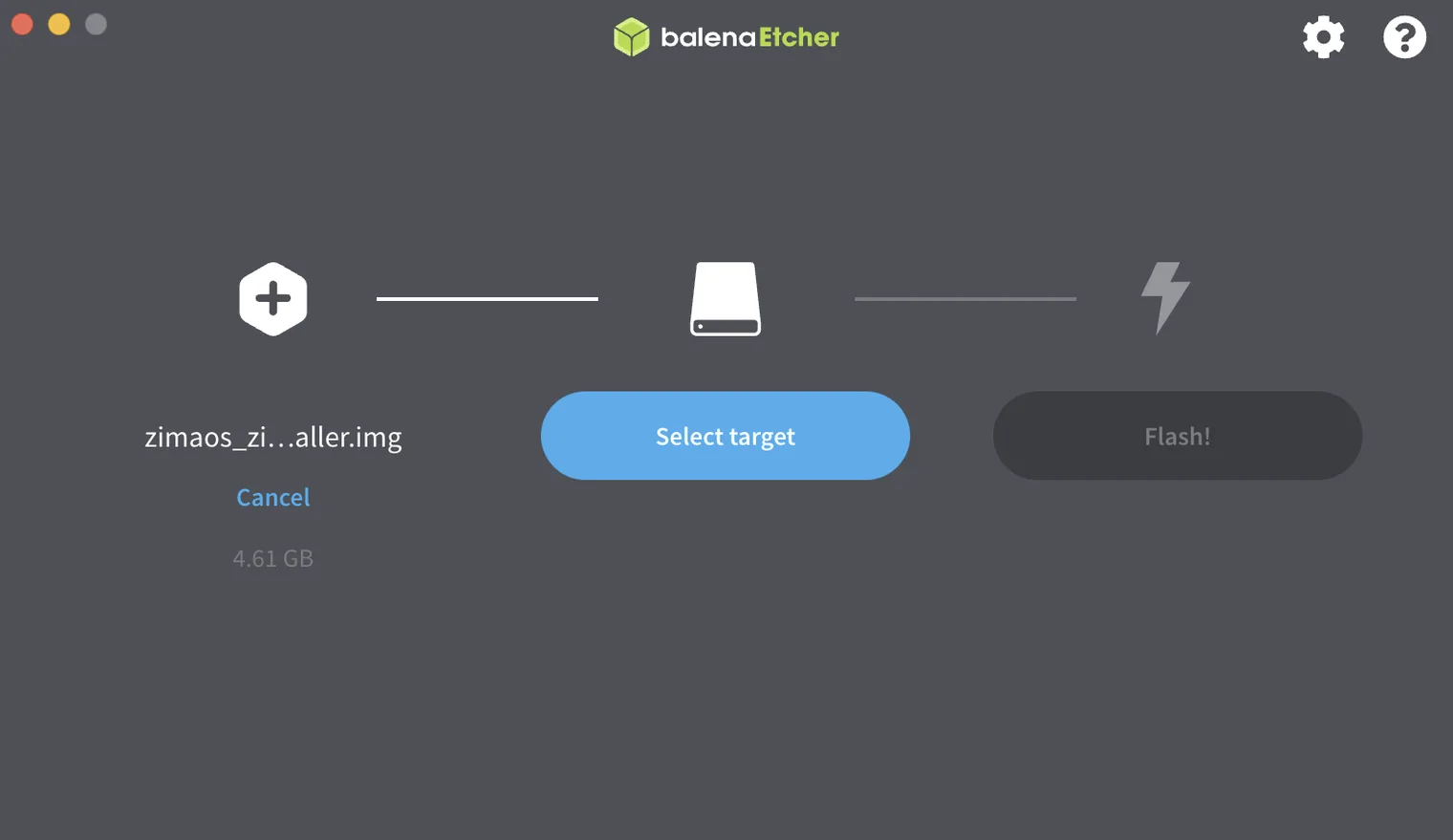
Open Etcher, click Flash from file, and select the
_installer.imgfile downloaded in Step 1.
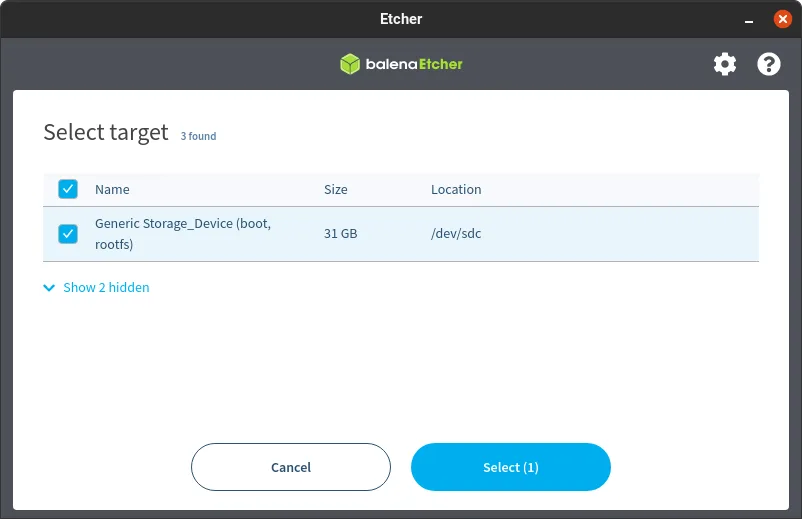
- Click Select target and choose the USB drive. Check its name and capacity.
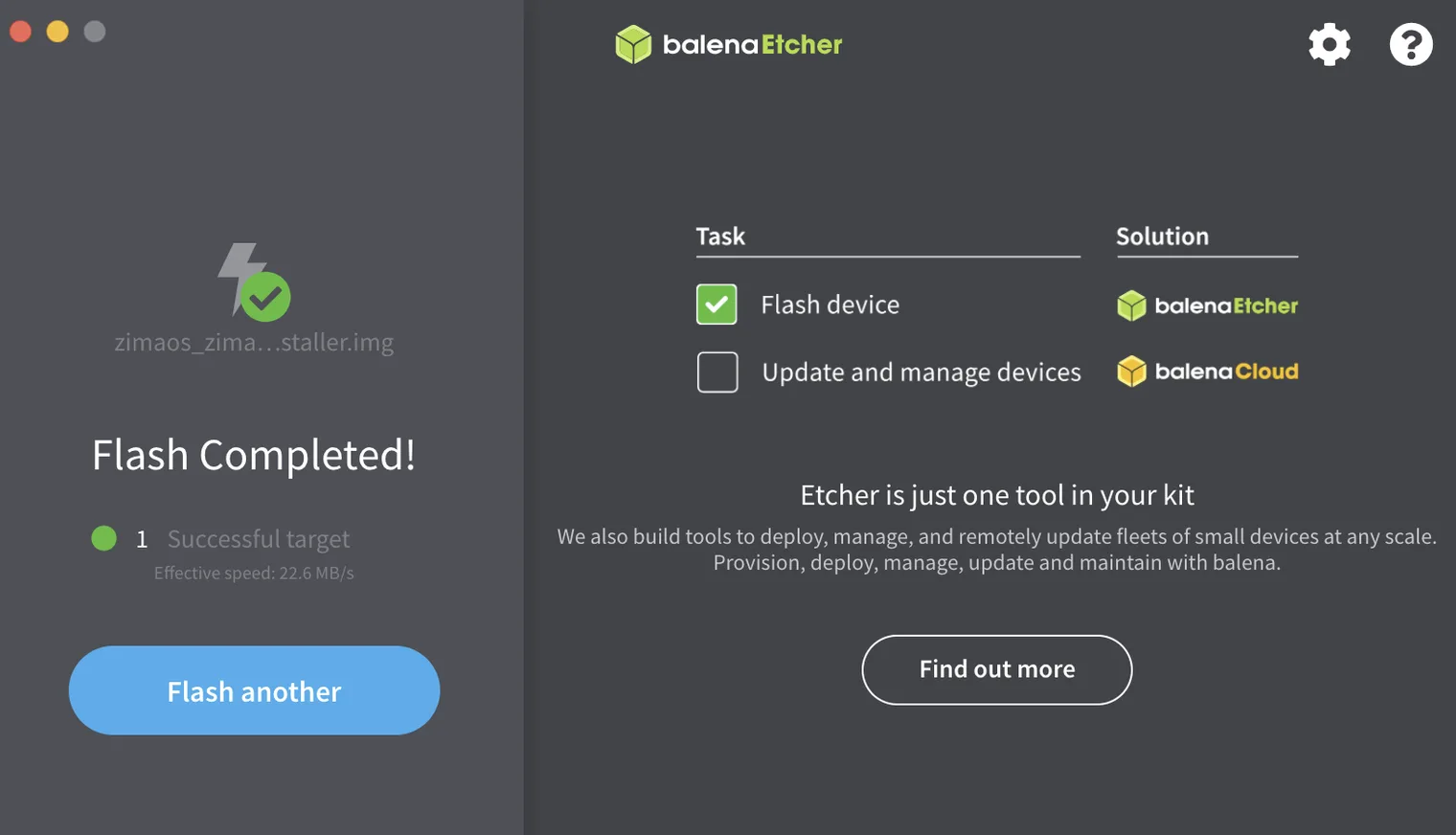
Click Flash!, authorize access if prompted, and wait for writing and verification to finish.
When Etcher reports completion, safely eject the USB drive. Continue with Step 3 below.
Step 3: Boot your device from USB
- Insert the bootable USB drive into your device. Enter the BIOS or boot menu and boot from the USB drive.
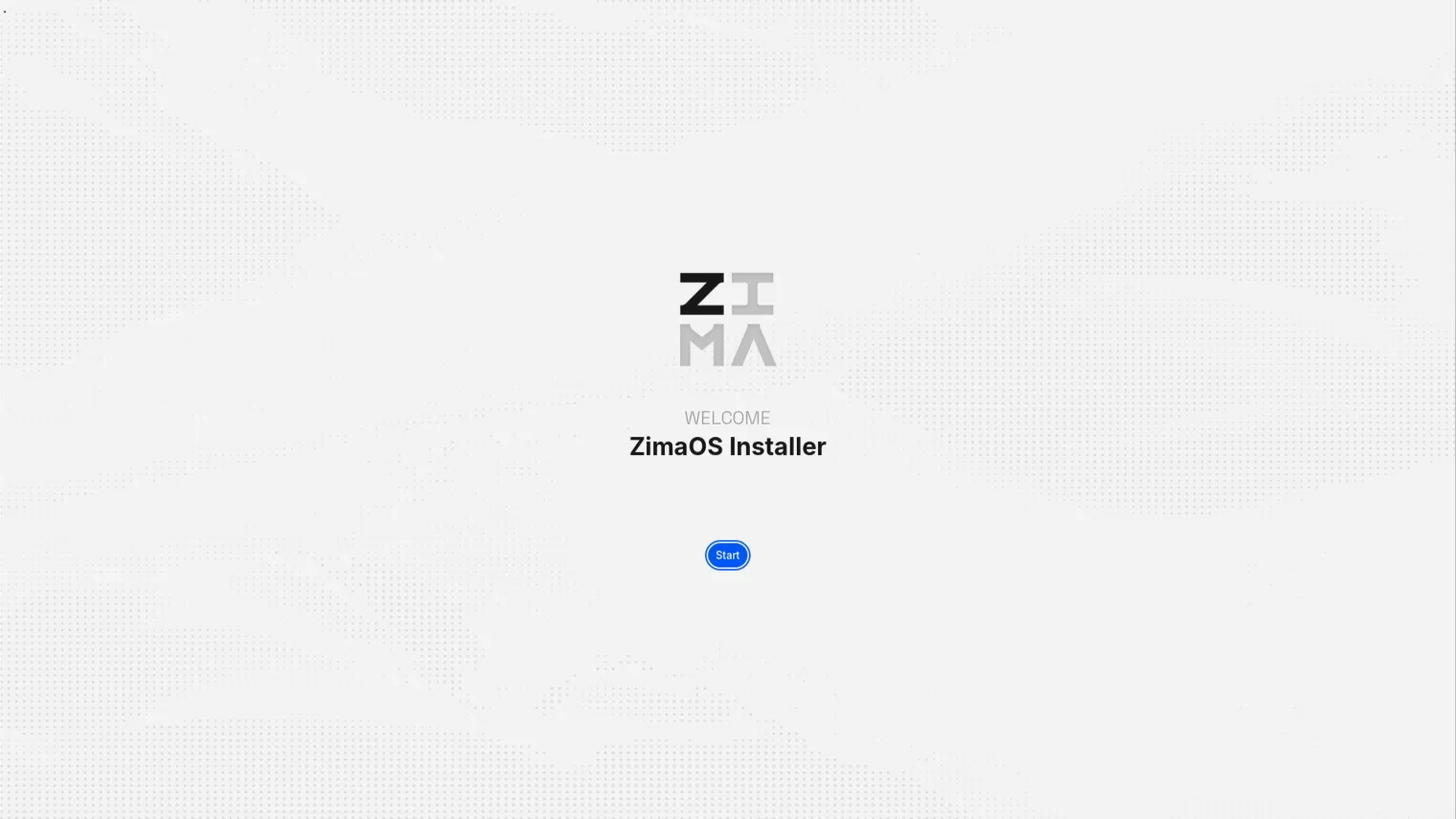
- On the ZimaOS Installer welcome screen, click Start.
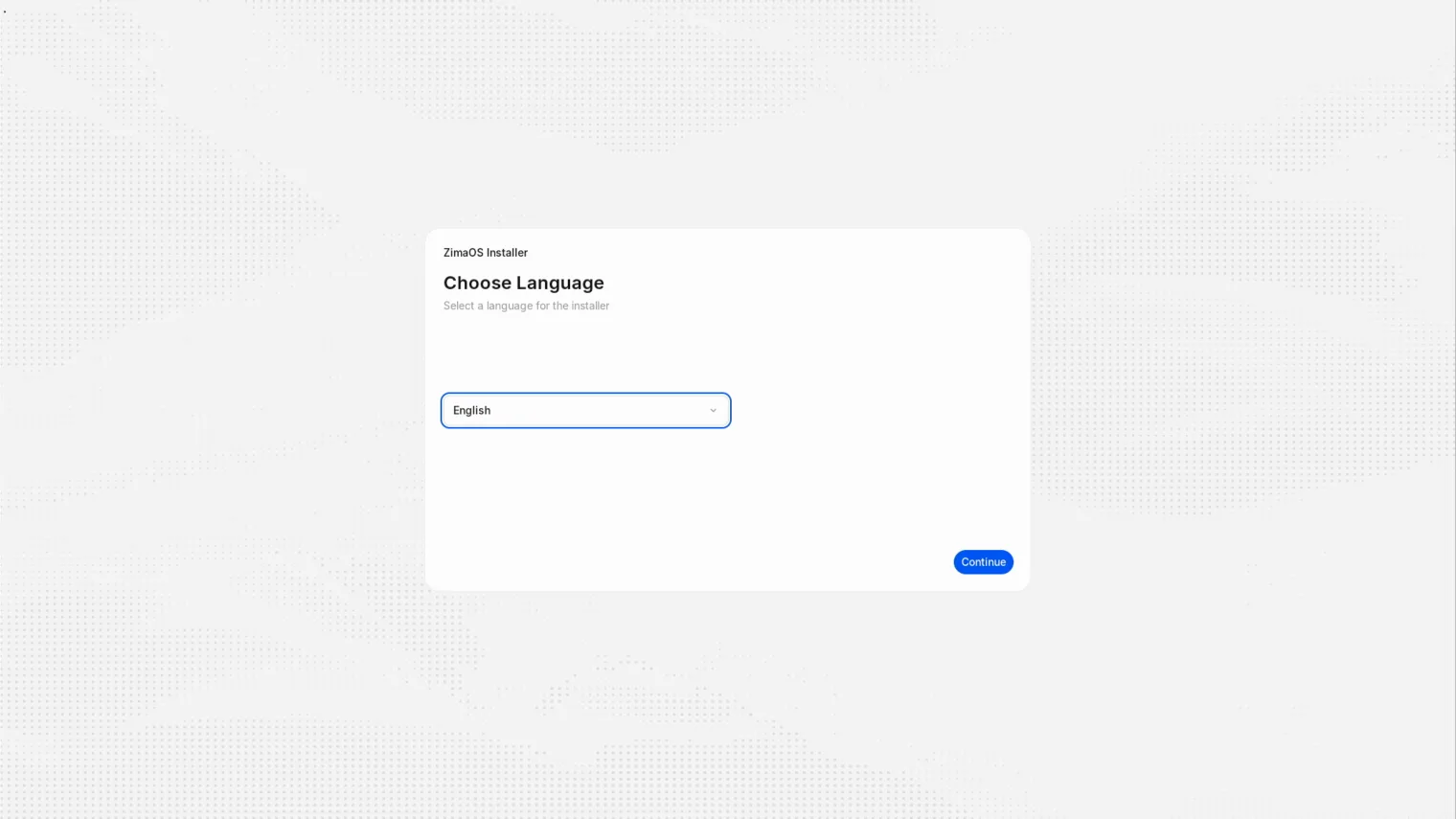
- Choose the installer language and click Continue.
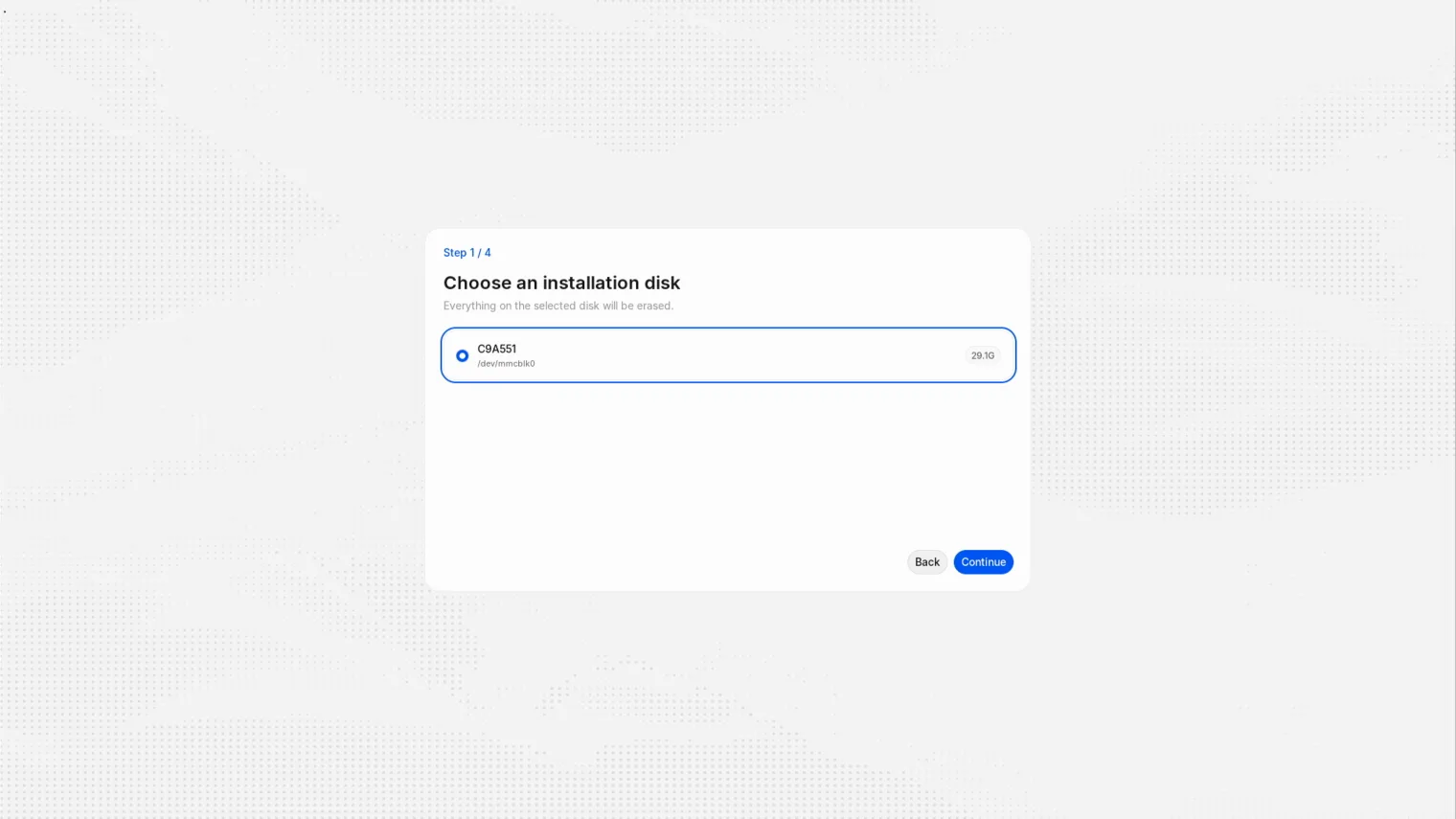
- Select the disk where you want to install ZimaOS. Check its name, path, and capacity carefully: all data on this disk will be erased. Click Continue.
- Review the target disk and the installation checks, then click Continue.
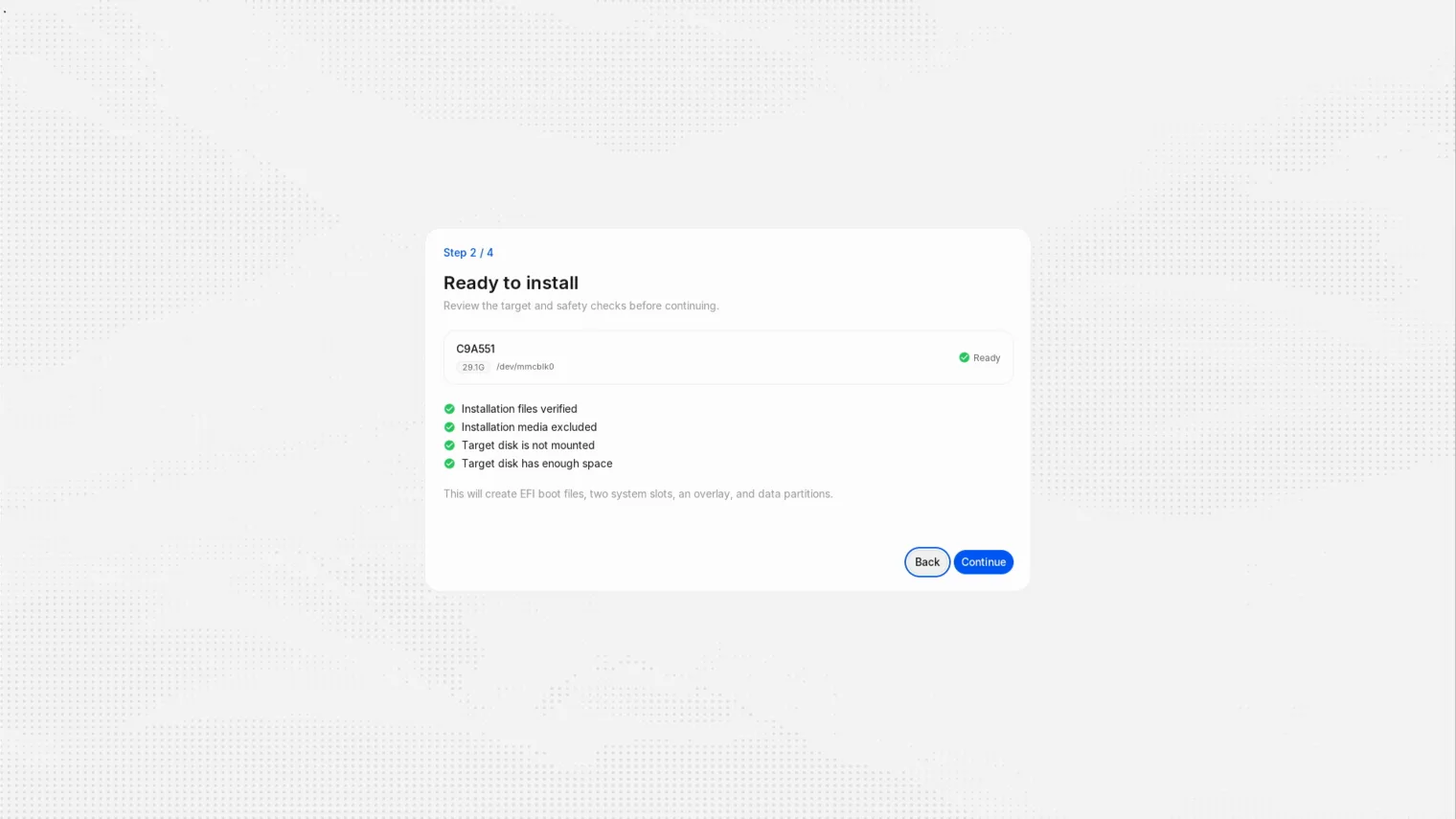
- Check the disk once more on the erase warning, then click Erase and install.
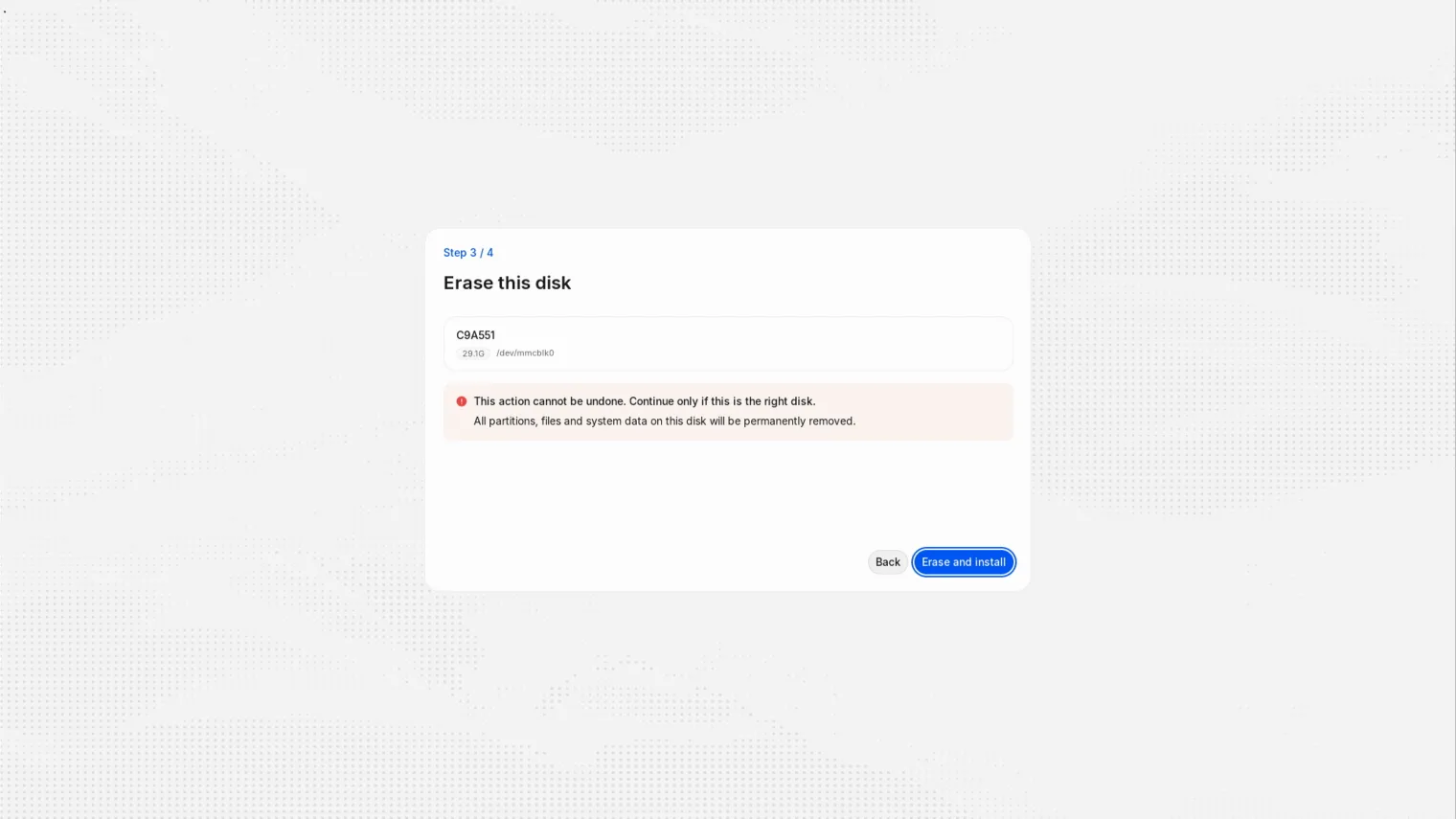
- Keep the device powered on while the installer writes ZimaOS.
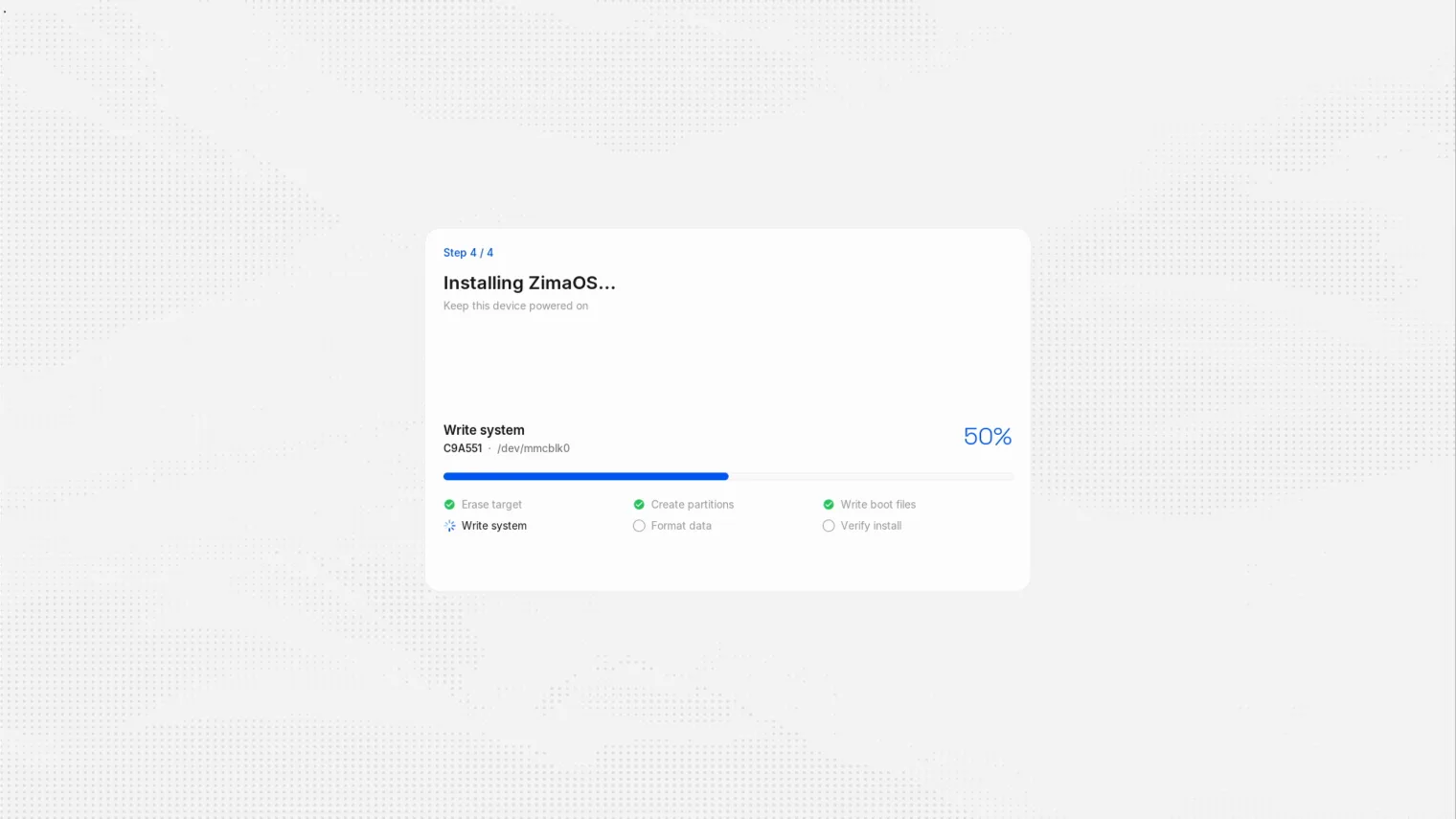
Step 4: Complete ZimaOS Installation
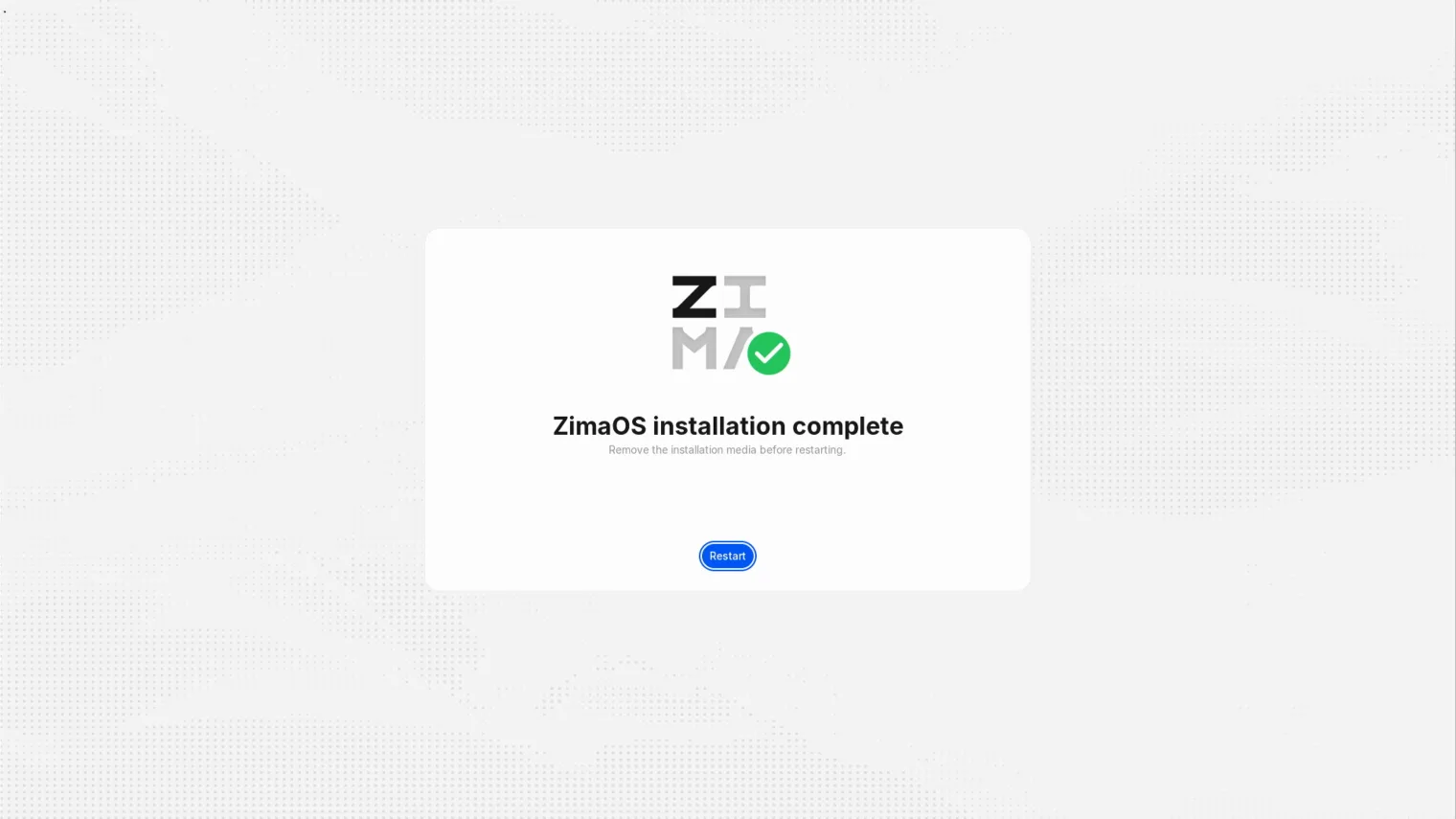
When the installation complete screen appears, remove the USB drive, then click Restart. The device will boot from the installed disk into ZimaOS.
Step 5: Access ZimaOS
After reboot, the device screen shows system details and how to access ZimaOS. The serial number and IP address are obscured in this screenshot; use the address shown on your device.
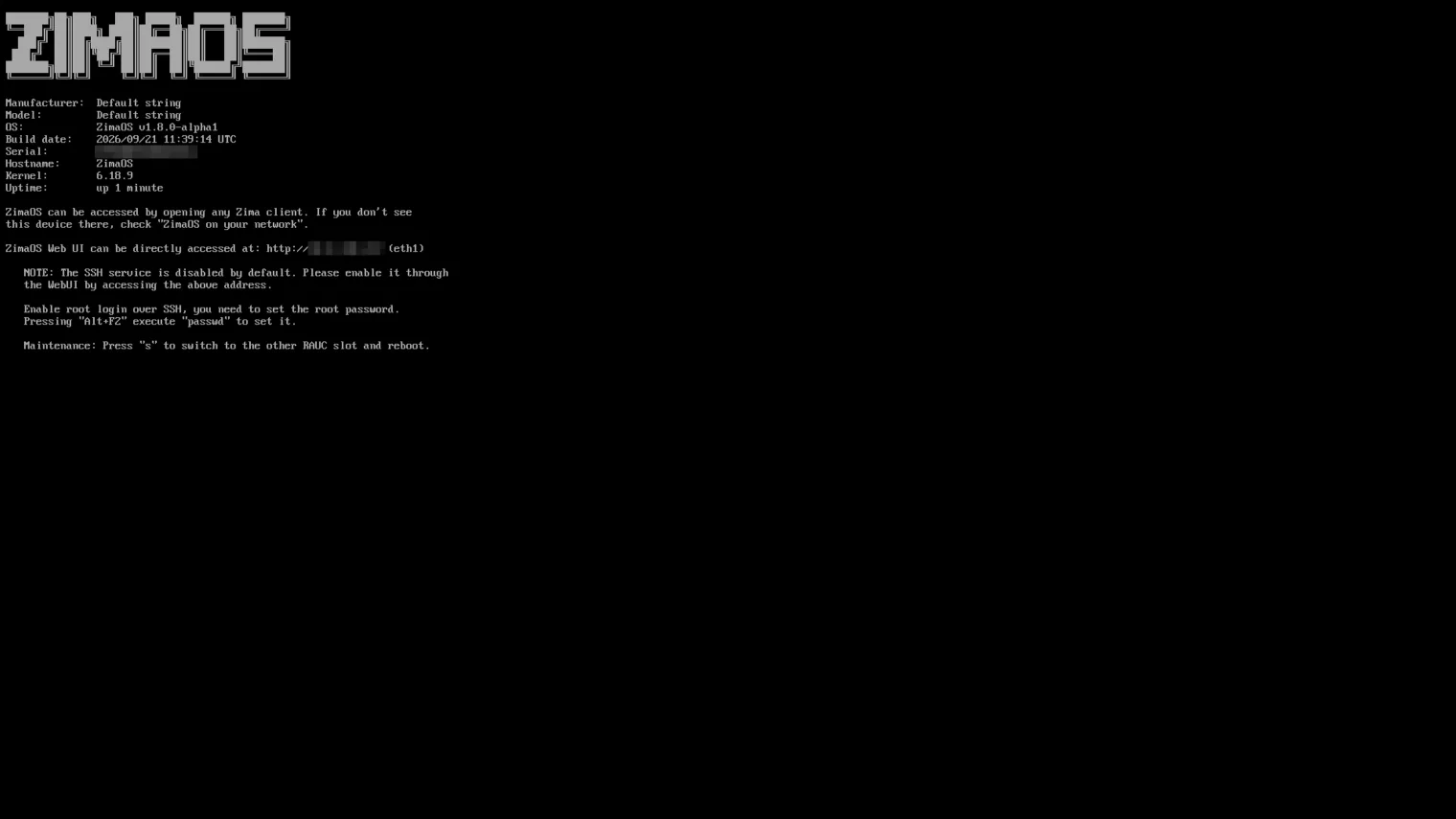
The easiest way to connect is with ZimaClient, which can detect the device on your network. Download ZimaClient and follow the ZimaOS Quick Start Guide.
Alternatively, enter the IP address shown on your device into a browser to open the ZimaOS Web UI.
The example below shows the initial page on a ZimaCube. Select a language and review the Privacy Policy before continuing. The page may look different on other devices.
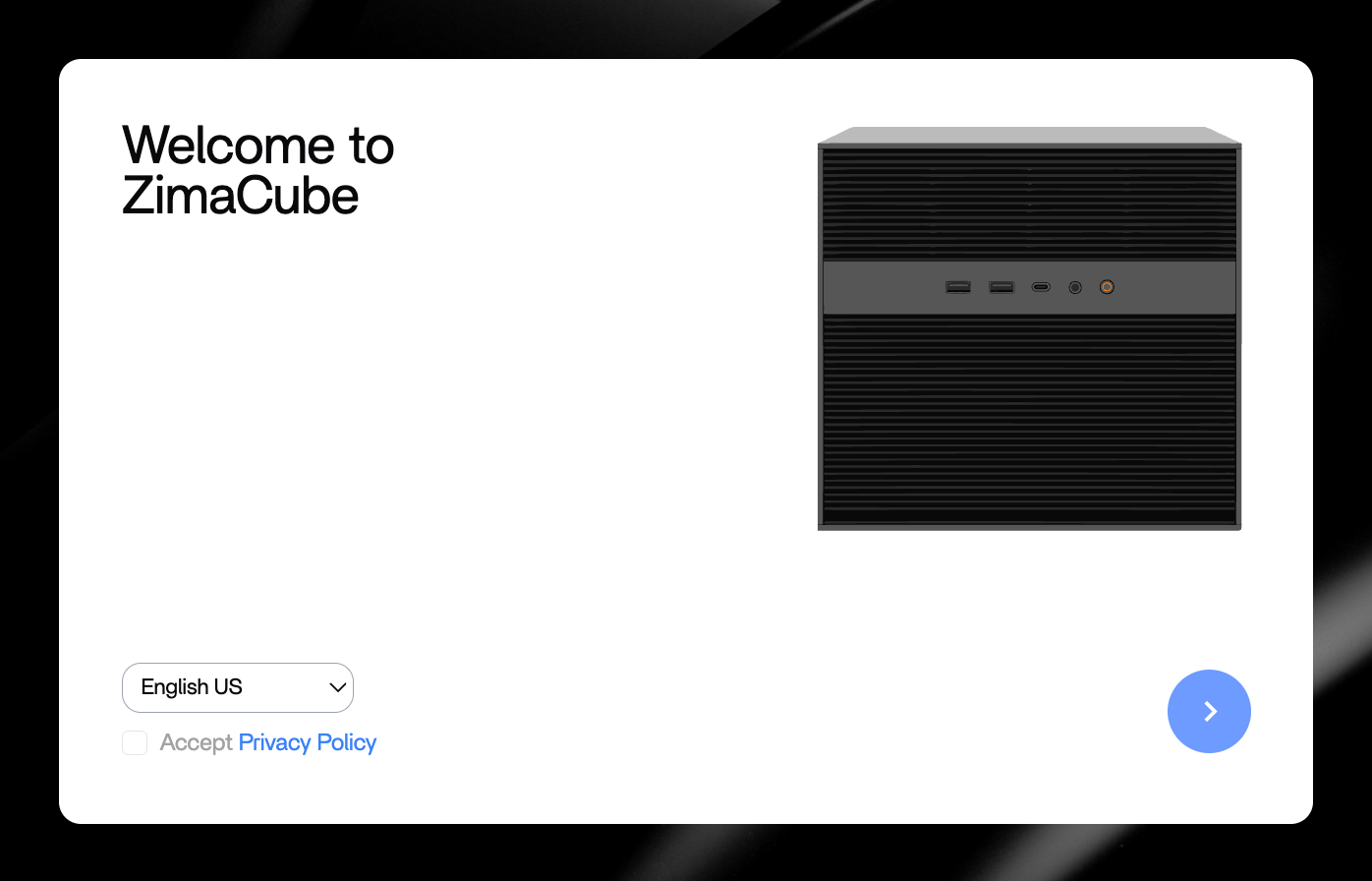
🎉 Congratulations! You have successfully installed ZimaOS on your device and can now start exploring all its NAS features.
Next Steps with ZimaOS
Now that ZimaOS is installed on your smart server, you can start building your personal cloud and home server.
Here are some ideas for what to do next:
- 🔧 Set up RAID or storage pools for data protection.
- 📂 Enable file sharing (SMB/FTP) across your devices.
- 🎞️ Run a media server (Plex, Jellyfin) to stream your movies and music.
- 🐳 Deploy Docker apps directly from the ZimaOS App Store.
- ☁️ Backup important data to external drives or the cloud.
👉 Ready to unlock more features?
- Continue with Get Started for first boot setup
- Set up Remote Access to connect from anywhere
- Join our Community Forum
💡 Bookmark this guide for future updates. New ZimaOS releases often include performance improvements and new apps.