Introduction
Starting from ZimaOS v1.5.3,ZimaOS officially supports UPS (Uninterruptible Power Supply), allowing your NAS to continue running during power outages and shut down safely when needed. After connecting a compatible USB UPS, ZimaOS can:
- Read UPS battery level, voltage, and estimated runtime
- Keep the NAS running for a period during a power outage
- Perform a controlled shutdown based on your settings
You can download the latest version of ZimaOS here. https://github.com/IceWhaleTech/ZimaOS/releases
This guide shows you how to connect, enable, and configure a UPS in ZimaOS.
Requirements
Before you start, prepare:
- A NAS or server running ZimaOS v1.5.3 or later
- A USB-capable UPS that can communicate over USB (For example, common consumer models such as APC or Santak that support USB)
Step 1 – Connect the UPS Hardware
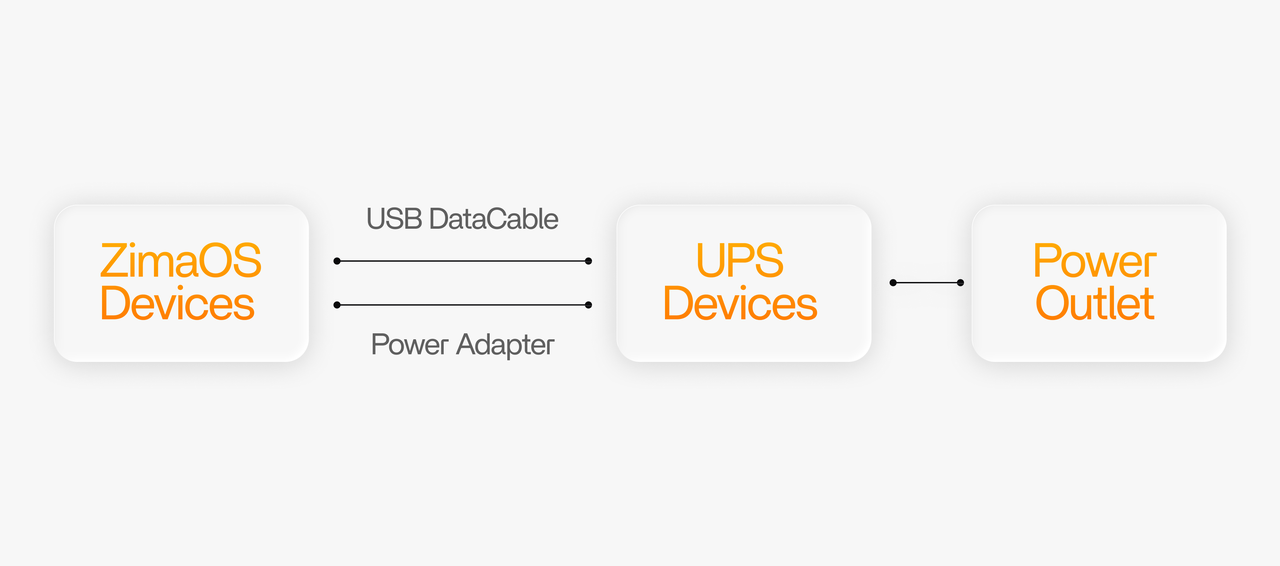
- Connect the ZimaOS device and its power adapter to the UPS output sockets.
- Connect the UPS to the ZimaOS device using a USB data cable.
Step 2 – Enable Power Loss Protection (UPS)
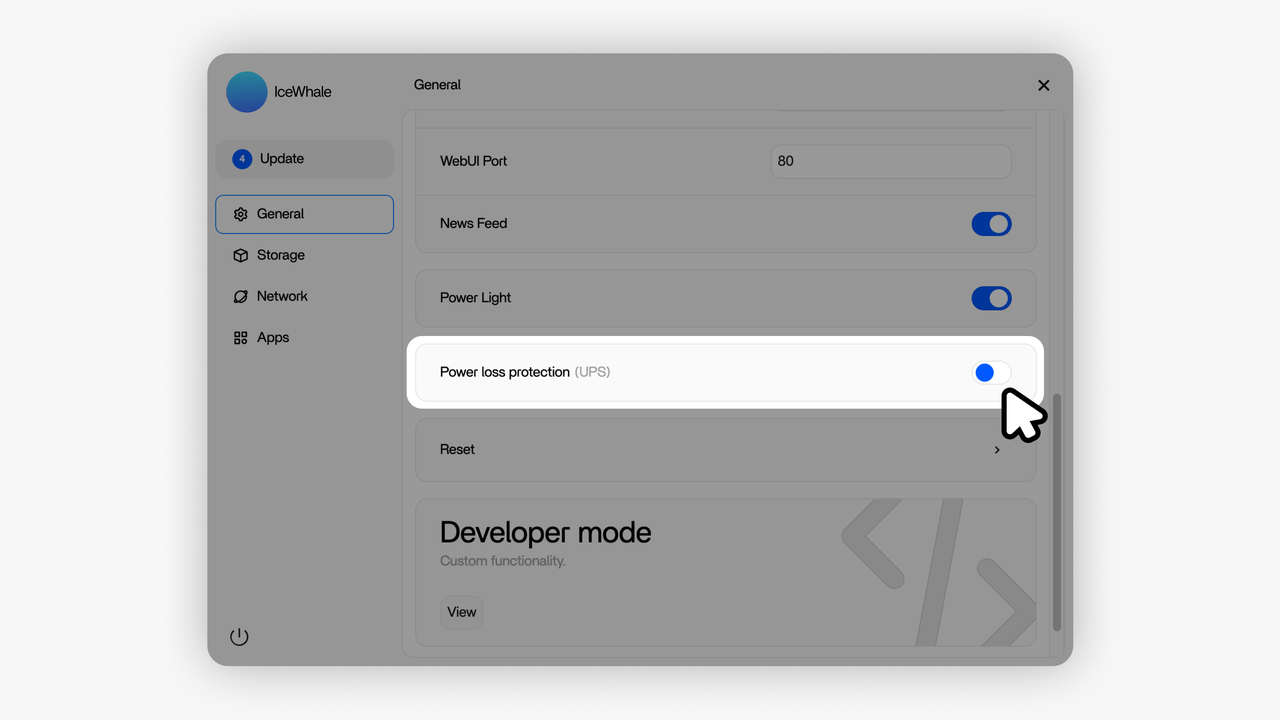
- Open the ZimaOS web interface in your browser.
- Go to Settings → General → Power loss protection (UPS)
- Switch it On.
Step 3 – Choose UPS Type and Device
In the UPS configuration window, you need to specify how ZimaOS talks to the UPS and which UPS to use.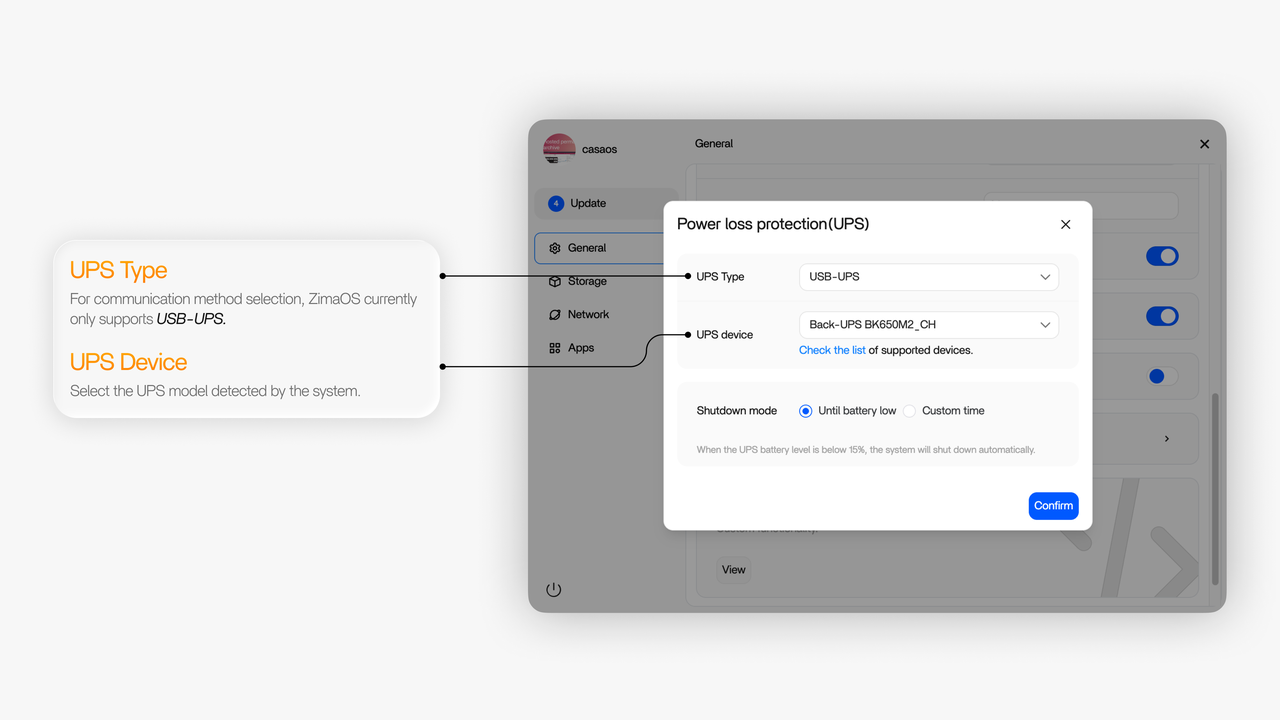
You will see fields such as:
| Setting | Description |
|---|---|
| UPS Type | Select the communication method. Currently, ZimaOS only supports USB-UPS. |
| UPS Device | Select the UPS model that ZimaOS has detected. |
Step 4 – Set Power-Outage Behavior
In the same UPS settings window, you can decide what ZimaOS should do when a power outage occurs.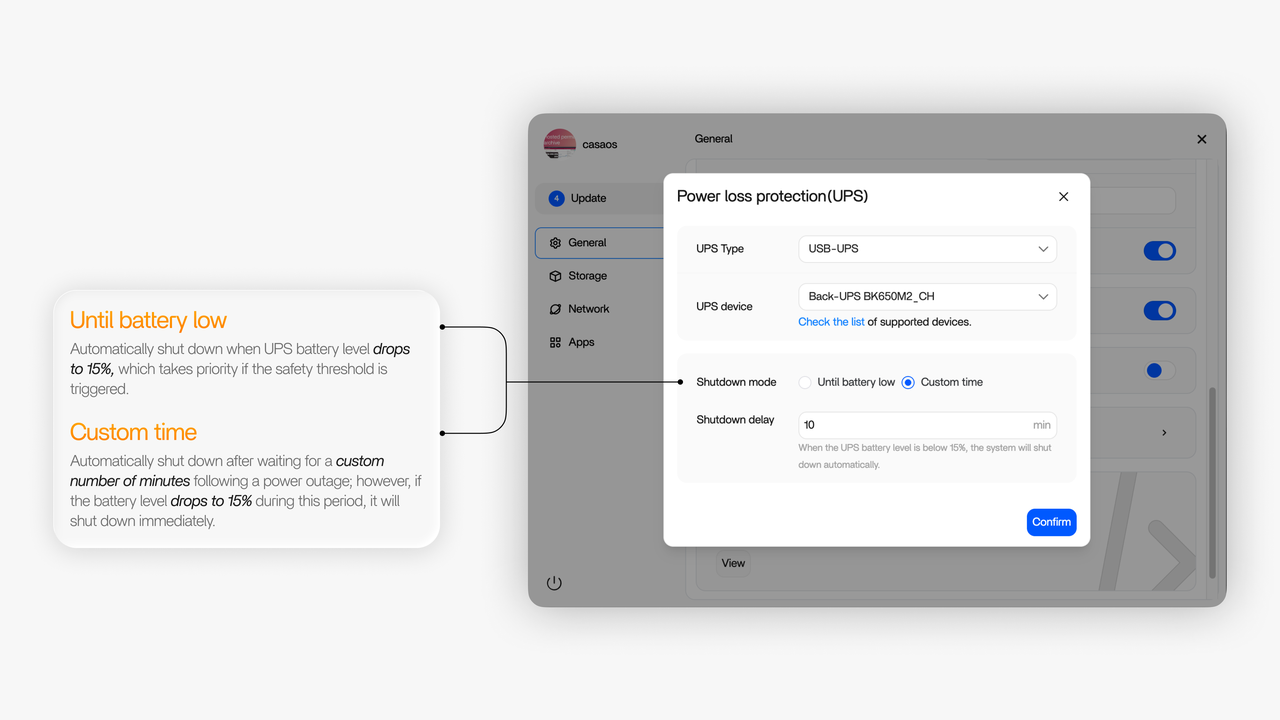
There are two shutdown mode:
Until battery low
In this mode, ZimaOS shuts down the system When UPS battery level is lower than 15%
This option is simple to use and focuses on protecting your data and hardware when the battery is almost empty.
Custom time
In this mode, ZimaOS starts a timer when the UPS switches to battery and initiates a safe shutdown once the set time elapses.
However, the 15% safety threshold still applies:
- If the UPS battery level drops to 15% before the custom time is reached,
ZimaOS will shut down immediately at 15%, without waiting any longer.
This option is useful when:
- You want to avoid shutting down for very short power glitches.
- You still want the system to shut down safely if the outage becomes long and the battery drops to 15%.
Click Confirm to apply the configuration.
From now on, ZimaOS will follow the selected shutdown strategy whenever the UPS is on battery power.
Step 5 – Verify UPS Status in ZimaOS
After configuration, you can check whether ZimaOS is correctly reading data from the UPS.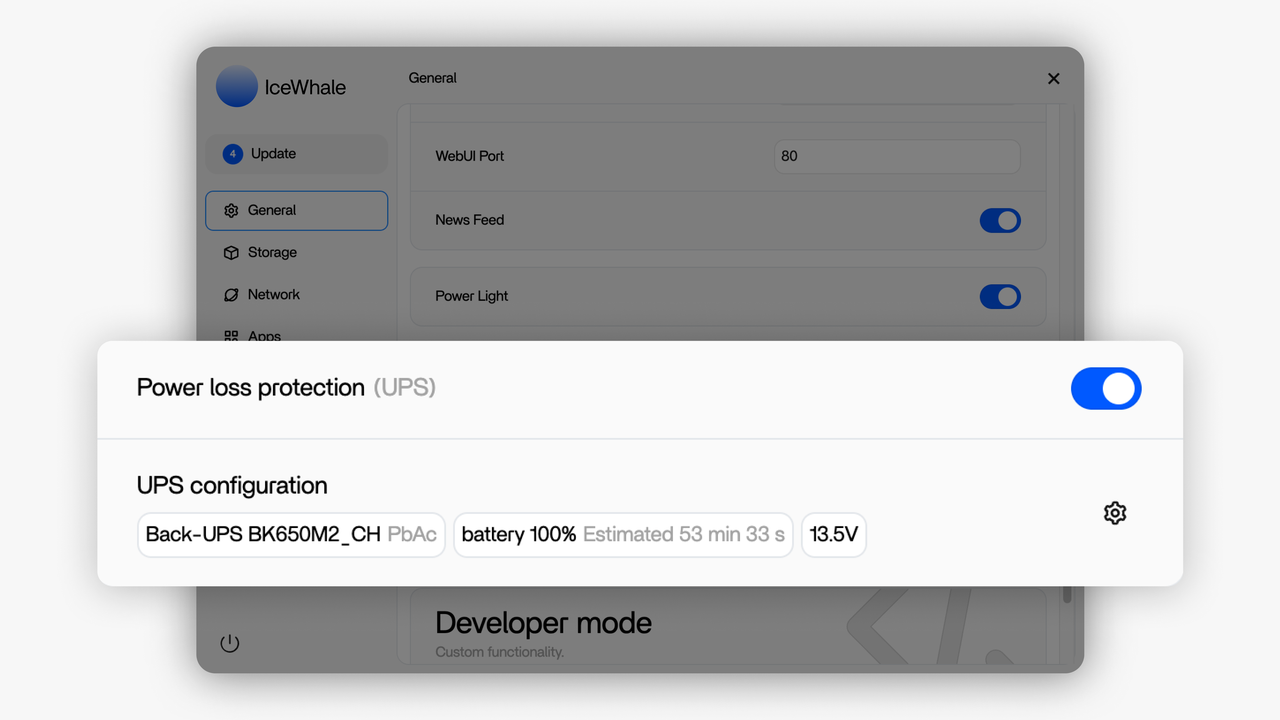
On the UPS status or configuration page, you should see information such as:
- Battery percentage, for example: Battery 98%
- Estimated remaining runtime, for example: Estimated 59 min
- Power Voltage, for example: 13.5 V
If these values are visible and updated over time, it means Power loss protection is active.
When the power goes out:
- The UPS continues to power your ZimaOS device.
- ZimaOS follows the shutdown rule you selected
- This helps reduce the risk of disk damage, file system errors, data loss, and service crashes caused by sudden power loss.
Your NAS now has real protection against power outages and can run more safely and reliably.
Usage Recommendations
| Recommendation | Reason |
|---|---|
| Use Custom time to configure a delayed shutdown | Helps prevent frequent shutdowns caused by short or temporary power outages |
| Connect the UPS together with a network switch or router | Prevents the NAS from becoming unreachable due to network outage after startup |
| Regularly check the UPS battery health | Battery capacity may degrade over long-term use and affect backup runtime |
Supported Devices List
ZimaOS Supported UPS Devices Compatibility List
This list is non-exhaustive and may be updated over time.
If your UPS is not listed, it does not automatically mean it is unsupported.
Getting Help
If you have any problems while using a UPS with ZimaOS, please contact the ZimaOS development team [email protected]