
Overview
Hermes Agent is a self-hosted AI agent for ZimaOS that learns and remembers from your conversations. It runs around the clock on your own hardware, and you talk to it through its Web UI or a Telegram bot — your data stays at home.
This tutorial guides you through configuring model services and messaging platforms on a device with Hermes Agent deployed, enabling AI model interaction via Telegram. Using Telegram as an example, it covers the complete workflow from model provider configuration to bot verification.
Note: In most cases, you can configure models and messaging directly through the Hermes WebUI. If the corresponding options are not found, refer to this tutorial to complete the configuration in the container terminal.
Environment
- Hardware: ZimaBlade / ZimaBoard / ZimaCube
- Software: ZimaOS
- Network: The device must have internet access and be able to reach the Telegram API. A wired connection is recommended for stability.
Objectives
Complete the initial setup of Hermes Agent, including:
- Connecting a custom model provider
- Creating and binding a Telegram bot for private chat with AI
- Viewing and managing Hermes status via the Web Dashboard
Prerequisites
- The host device’s IP address, used to replace
<ip>in subsequent commands - An AI model API Key with basic familiarity in using it
- A Telegram account
Key Steps
- Install Hermes: Search and install from the ZimaOS App Store
- SSH into the ZimaOS host and obtain root privileges
- Enter the Hermes container as the
hermesuser and activate the virtual environment - Launch the configuration wizard, select a model provider, and fill in the parameters
- Configure the Telegram channel: create a bot to obtain a Token, enter it in Hermes, and set user access permissions
- Send
/startin Telegram to verify the configuration and confirm the bot responds correctly - Access the Web Dashboard to view the running status
Detailed Steps
SSH into the ZimaOS Host
SSH login to the ZimaOS host is recommended for easy copy and paste of commands.
ssh <username>@<ip> |
Example:
If this is your first connection, type yes at the confirmation prompt and press Enter.
Obtain Container Execution Privileges
If the current user cannot directly execute Docker commands to enter the container, switch to root first:
sudo -i |
After switching, the terminal prompt should indicate that you have root privileges. These root privileges are only used for entering containers on the ZimaOS host.
Enter the Hermes Container
Enter the container as the hermes user:
docker exec -it -u hermes hermes bash |

Once the terminal prompt changes, you have entered the Hermes container. All subsequent configuration operations must be performed inside the container. If you accidentally exit the container midway, simply re-run this command.
Activate the Hermes virtual environment:
source /opt/hermes/.venv/bin/activate |

After activation, the hermes command can be used directly in the current shell.
Launch the Configuration Wizard
Run inside the container:
hermes setup |
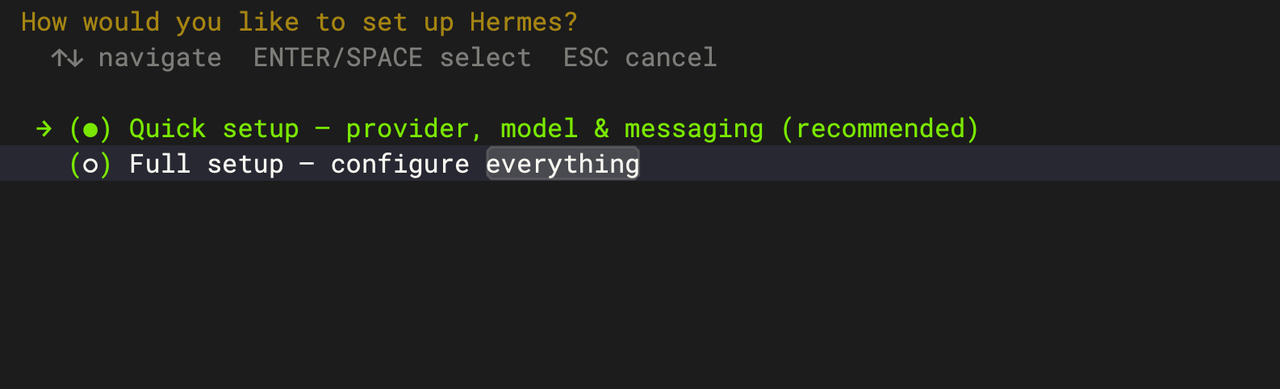
Select Quick setup to begin configuration. The highlighted item is the currently selected option; press Enter to confirm.
Configure the Model Service
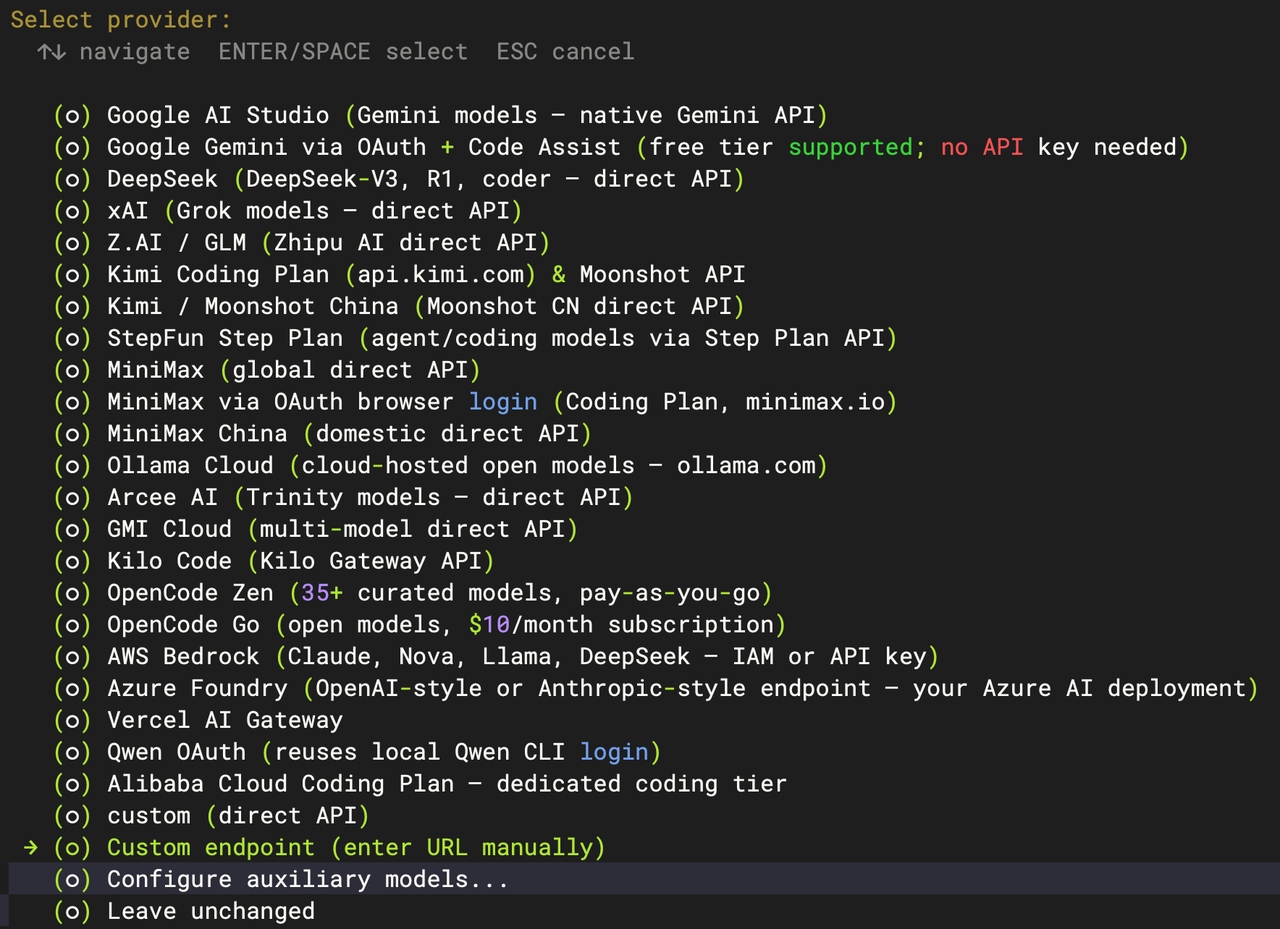
Select the corresponding model provider. A custom provider is used here as an example:
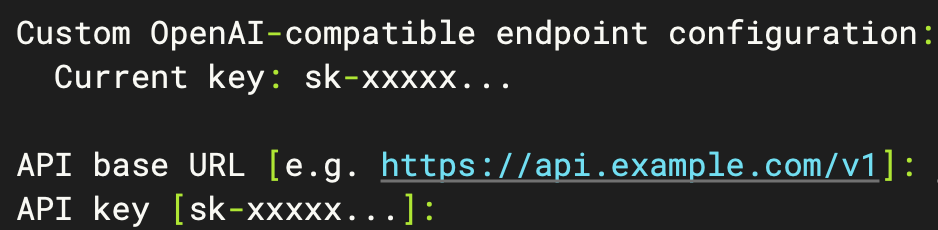
Enter the Base URL and API Key:
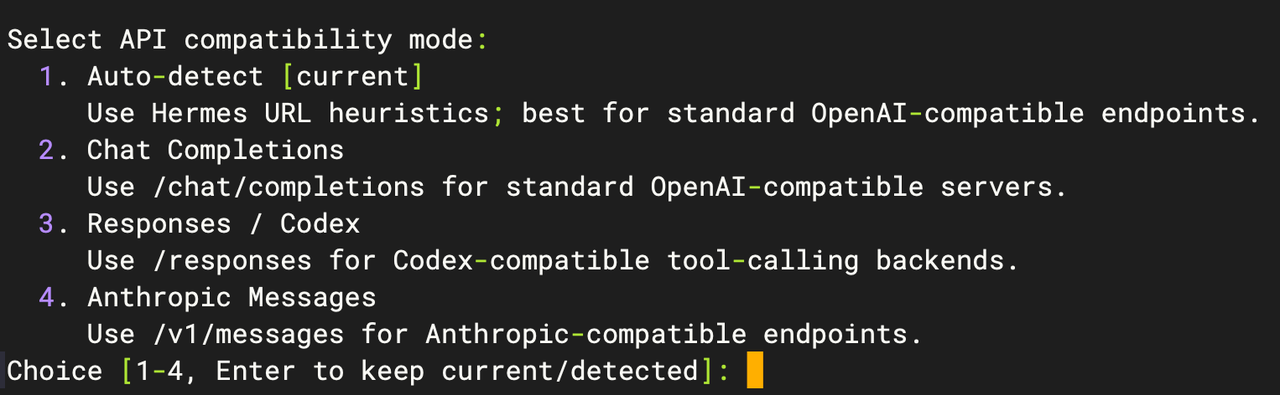
Choose the API compatibility mode:
Select the model you want to use:
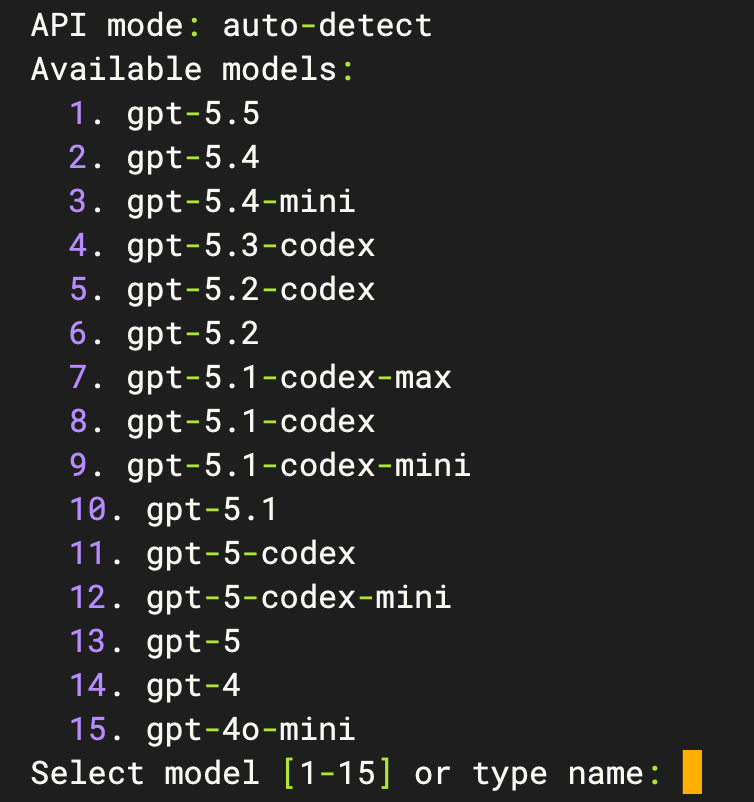
Enter the context length. You can press Enter directly for auto-detection:

Set the display name:

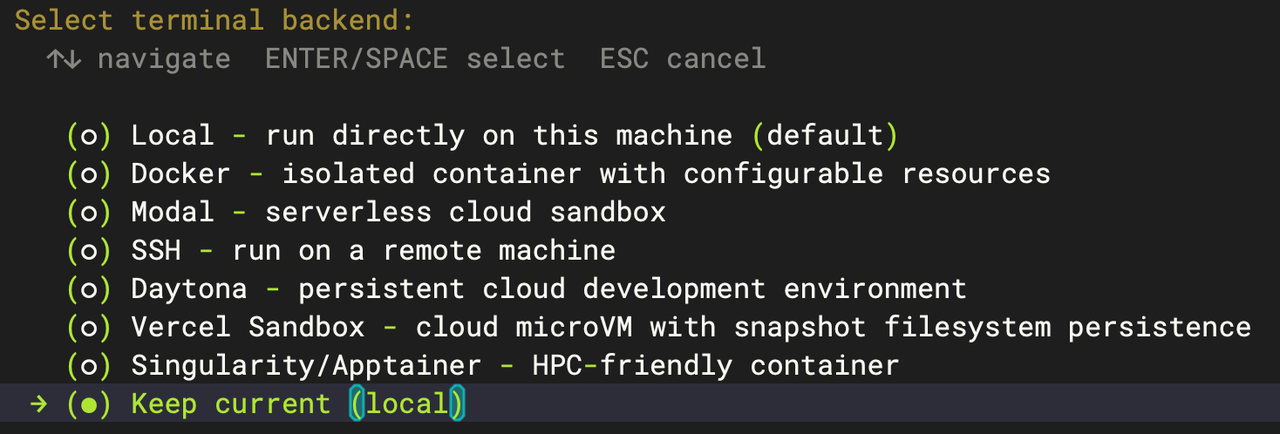
Choose the terminal backend. The default setting is fine:
Configure Messaging Platform (Telegram Example)
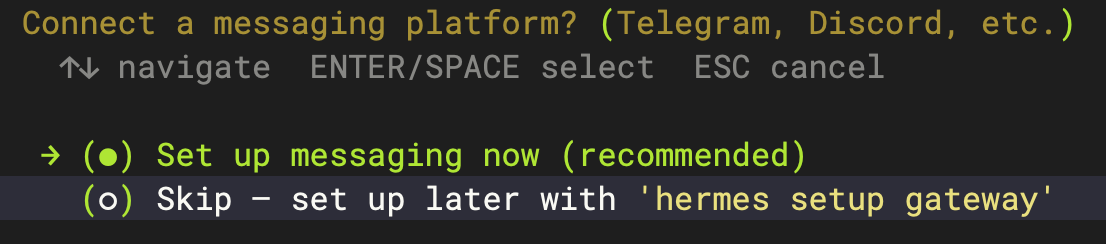
- Choose to configure messaging in the Hermes container terminal, or enter the following command:
hermes gateway setup |
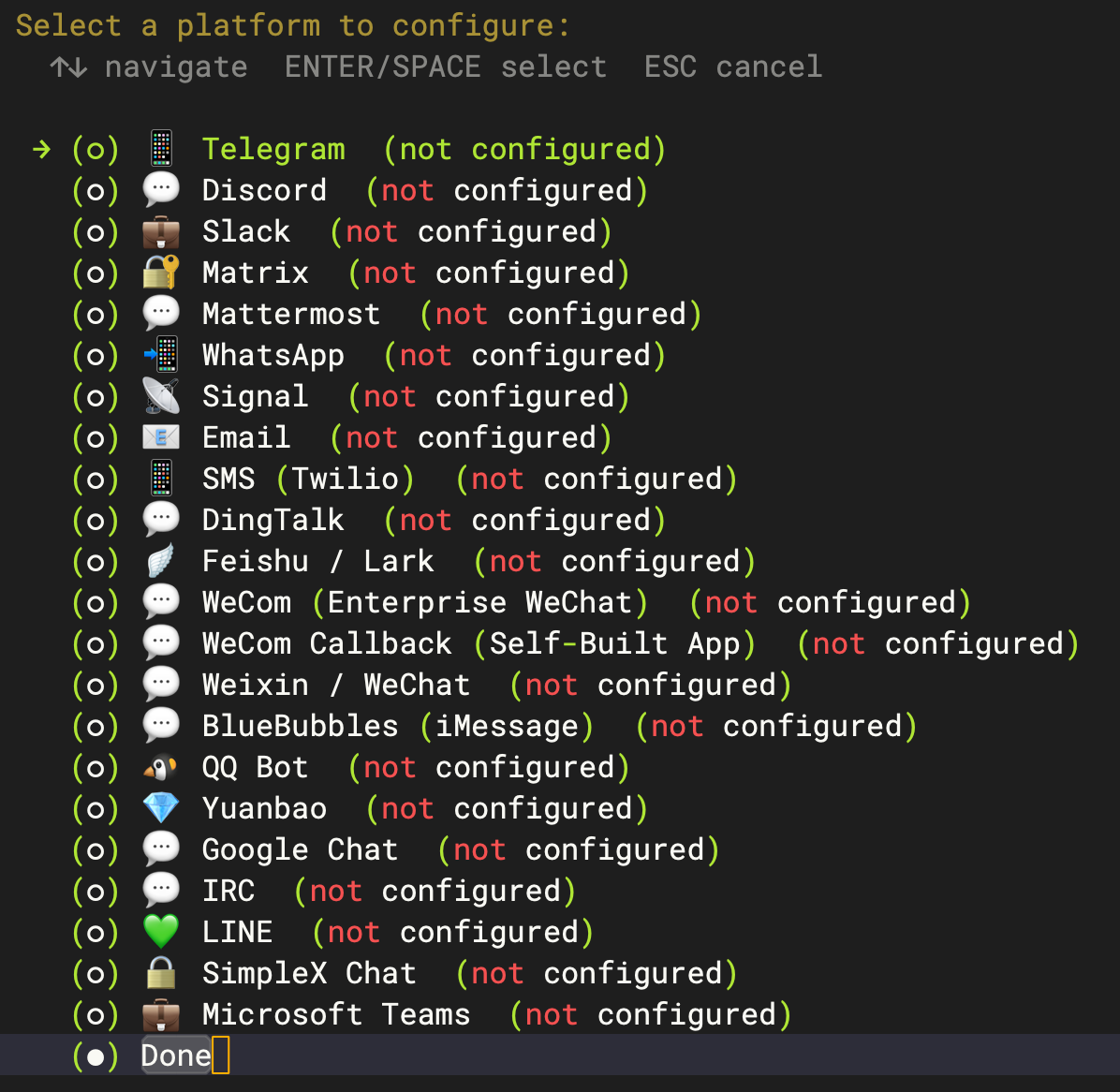
- Select the corresponding Platform:
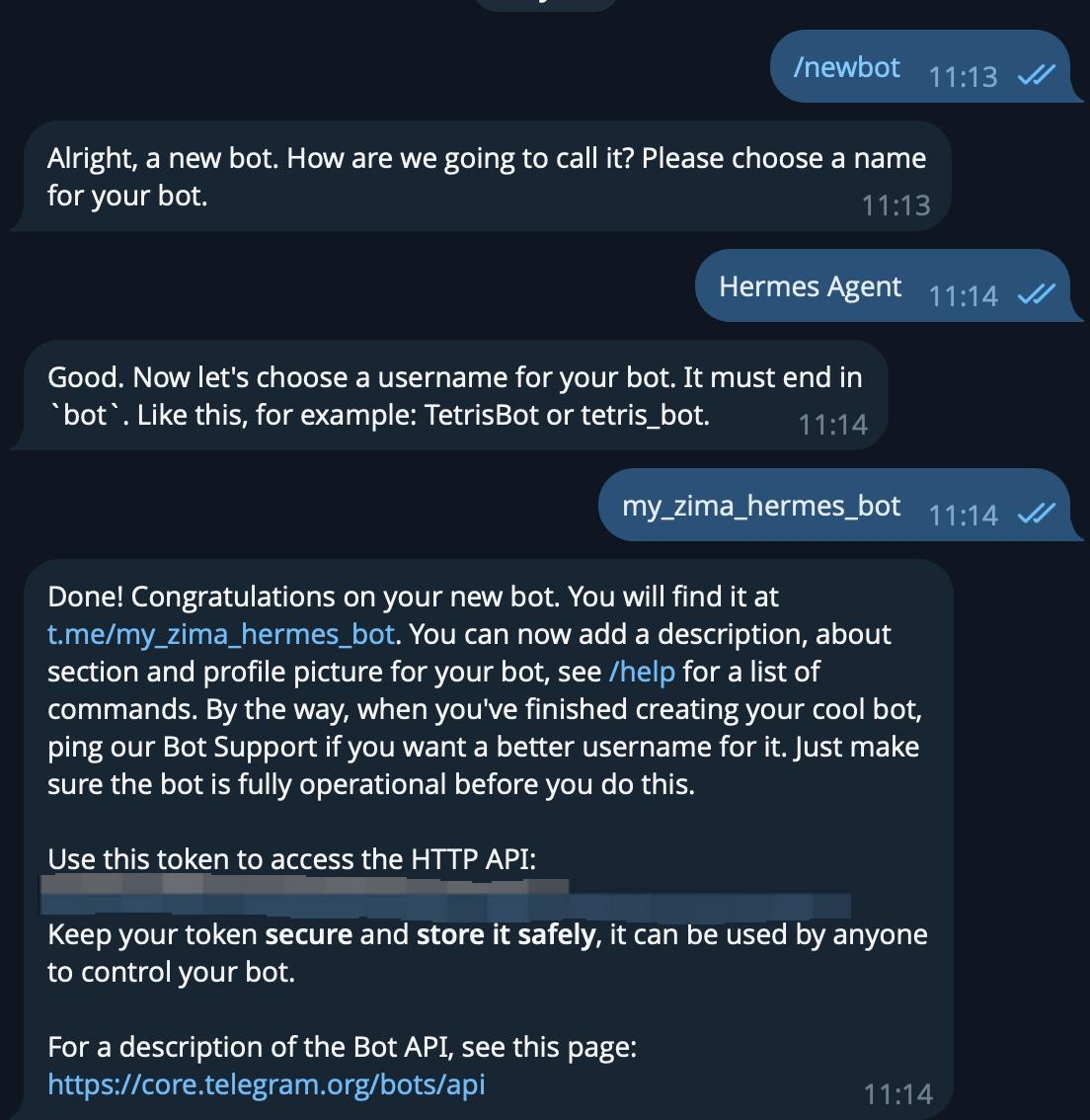
Create a Telegram Bot
- Open Telegram, search for and start a chat with @BotFather
- Send
/newbot - Set a display name, e.g.
Hermes Agent - Set a unique username ending with
bot, e.g.my_zima_hermes_bot - Save the API Token returned by BotFather
Keep your Bot Token safe. Anyone with this token can control your bot.
Get Your Telegram User ID
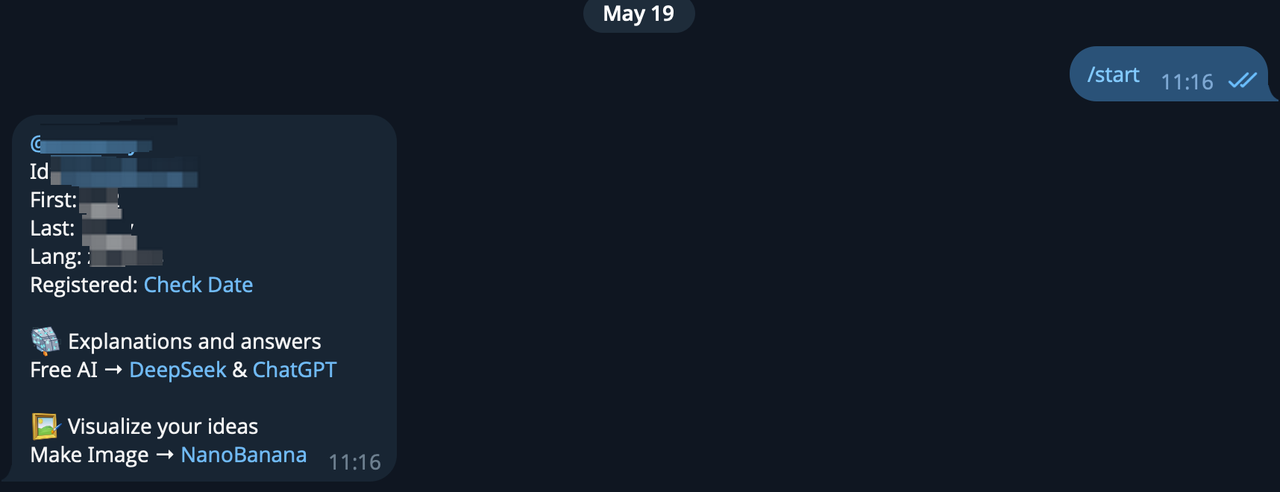
Hermes uses a numeric Telegram User ID for access control. Send any message to @userinfobot or @get_id_bot and save the numeric User ID returned.
Enter Configuration Details
Enter the Telegram Bot Token in the Hermes container:

Enter the Telegram User IDs allowed to access:

Choose to allow this Telegram User ID to access the home channel:

Complete the Messaging Platform configuration:
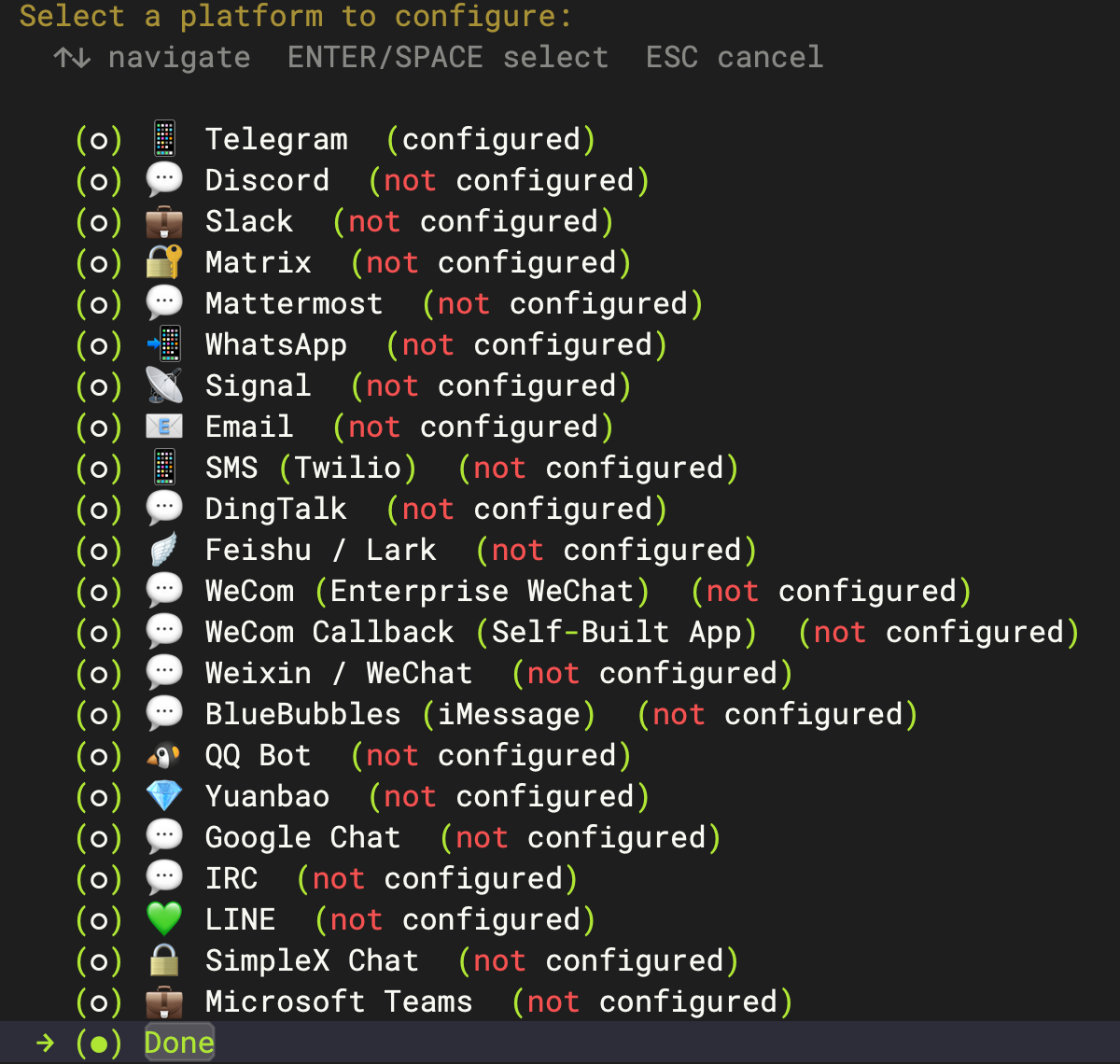
After Telegram setup is complete, Hermes will prompt you to restart the Gateway. Confirm the prompt to let the Gateway apply the latest configuration:

Group Chat Notes (Optional)
Telegram Privacy Mode is enabled by default. In groups, the bot can only see commands, replies to its messages, and certain system messages by default.
If Hermes works in private chat but does not respond in groups:
- Directly @ the bot
- Promote the bot to group admin
- Or disable group privacy mode in BotFather, then remove and re-add the bot to the group
Usage
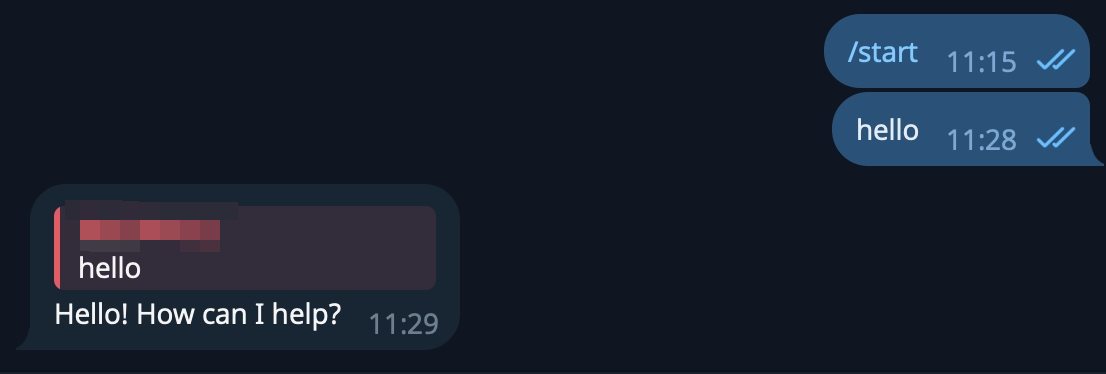
Open Telegram and send /start to your bot. Then send a regular message to confirm Hermes replies correctly.
Open the Web Dashboard
Access the following URL in your browser:
http://<ip>:9119 |
Example:
http://192.168.50.20:9119 |
From the Dashboard you can view the running status, inspect sessions, and modify model settings.
Reconfiguring Later
To modify the configuration again, follow the steps below.
Enter the container again:
docker exec -it -u hermes hermes bash |
Activate the virtual environment inside the container:
source /opt/hermes/.venv/bin/activate |
Modify the model:
hermes model |
Modify Telegram or other messaging gateways:
hermes gateway setup |
When Hermes prompts you to restart the Gateway, confirm the prompt. Exit the container when done:
exit |
Troubleshooting
/opt/data Permission Error
This is usually caused by running Hermes Gateway as root previously, which left root-owned files in $HERMES_HOME.
First, re-enter the container as the hermes user:
docker exec -it -u hermes hermes bash |
If the permission error persists, check the Hermes logs in the ZimaOS Dashboard. Only temporarily enter a root shell when you need to fix file ownership.
Telegram Bot Not Responding
Check the Hermes logs in the ZimaOS Dashboard, then verify the following in order:
- The Bot Token is correct
- Your numeric Telegram User ID is in the allowlist
- The container can reach
api.telegram.org - If using in a group, Privacy Mode and group permissions are configured correctly