
Overview
Blinko is natively supported in the ZimaOS App Catalog and can be installed in just 3 mins — ZimaOS is an official sponsor of the Blinko project, and its README ships with a “Run on ZimaOS” button. See the Blinko App Store page for the latest app details.
Blinko is an open-source, self-hosted card note-taking app. You know the problem it solves: ideas arrive at random moments — a meeting, a commute, a shower — and by the time you open a heavyweight note app, the thought is gone. Blinko captures those fleeting thoughts the moment they strike, as small cards. And because it lives on your home server, an AI assistant can search your notes by meaning: ask “what did I note about the project last week?” and it finds the answer across everything you have ever written.
The community describes it as “10x better than a phone memo” — a lighter Obsidian with AI retrieval and a self-hosted Notion inbox. All your notes stay on your drives, not in someone else’s cloud.
Prerequisites
- A running ZimaOS home server.
App Catalog
- Find Blinko in the ZimaOS App Catalog. Open App Store → search for “Blinko”.
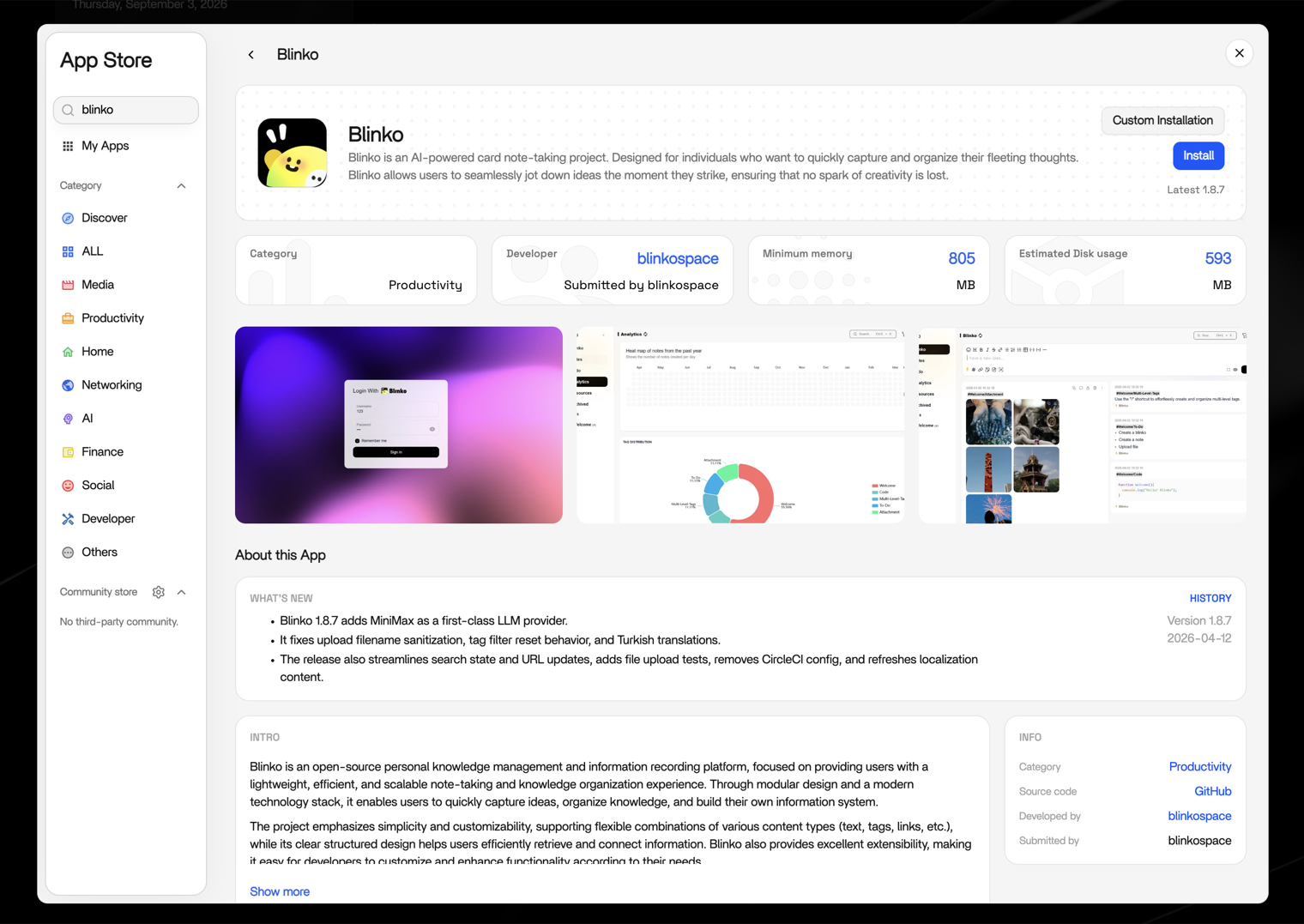
- Click Install and wait a moment.
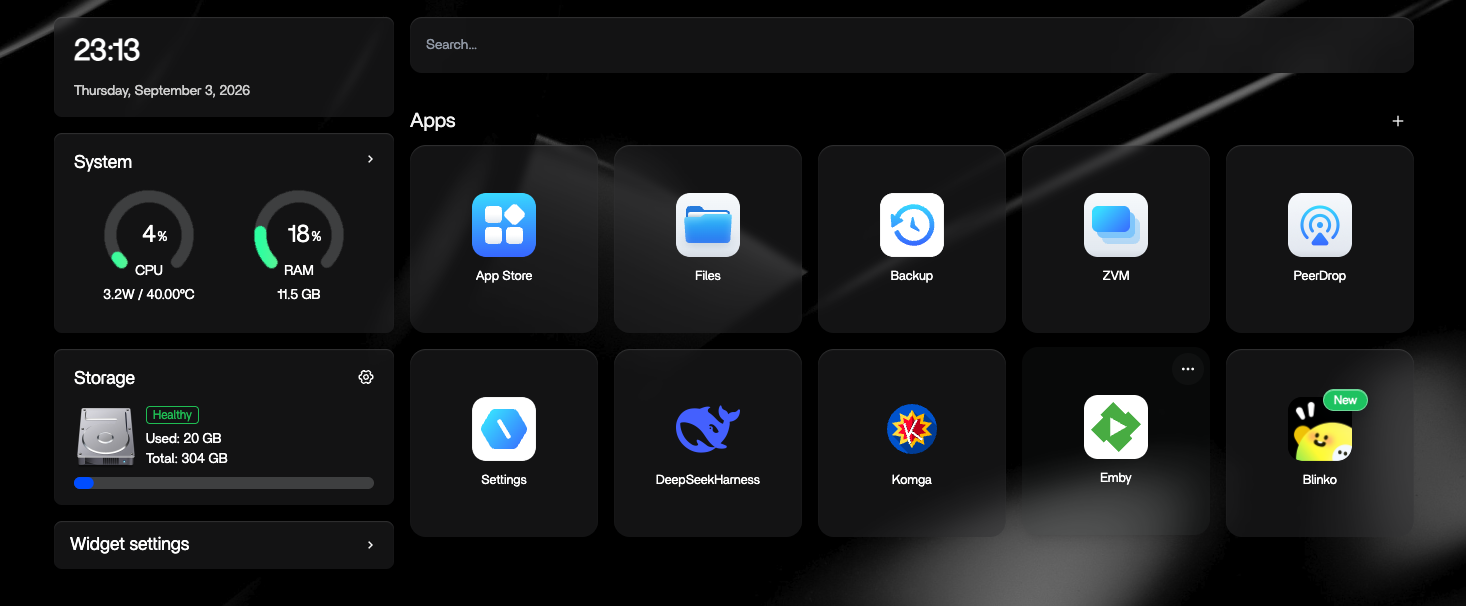
- It’s ready to use!
The app runs on port 1111 with its own database, and ZimaOS stores all your notes under the App data location on your drives — they survive app updates and reinstallations.
First Launch
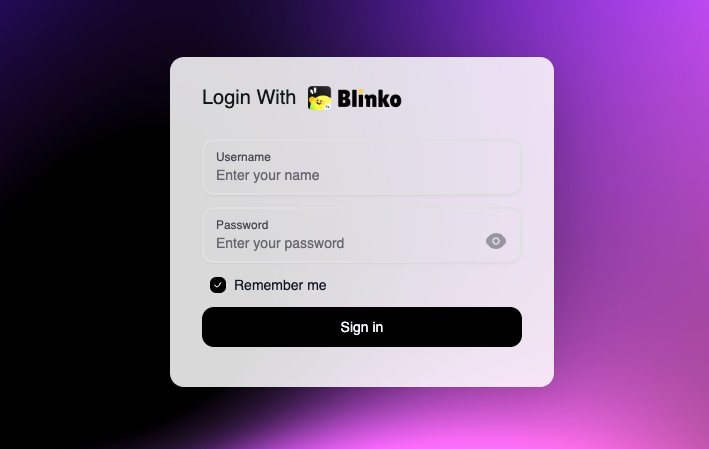
Open Blinko from the app card. On the first visit, register your account — this first account becomes the administrator.
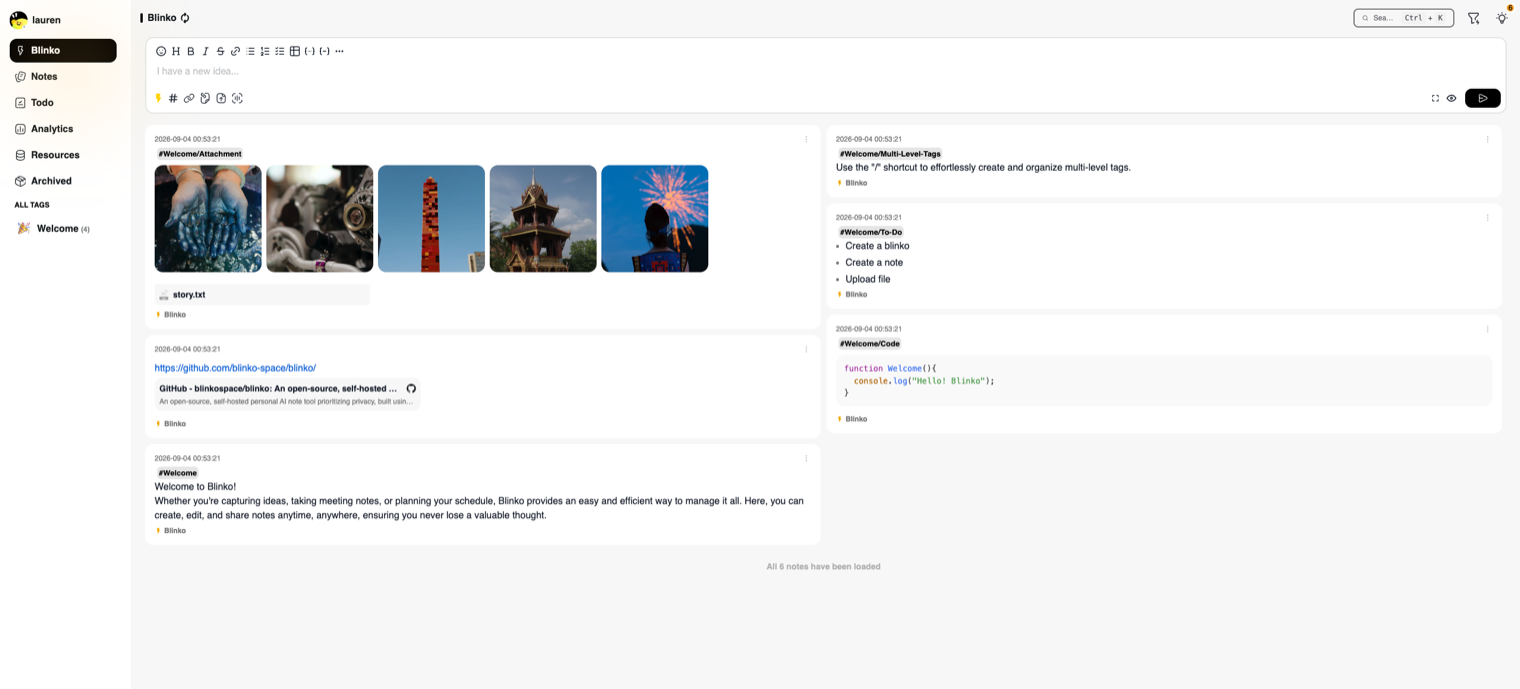
Once inside, open the settings and set the interface language if you want (Simplified Chinese and English are both available), then start writing. Create a card, give it a tag, and save — that’s the whole loop.
Enable AI Features (Optional)
The following step is NOT required — Blinko is a complete note app without AI. But quick-capture notes have a known fate: you write things down and later cannot find them. The AI fixes exactly that — semantic search finds any card by meaning months later, automatic tagging keeps everything organized without effort, and post-capture expansion turns five jotted words into a full note kept as a comment. That turns a pile of cards into a searchable second brain. To enable it:
Open Settings and find the AI provider section.
Pick a provider: OpenAI, Anthropic, Google AI, Grok, or a local Ollama server on your hardware — whichever you already use.
Fill in the four model capabilities: chat, embedding, image, and voice. Some providers cover all four with one key; with others, leave a capability empty if you do not need it.
Click Test connection. When it passes, an AI dialog appears in the corner of the interface and natural-language search starts working.
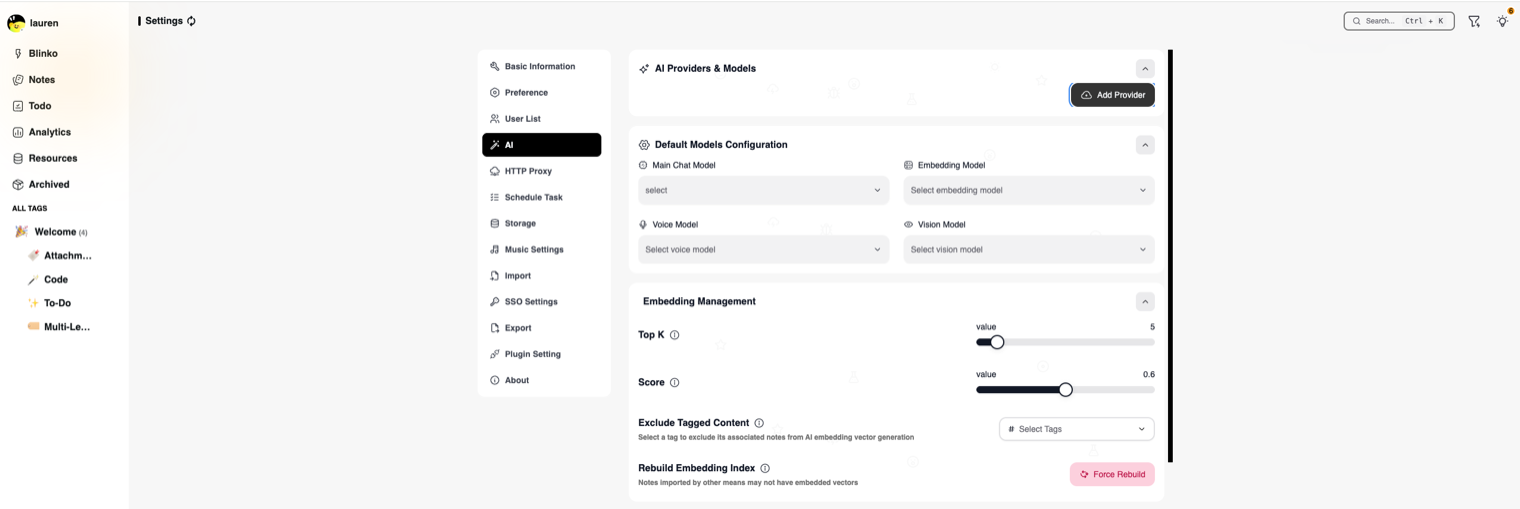
Privacy tip: if you want AI help without sending your notes anywhere, point Blinko at a local Ollama server — everything stays on your home server.
Community Tips
Ways the Blinko community actually uses the app, collected from user stories:
- Three card types, freely convertible. Write a fleeting thought as a quick card, a longer piece as a note, and tasks as a to-do list. Any card can be converted into another type later — much easier than moving files between folders.
- Let AI comment, not rewrite. When AI expands or polishes a card, the generated text is saved as a comment, not mixed into your original words. Your voice stays yours, and you can review the suggestion later.
- Daily review. Use the daily review to revisit the cards you captured today — the community treats it as the bridge from “quick capture” to “real notes”.
- Your data stays yours. Every card lives as plain text in the app data folder on your drives. Back up that folder and your whole note library is safe.
Reference Links
For further details, consult the official Blinko documentation:
- Introduction and features – https://docs.blinko.space/en/introduction
- Installation and updates – https://docs.blinko.space/en/install
- How to use AI – https://docs.blinko.space/en/how-to-use/ai/ai-setting
- Source code – GitHub repository