
Overview
Emby is natively supported in the ZimaOS App Catalog. See the Emby App Store page for the latest app details.
Emby turns a folder of video files into something that behaves like a streaming service. It reads your movies and shows, pulls in posters and summaries, and plays to a phone, a browser, or a TV app.
The install itself takes a few minutes from the ZimaOS App Store. Most of the real work is deciding where your files live and telling Emby how to read them.
Before You Install
Emby needs two places on your drives. One holds its own configuration and artwork. The other holds your video files.
Set up your storage first. If your drives are still unconfigured, Choose Your Storage Setup covers RAID and single disk options and which one suits a growing media library.
Then check where app data goes. Apps write to the system drive by default, and a media server fills that drive quickly once artwork and metadata pile up. Where Apps Store Their Data shows how to point app data at your storage array before you install anything.
Install Emby
Open the App Store from your ZimaOS dashboard and search for Emby. One result comes back, filed under Media in the Zima App Store.
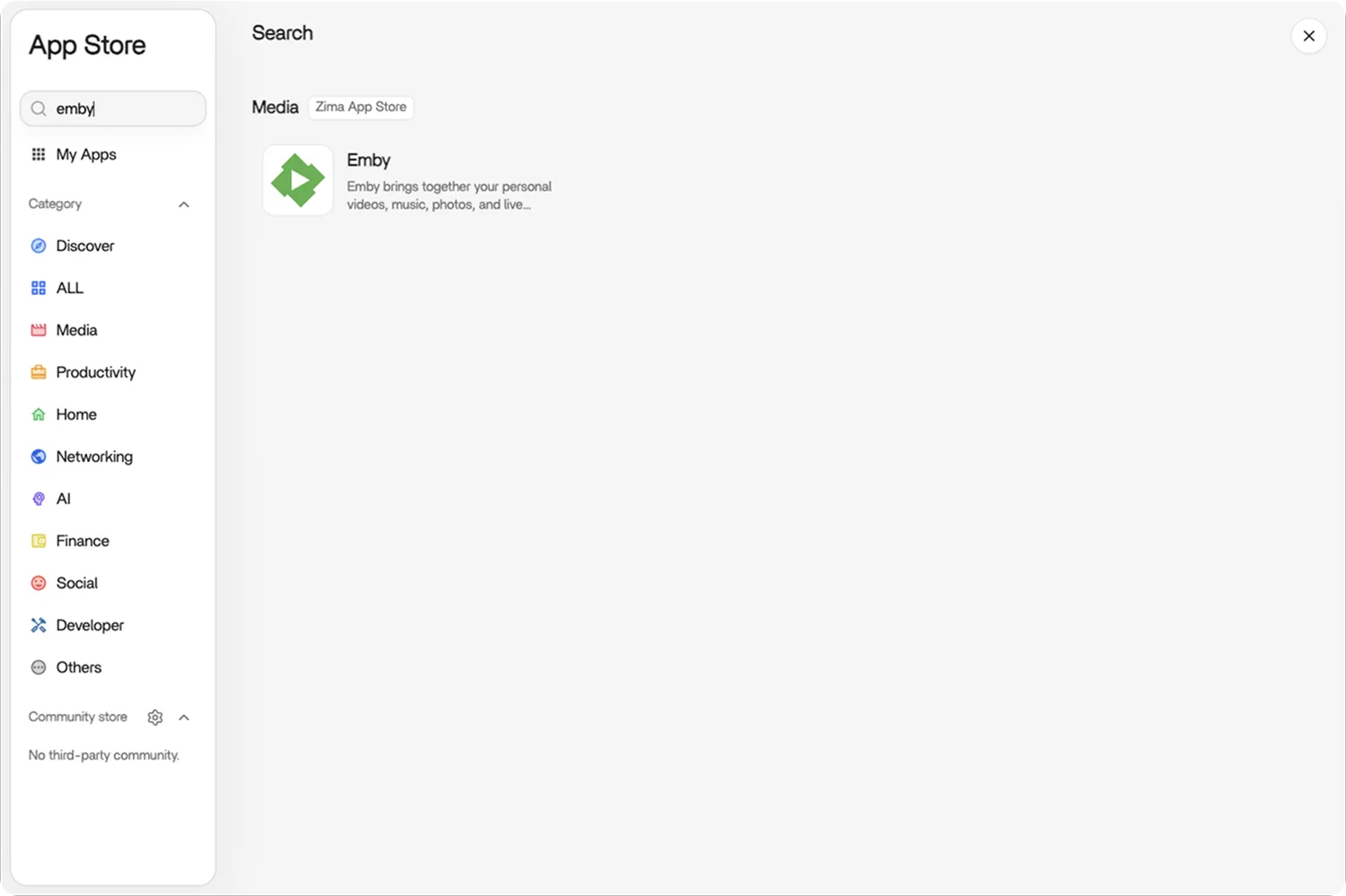
The ZimaOS package arrives with its storage already mapped. Movies live in /DATA/Media/Movies and shows in /DATA/Media/TV Shows, both reachable from the Files app, and Emby reads them as /data/movies and /data/tvshows from inside the container.
Click Install and wait for the container to pull. Emby appears on your dashboard when it is ready, and clicking the icon opens the web interface.
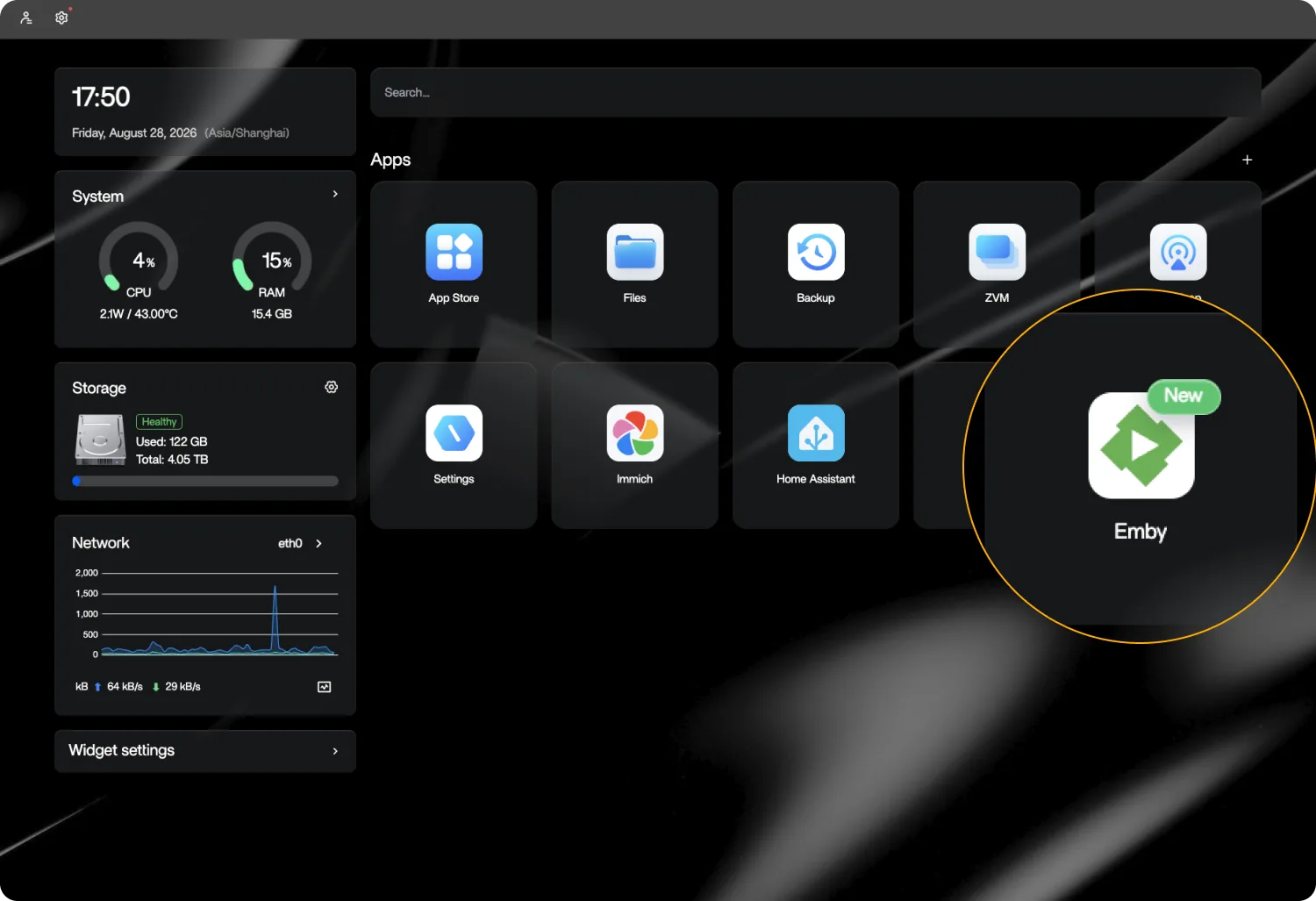
Run Through the Setup Wizard
The first launch walks you through a short wizard. None of the choices are hard to change later, so there is no need to overthink them.
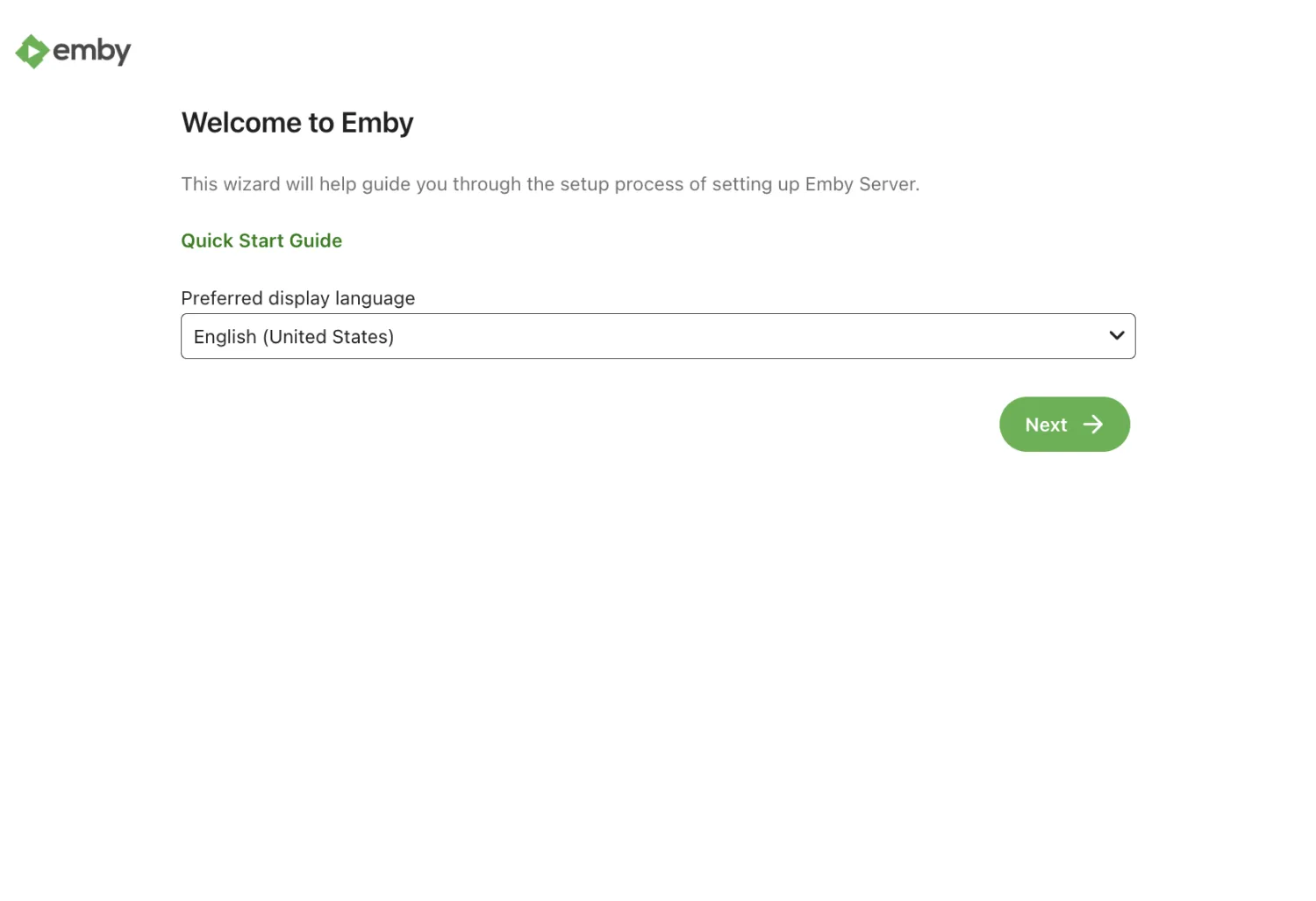
Language. Pick your display language. This controls the Emby interface, not the metadata language for your library, which you set per library later.
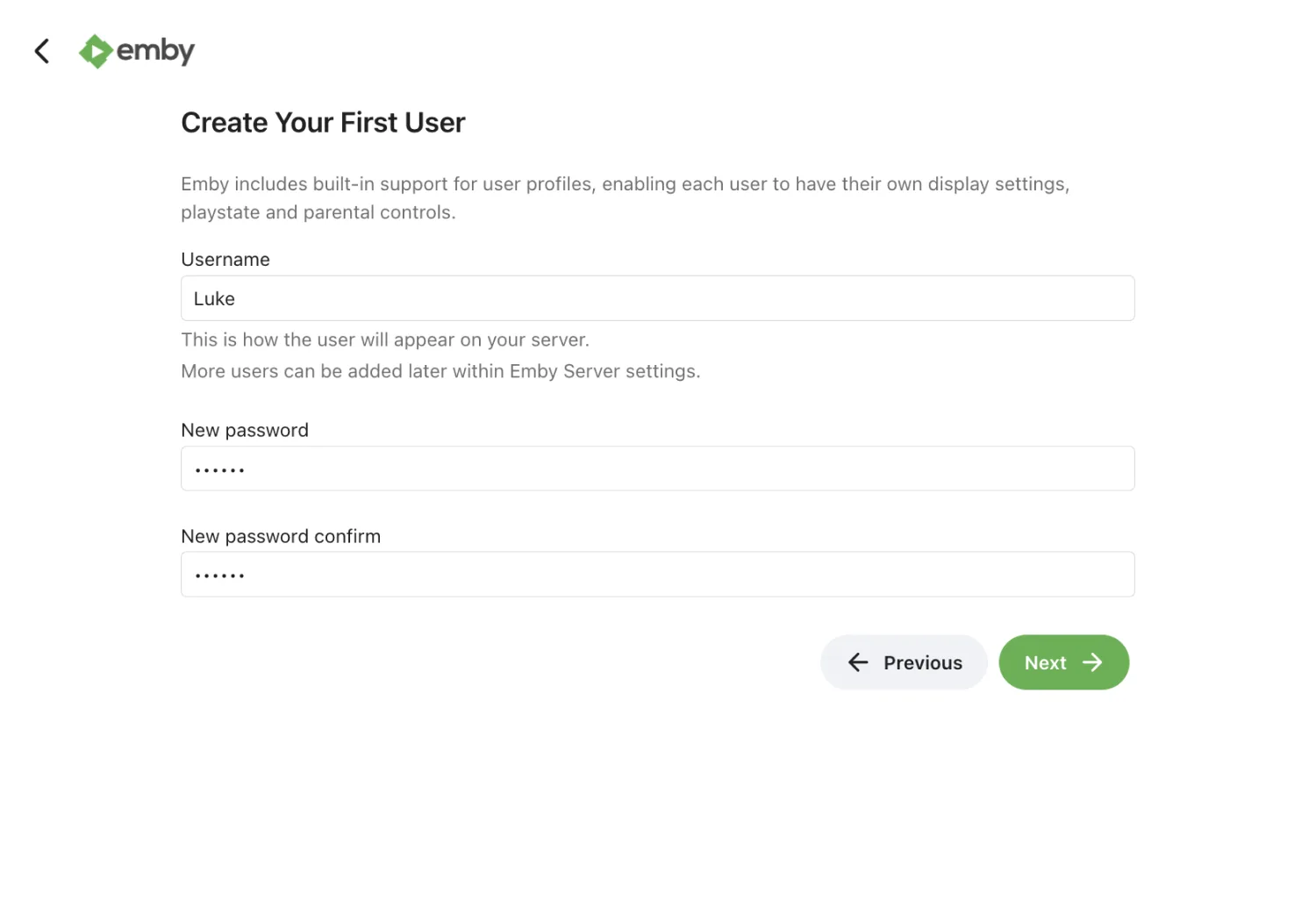
User and password. Create your first account. This is an Emby account stored on your server, separate from your ZimaOS login. Everyone in the house can get their own account later, each with its own watch history.
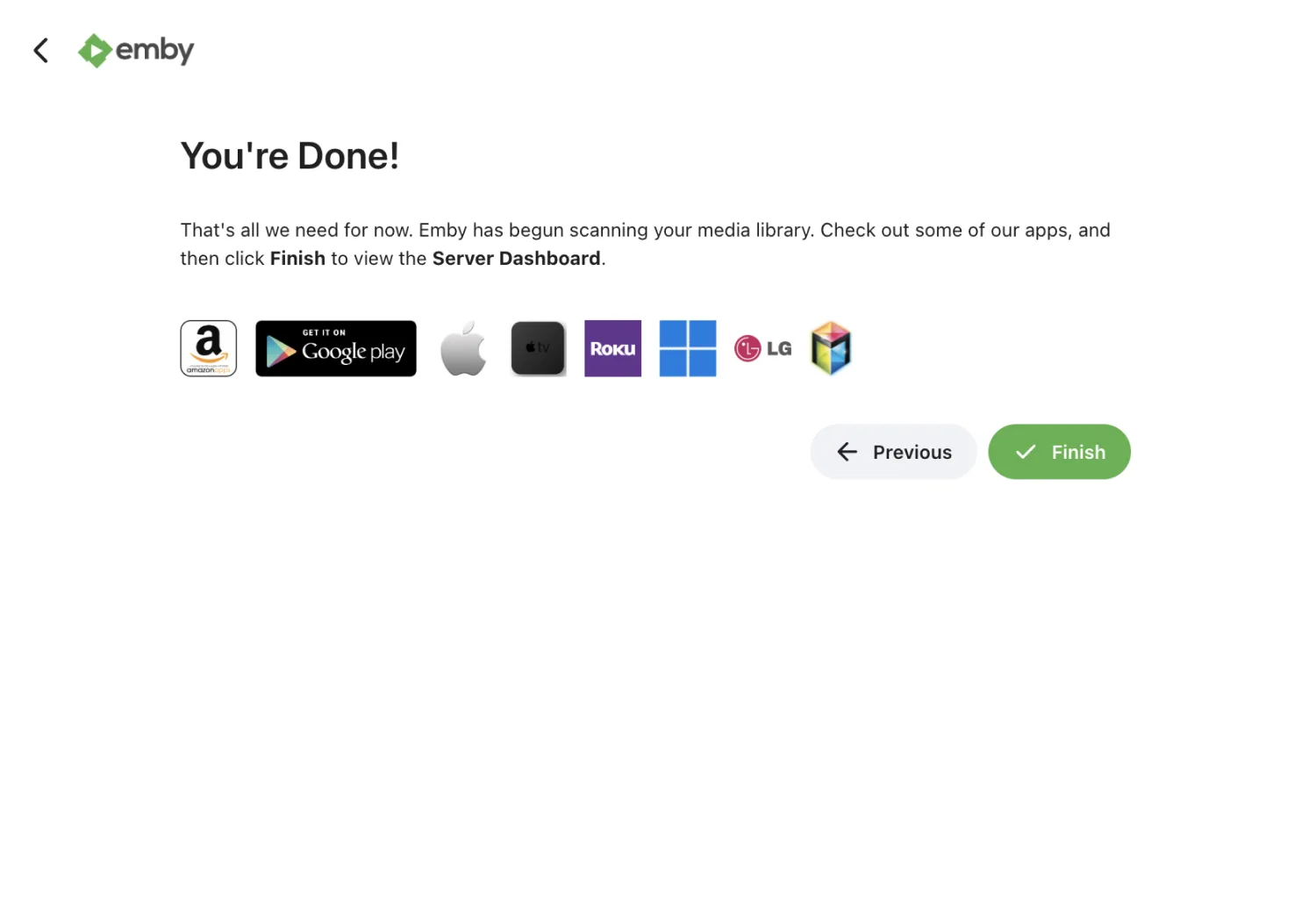
Finish. Between the user screen and this one, the wizard asks you to set up a library, which the next two sections cover in detail. Once that is done, Emby confirms the setup, starts its first scan, and the Finish button drops you on the dashboard.
Name Your Files Before You Add Them
Emby identifies your media by reading the file and folder names, then matching them against online databases. Good names give you correct posters and descriptions on the first scan. Loose names give you a library full of blanks that you fix by hand.
Copy your files into the Media folder on your storage using this layout.
/DATA/Media/ |
The year in parentheses matters for movies. Remakes share a title, and the year is what separates them. For shows, the SxxExx pattern is what Emby reads to place an episode in the right season.
Keep movies and TV in separate top level folders. Each one becomes its own library in Emby, with its own metadata rules.
Create Your First Library
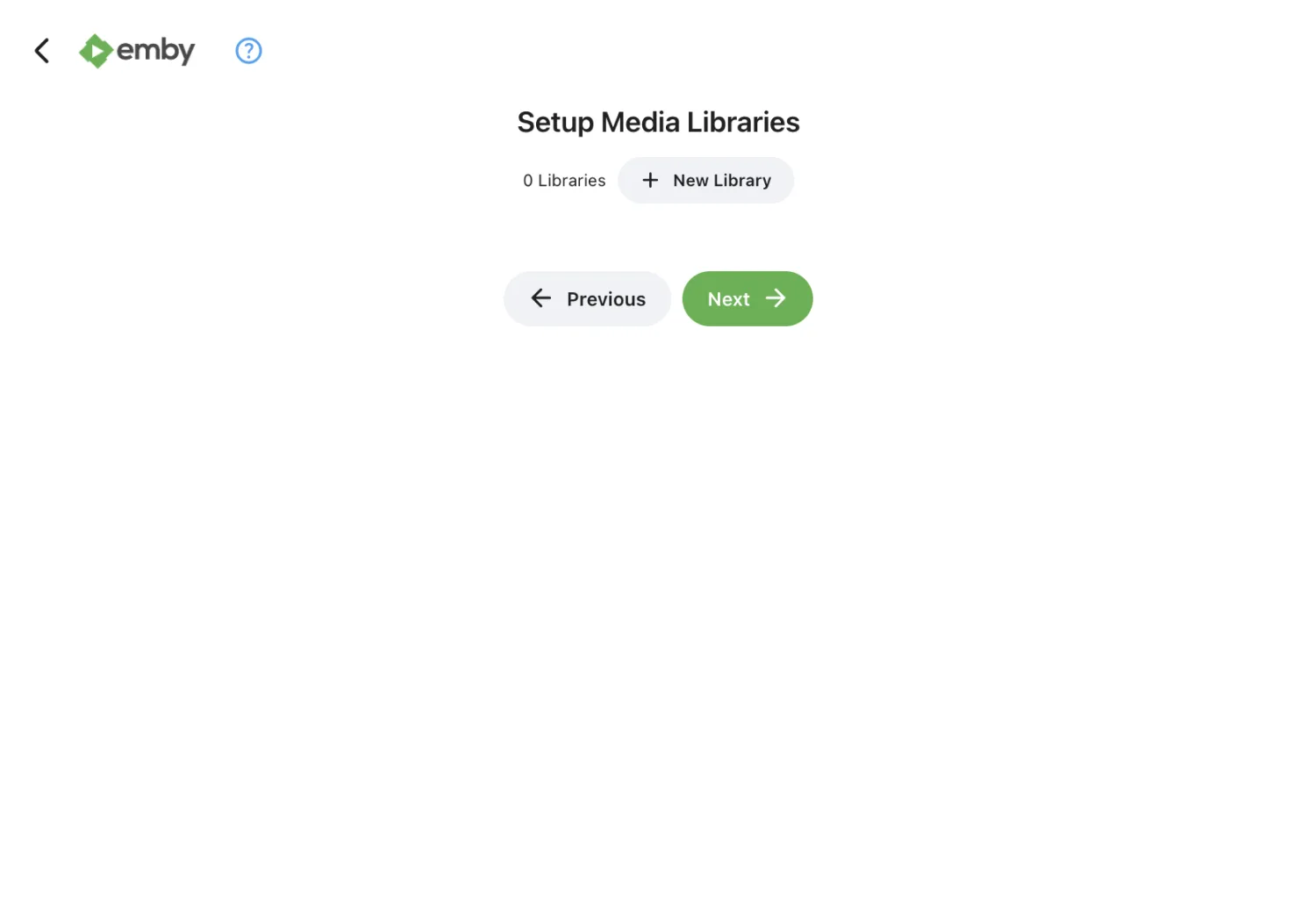
The wizard reaches a screen called Setup Media Libraries with nothing in it yet. Click New Library to open the dialog where you define one.
Pick Movies as the content type and leave the display name as it is. Under Folders, /data/movies is already listed and points at the Movies folder you just filled, so there is nothing to browse for.
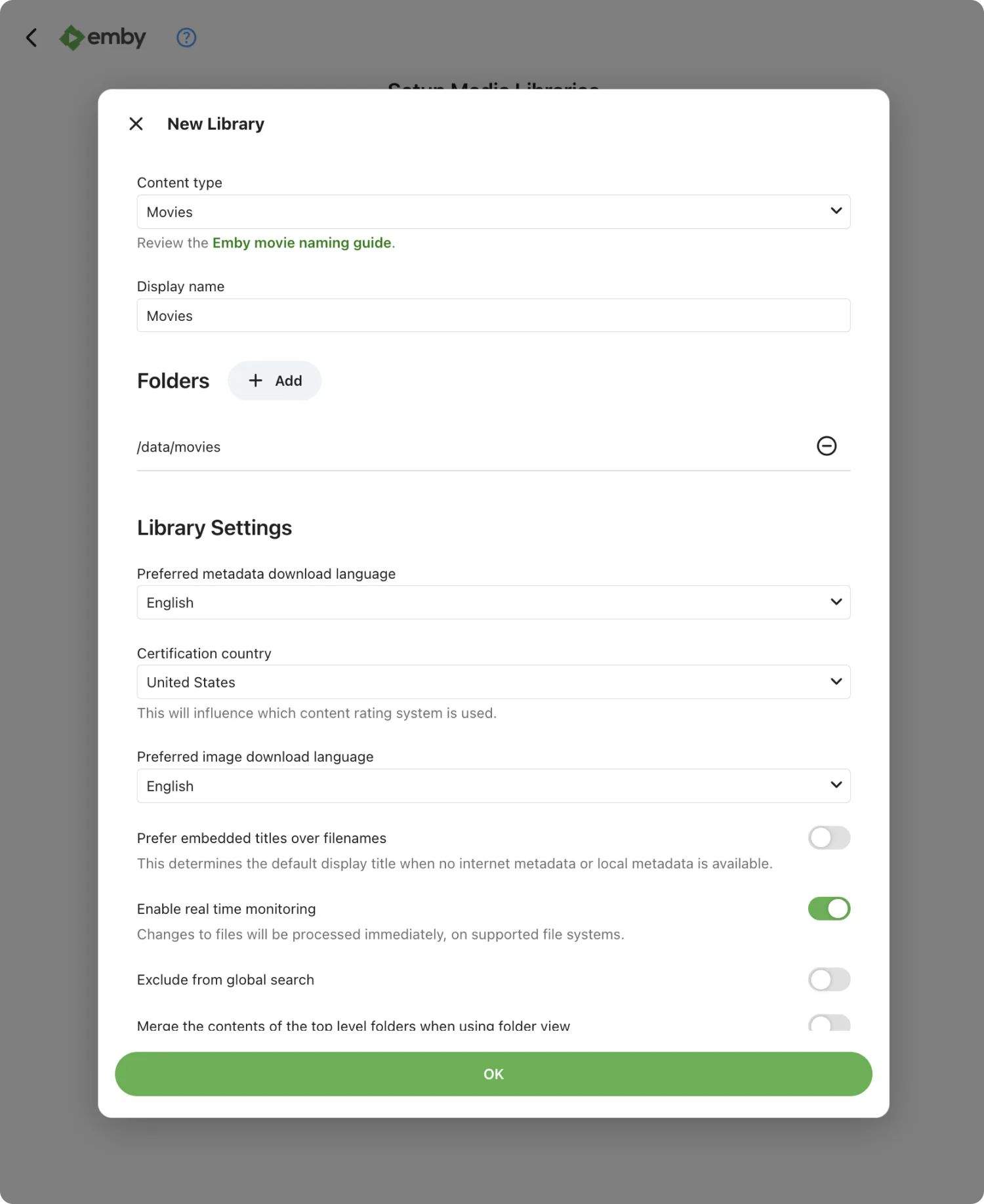
Set the metadata language and country next. This decides which language Emby requests titles and summaries in, and it is independent of the interface language you chose in the wizard.
Leave real time monitoring on. Emby watches the folder and picks up new files as they land, so you do not have to trigger a scan every time you add a movie.
Further down, turn on Import collection information from metadata downloaders. Emby will group films that belong to a series, so the three Lord of the Rings films sit together instead of scattered alphabetically.
The last decision is where artwork gets stored. Emby gives you three options and they are not mutually exclusive.
| Option | What it does | When to use it |
|---|---|---|
| Save media images to media folder | Writes posters and backdrops next to the video files | You want artwork to travel with the files, or another player reads the same folders |
| Keep a cached copy in the metadata folder | Stores artwork inside Emby’s own data folder | Default choice. Keeps your media folders clean and loads fast |
| Pre-download images from the internet | Fetches artwork during the scan instead of on demand | Large library where you want browsing to feel instant from the first open |
Click OK to save the library. Emby starts scanning, and posters begin filling in within a minute or two on a normal collection.
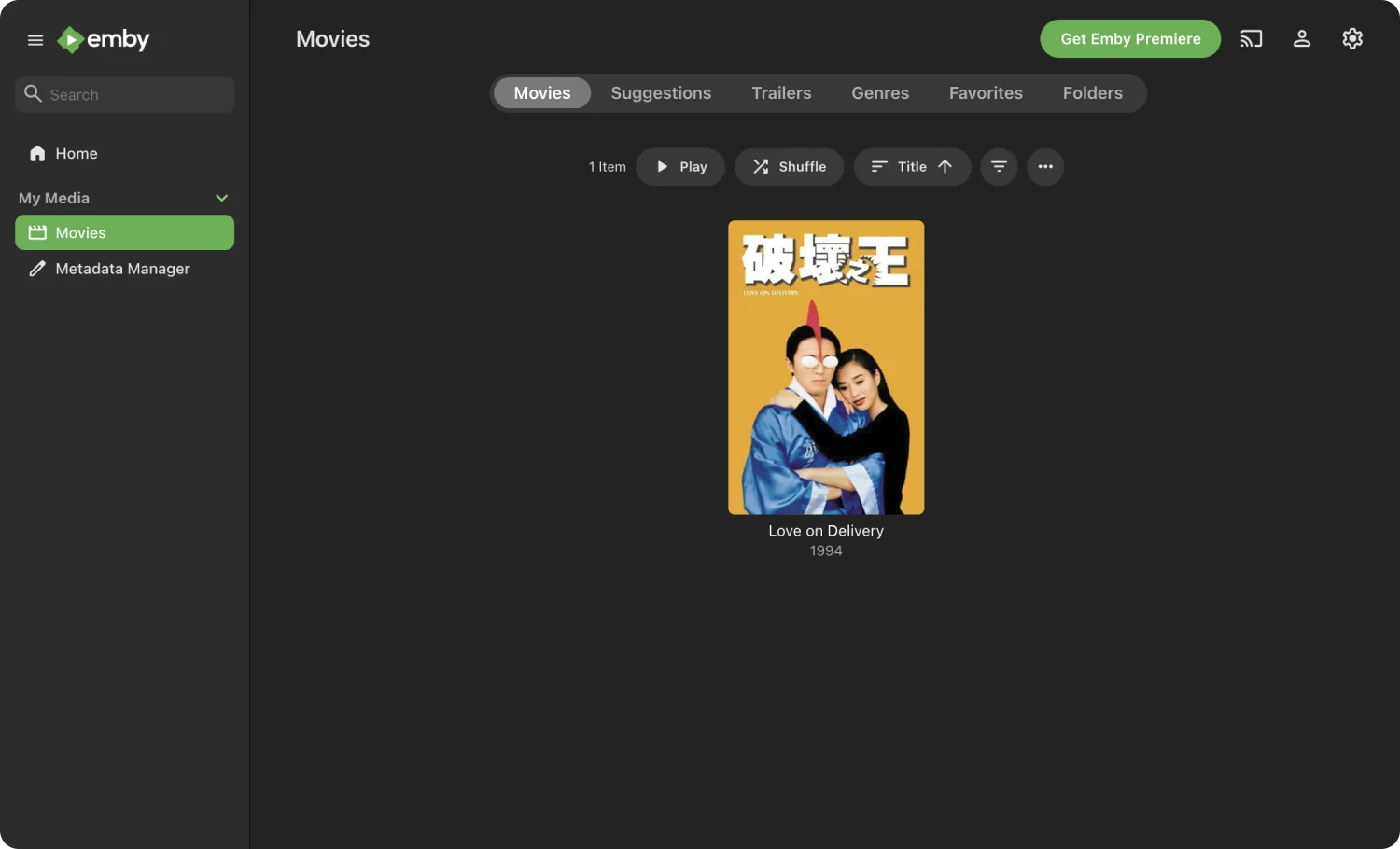
Finish the wizard and open Movies in the left sidebar. Every file Emby matched is there with its poster, year, and summary already attached.
Add Media From Other Folders
Emby only sees the folders mapped into its container, which on ZimaOS means /data/movies and /data/tvshows. Anything else stays invisible, whether it is a USB drive, a second storage pool, or a folder somewhere else on the system. This is the most common reason a library comes back empty.
Mapping one in takes a minute. Go back to the ZimaOS dashboard, right click the Emby icon, and choose Manage.
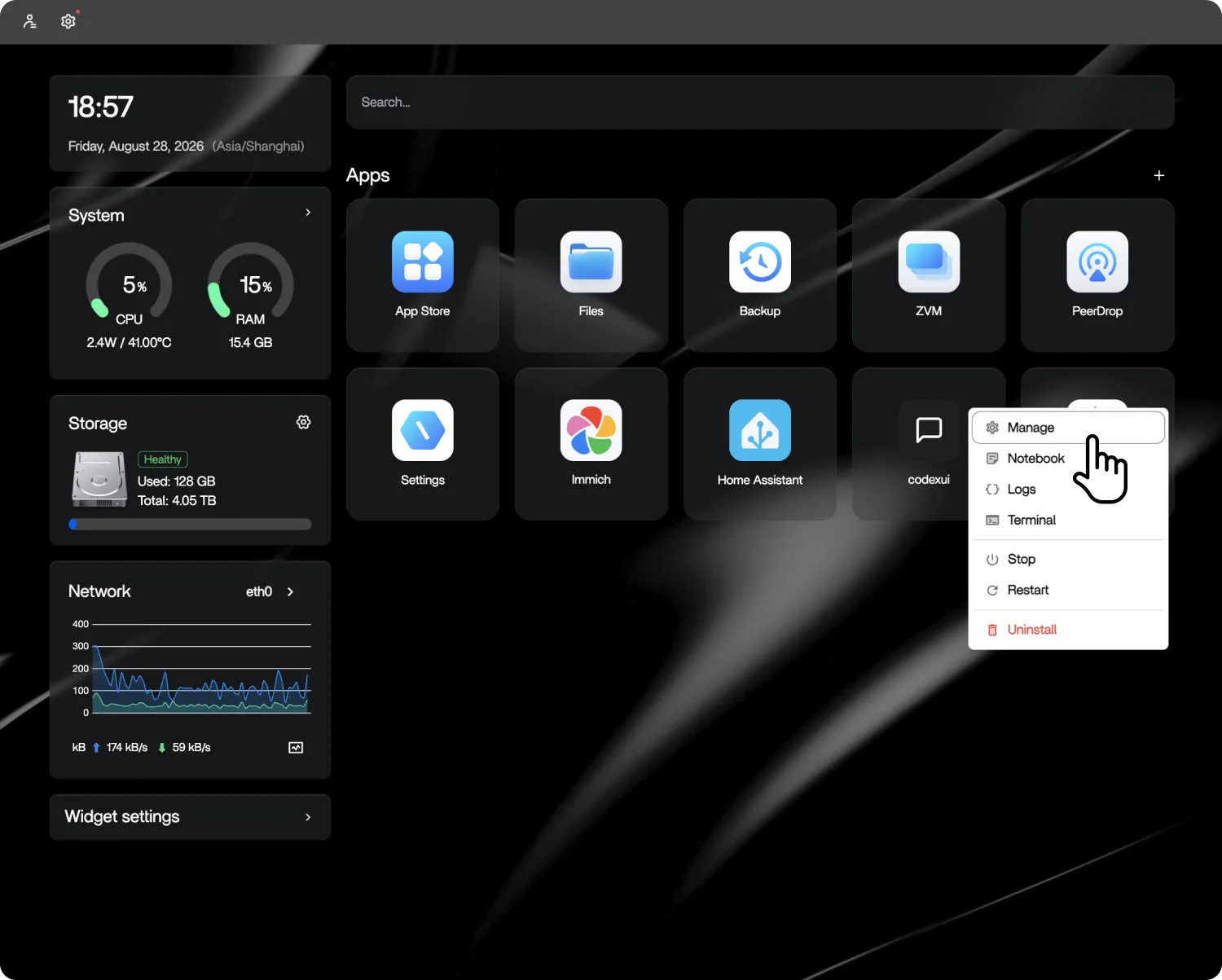
The panel opens on Volumes, where the folders Emby already reads are listed as bind mounts. Click the plus icon beside Mount for a new row, then use the folder button on the Host side to pick what you want to add.
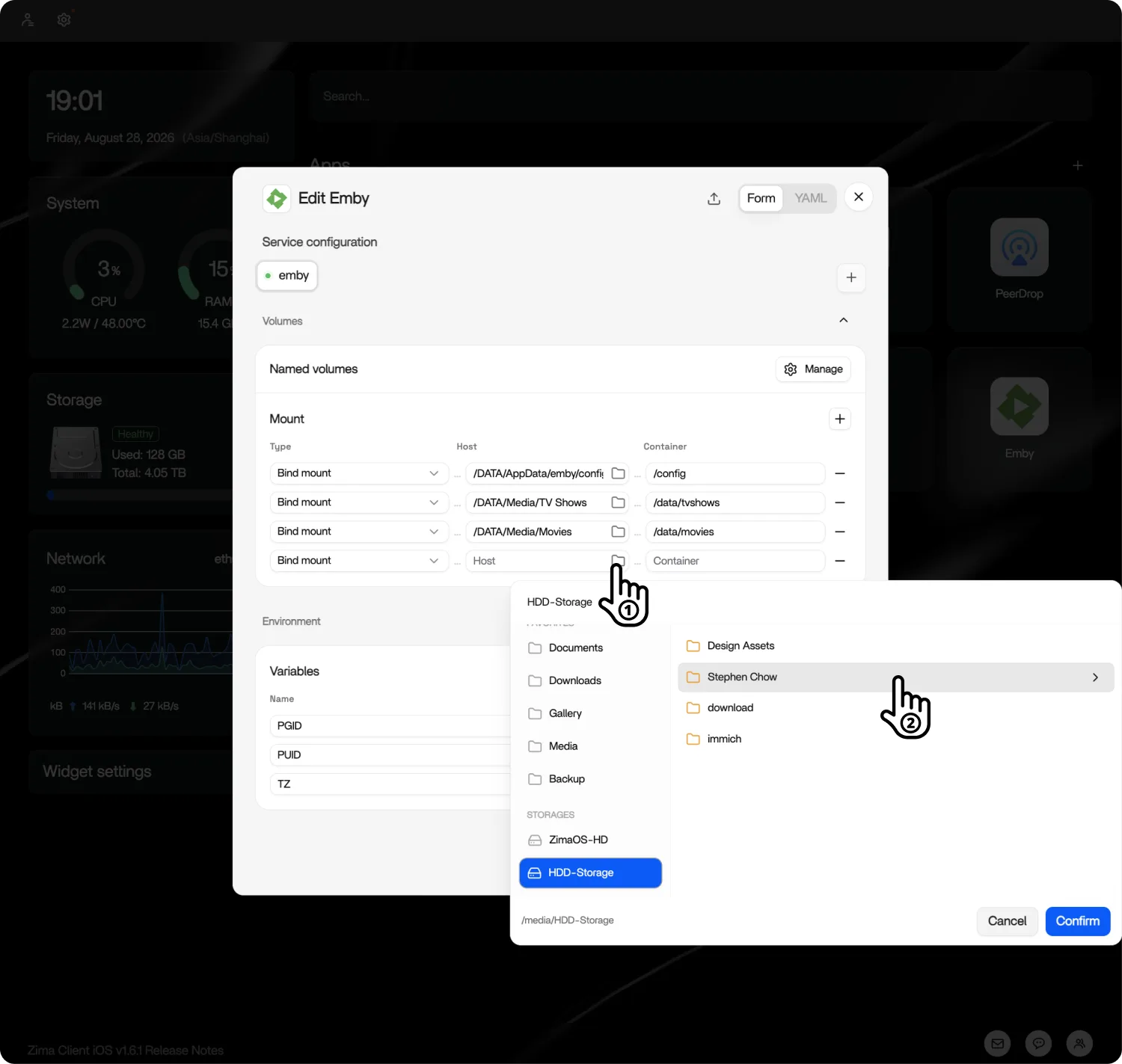
The Container column on the right is the name Emby sees. Give it something recognizable under /data, then save and let the app restart.
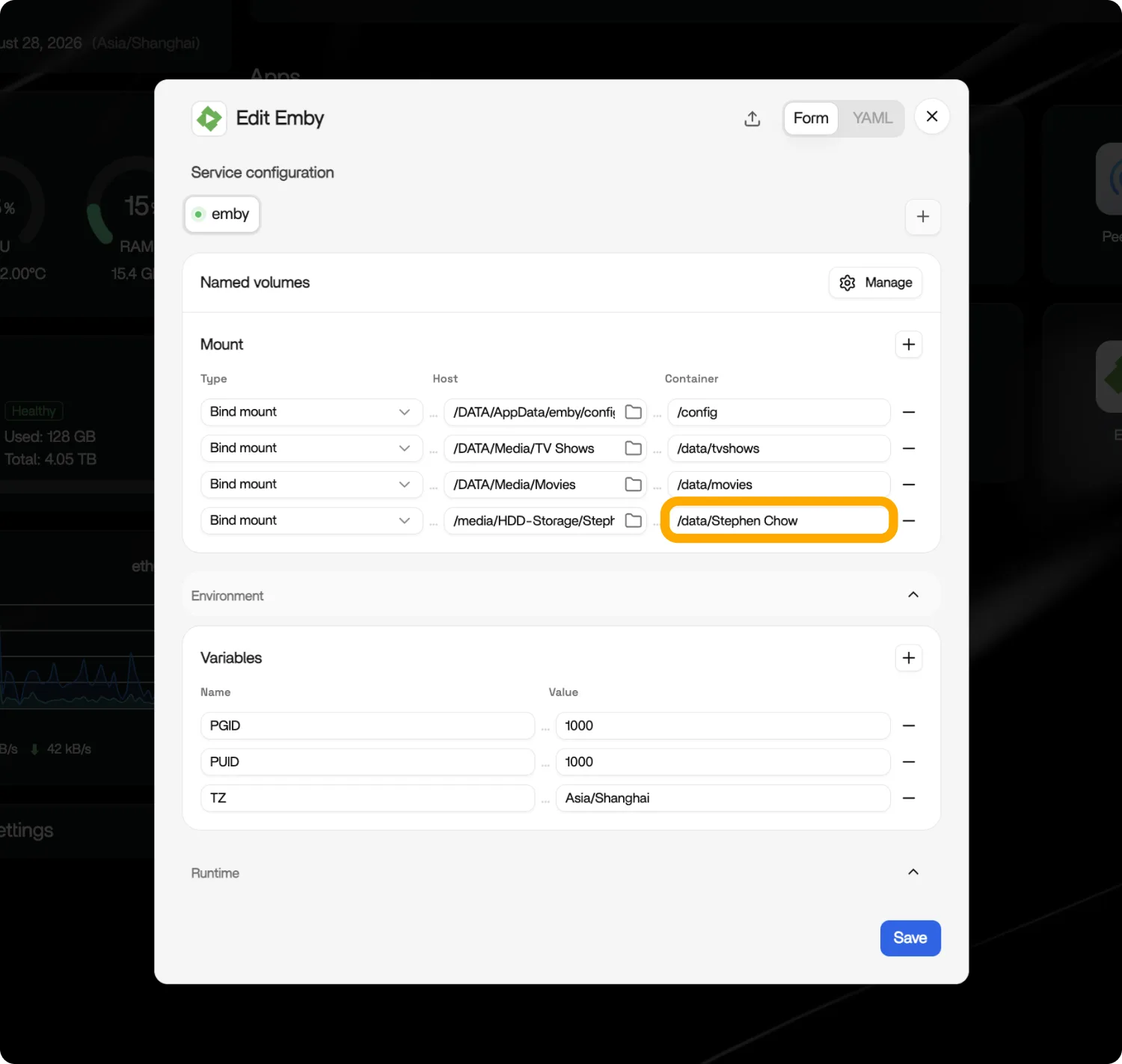
Back in Emby, open Settings from the gear icon in the top right. Under Emby Server in the left sidebar, click Library, then click the Movies library to edit it.
Click Add beside Folders. The Select Path dialog lists the paths that exist inside the container, so scroll to the name you gave the new mount and confirm. It joins the folder that was already there, and both feed the same library.
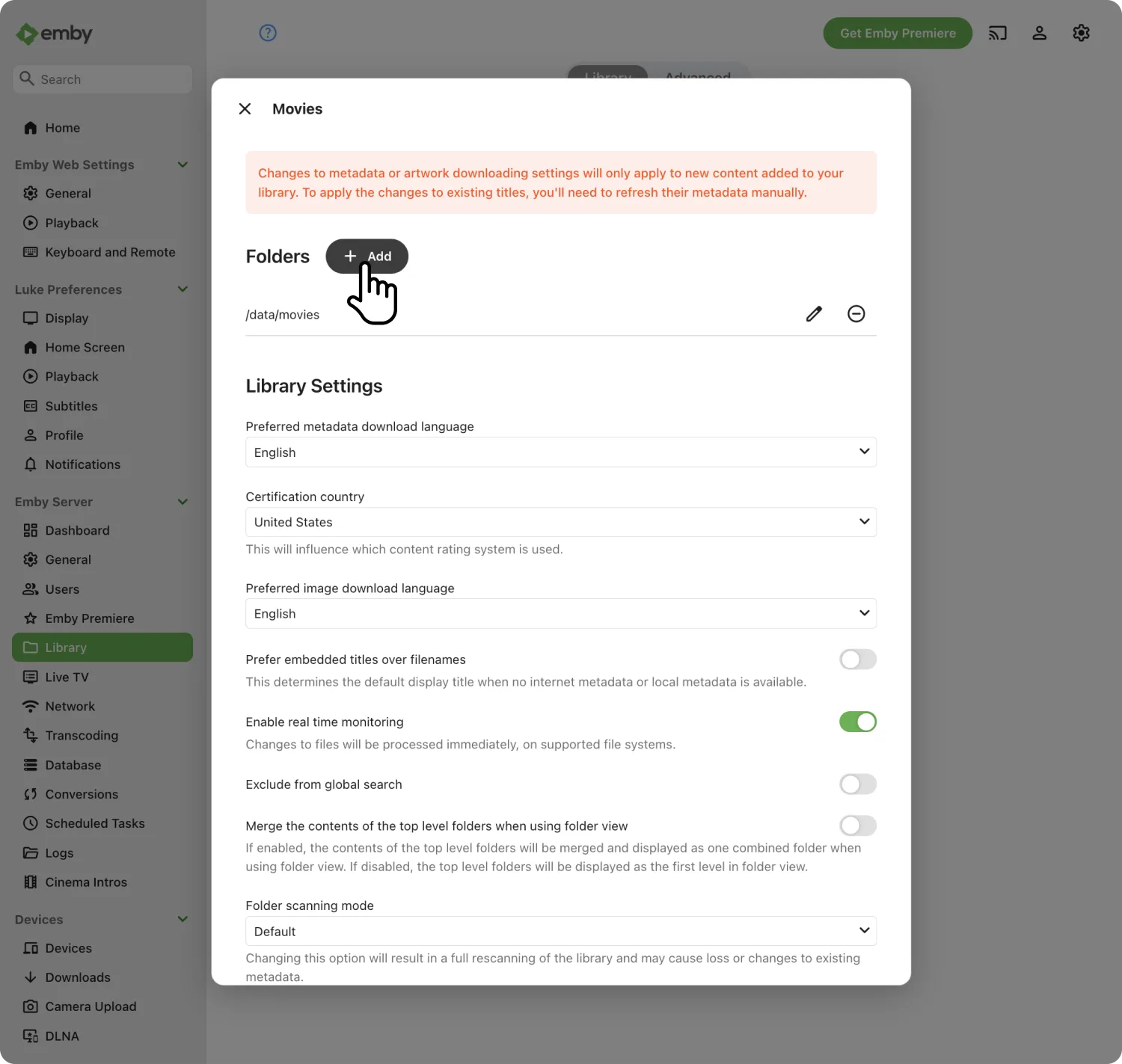
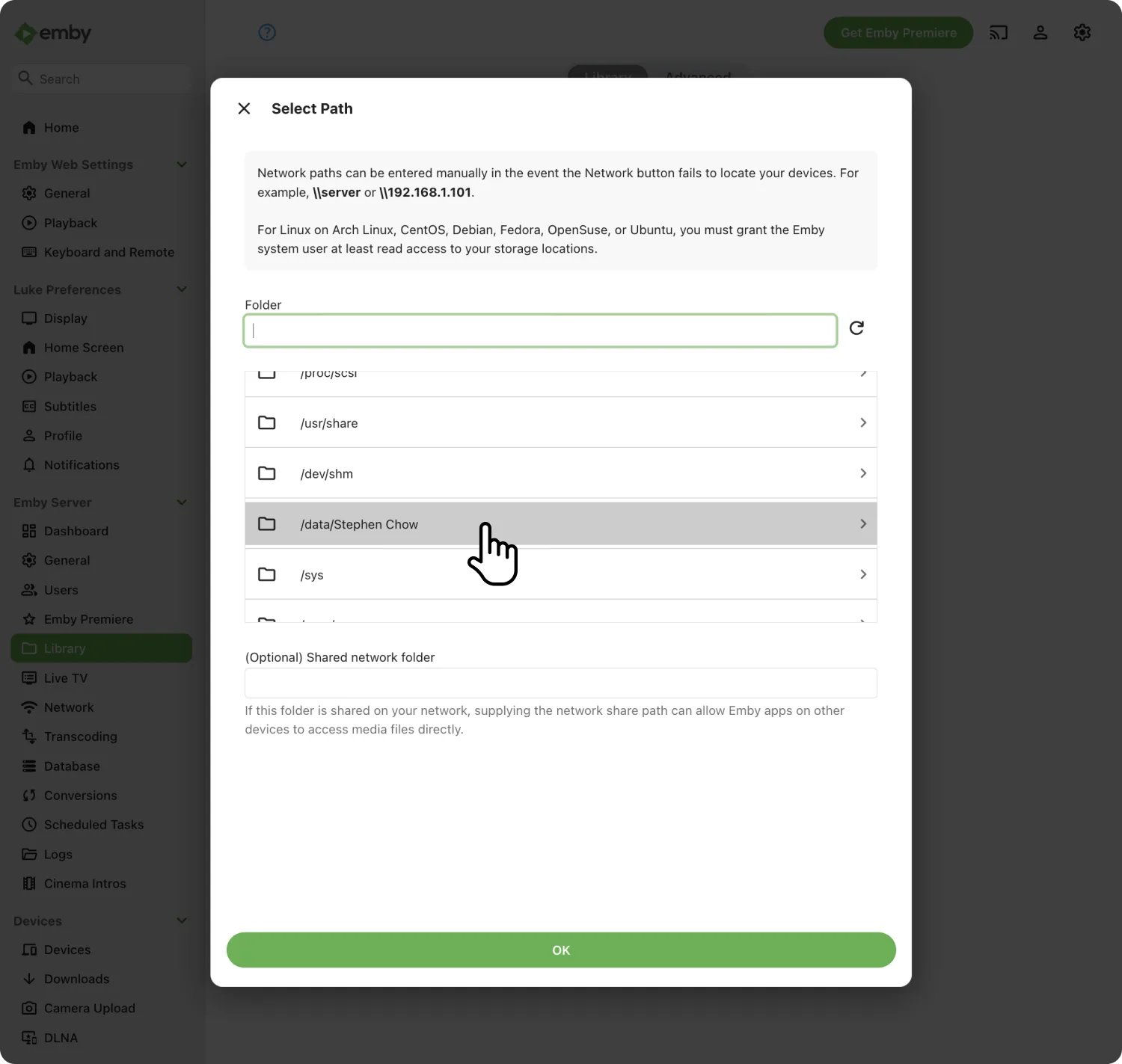
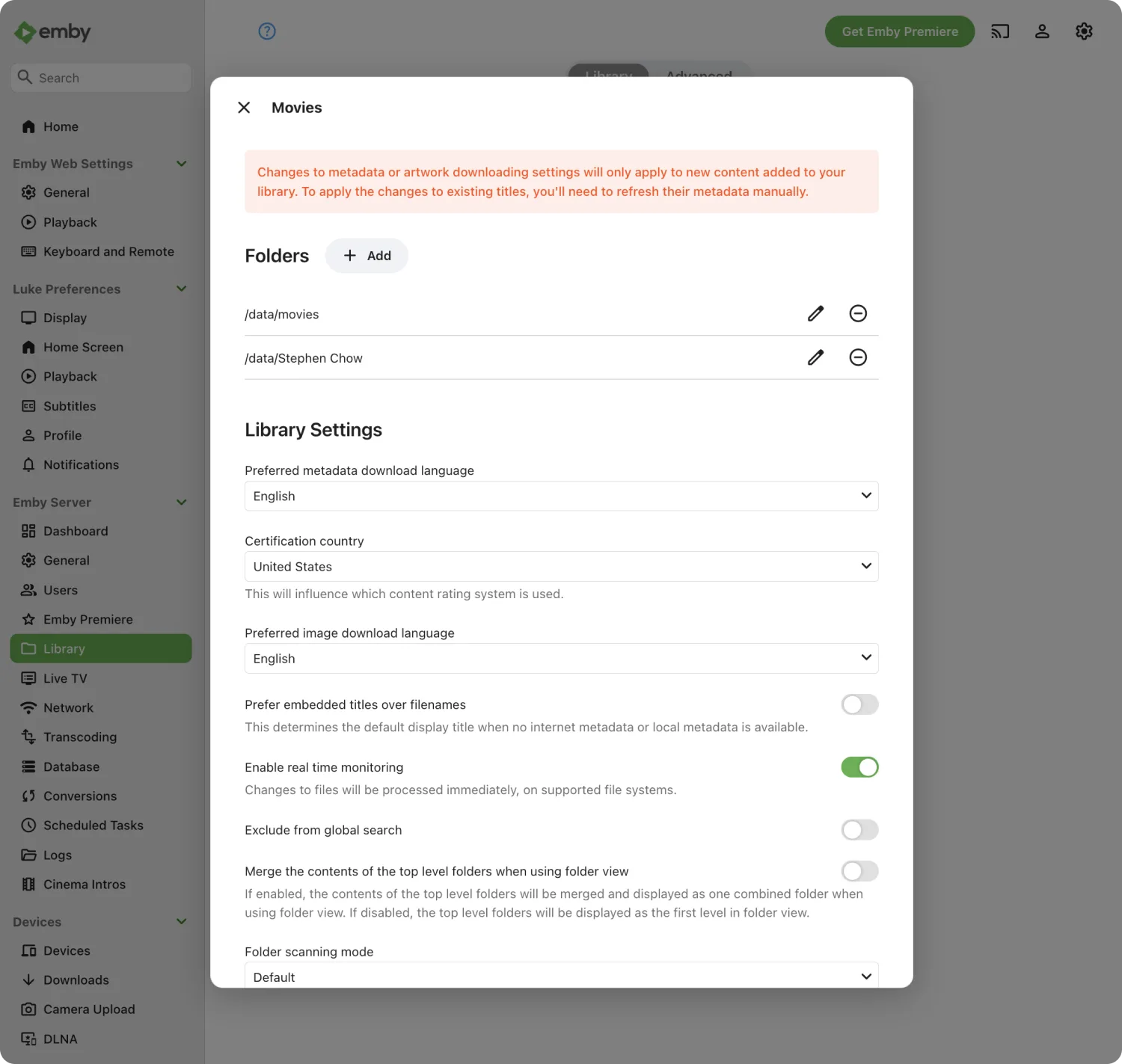
A folder added this way behaves exactly like the one that shipped with the app. Real time monitoring, metadata, and artwork all work the same.
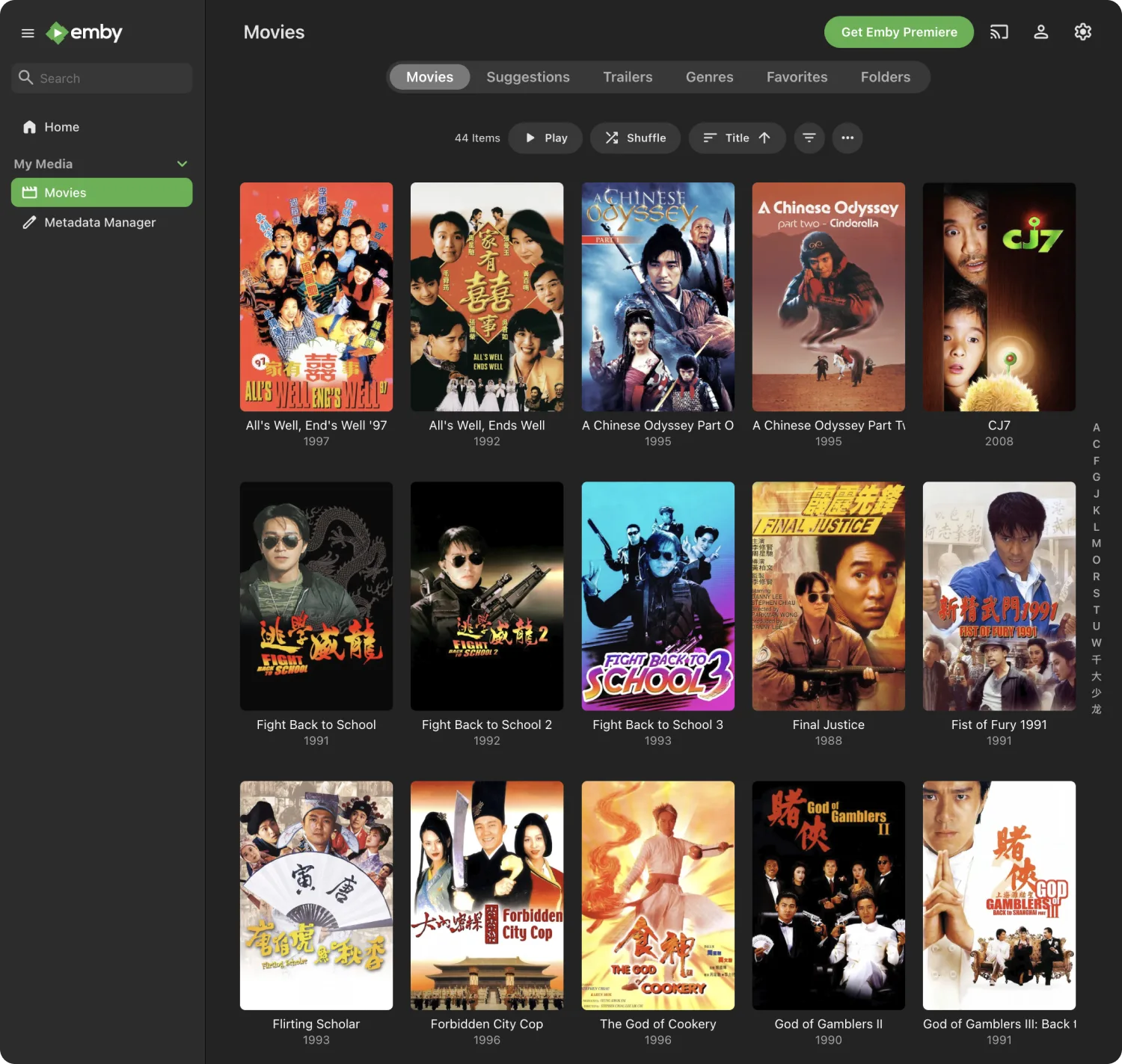
Save the settings and open Movies from the sidebar. The files from the folder you just mapped sit alongside what was already scanned.
Hardware Transcoding
Transcoding is what happens when a client cannot play the file as it is — Emby converts it on the fly. On CPU alone, a 4K stream can pin every core; with a GPU, the same job barely registers.
Hardware transcoding is an Emby Premiere feature. If your clients can direct play your files, you may not need it at all.
To enable it:
- Open Emby Settings → Transcoding.
- Turn on Enable hardware acceleration when available.
- Pick the decoder that matches your GPU: Intel Quick Sync Video for the ZimaCube’s integrated graphics, or NVIDIA NVENC for a discrete card installed in the GPU slot.
- Save, then start a stream and confirm the dashboard shows hardware decoding in the playback session.
For installing a discrete GPU, see GPU Expansion. For a worked example of GPU transcoding on ZimaOS, see Plex and GPU Transcoding.
When Something Does Not Work
The library is empty after a scan. Emby reads only the paths mapped into its container. Open the app settings in ZimaOS and confirm your media folder is in the volume list. Add it if it is missing, then run Scan Library Files from the Emby library page.
Posters and titles are wrong. This is nearly always a naming problem. Rename the file to Title (Year) and rescan. For the stubborn ones, click the item, choose Identify, and search the correct title by hand.
Playback stutters or buffers. Open the dashboard while the file is playing. A transcoding session means the client cannot read the original format, so set that client to direct play or store the file in a format it handles natively. If transcoding is unavoidable, check the Hardware Transcoding section above. A direct play session that still stutters points at the network instead.
New files do not show up. Real time monitoring misses files copied in over SMB on some setups. Trigger Scan Library Files manually, and if it happens every time, schedule a scan under Settings and Scheduled Tasks.
Emby is unreachable after a reboot. Give the container a minute to start. If it stays down, check Settings and Apps in ZimaOS for the container status, and confirm the storage holding its config is mounted.
Related Guides
Emby pairs well with tools that keep the library filling itself:
- Radarr Setup — watches for new releases and files them into the folders Emby already reads
- Jellyfin Setup — the open source alternative with no paid tier
- Plex Setup — the option with the widest device support
- DLNA Server — for older TVs that predate app stores
- App Store Overview — the rest of what runs on ZimaOS
Need Help?
If you run into any issues while installing or using Emby on ZimaOS, join the ZimaSpace Discord community. Our team and community members will be happy to help.