
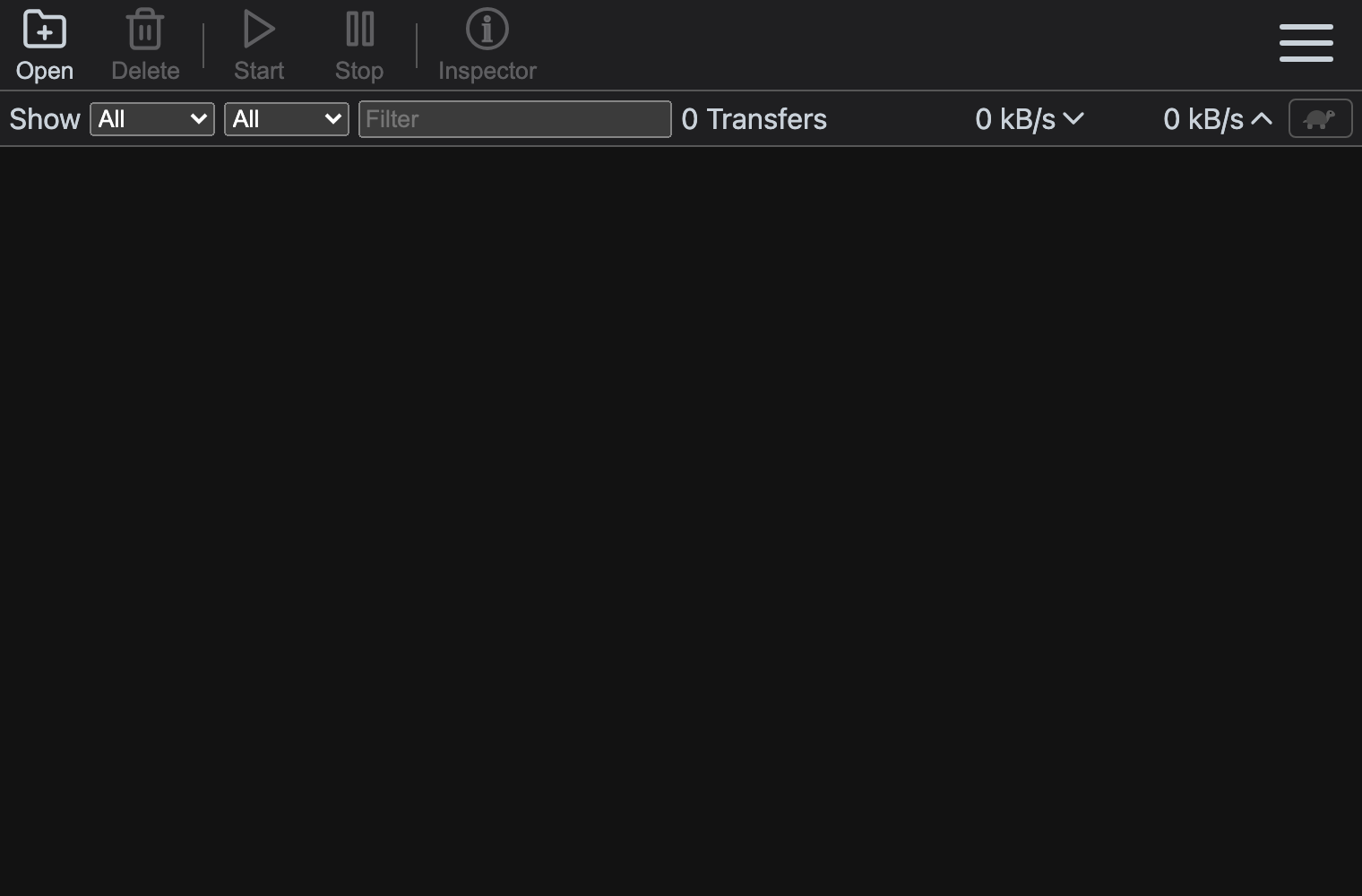
Transmission is a BitTorrent client with a browser-based interface. On ZimaOS, it saves downloads directly to your NAS storage and lets you manage them from any browser on your local network.
Download only content that you have the legal right to use or share.
Install Transmission
- Open the ZimaOS dashboard and select App Store.
- Search for Transmission, select the app, and click Install.
- Wait until the app is running, then open Transmission from the ZimaOS dashboard.
- Sign in with the credentials shown on the installation screen. The current App Store defaults are:
| Username | Password |
|---|---|
casaos |
casaos |
The App Store package exposes the web interface on port 9091 and maps the ZimaOS folder /DATA/Downloads to /downloads inside Transmission. If you need to open the app manually, use http://ZIMAOS-IP:9091/transmission/web/.
Before allowing access outside your trusted local network, update the credentials: click the three dots in the top-right corner of the Transmission app icon, open Settings, change the USER and PASS values, save, and restart the app. Use HTTPS if you publish the interface through a reverse proxy.
Add a torrent or magnet link
- Click Open in the top-left corner.
- Select a
.torrentfile, or paste an HTTP(S) torrent URL or magnet link into Or enter a URL. - Set Destination folder to
/downloads/complete, or choose another folder under/downloads. Use the container path shown in Transmission, not the ZimaOS host path. - Keep Start when added selected if you want the download to begin at once, then click Add.
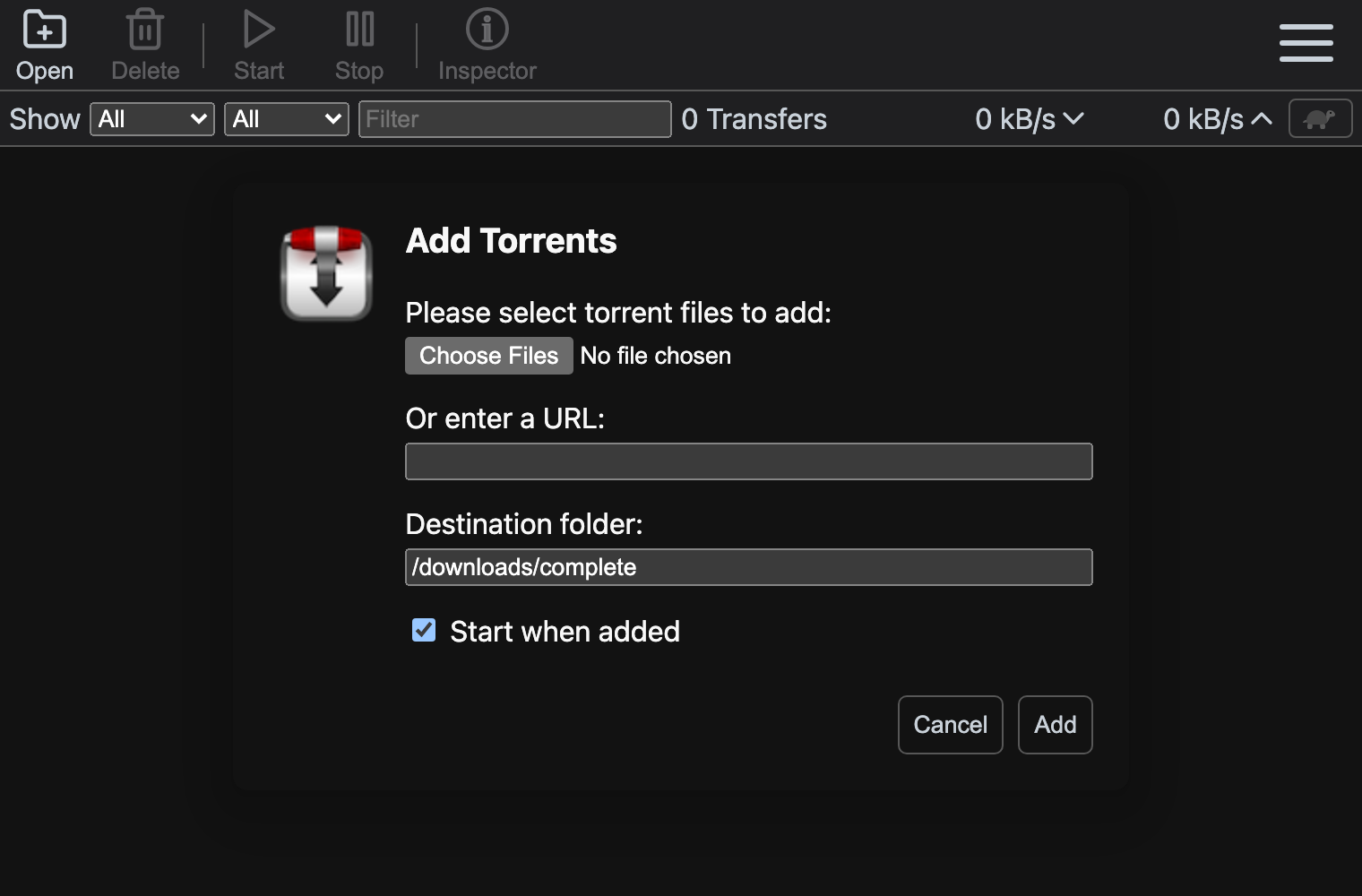
Try an official Debian torrent
Debian publishes legal test downloads on its official BitTorrent image page. Open the page, copy the link for the current amd64-netinst.iso.torrent file, paste it into Or enter a URL, and click Add.
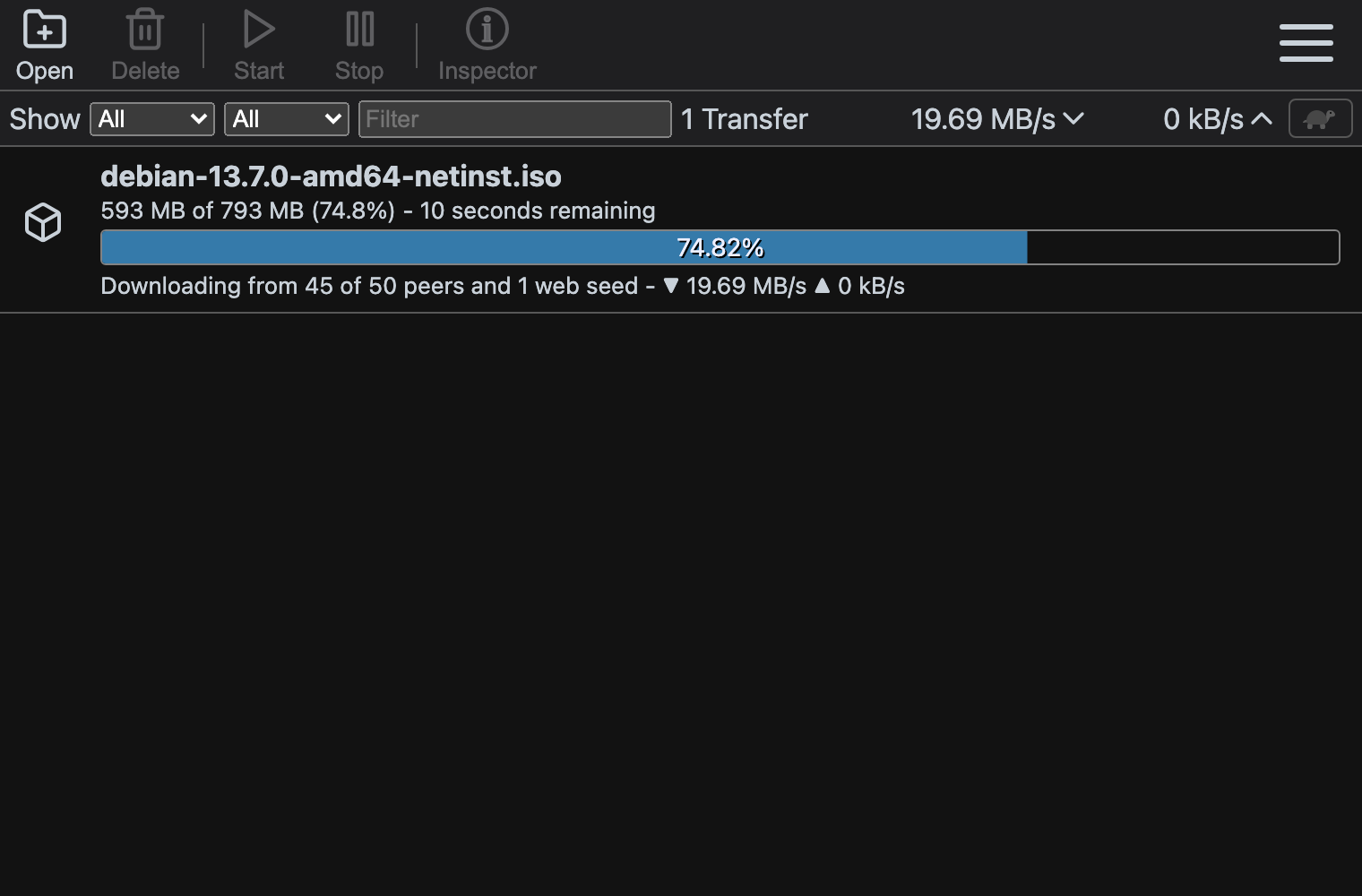
The transfer row shows progress, remaining time, connected peers, and current speed. With the default mapping, completed files appear in Files > Downloads > complete in ZimaOS.
Manage downloads
- Select a transfer and use Start or Stop to control it.
- Use Inspector to check files, peers, trackers, and per-transfer limits.
- Use Delete to remove a transfer. Confirm whether you also want to delete the downloaded data.
- Use the filters above the list to show active, downloading, seeding, paused, finished, or errored transfers.
Troubleshooting
- The browser returns
401 Unauthorized: Check theUSERandPASSvalues in the Transmission app settings, then restart the app. - The download has no peers or remains slow: Confirm that the torrent is active and that peer port
51413is allowed through your firewall or router when needed. - Transmission cannot write the file: Keep the destination under
/downloadsand check the app’s storage permissions in ZimaOS. - You cannot find a completed file: Check the destination shown in Transmission. The default
/downloads/completefolder maps to Files > Downloads > complete in ZimaOS.