
Overview
Frigate is natively supported in the ZimaOS App Catalog. See the Frigate App Store page for the latest app details.
Frigate is an open-source Network Video Recorder (NVR) with real-time AI-powered object detection — it gives you local, private camera monitoring, motion detection, and recording, all running on your own hardware and without sending footage to the cloud.
Prerequisites
- A running ZimaOS installation.
- One or more IP cameras that support RTSP or ONVIF.
- A free port for the web UI (default: 8971).
- (Optional) A Google Coral TPU or an Intel/AMD iGPU to accelerate object detection.
App Catalog
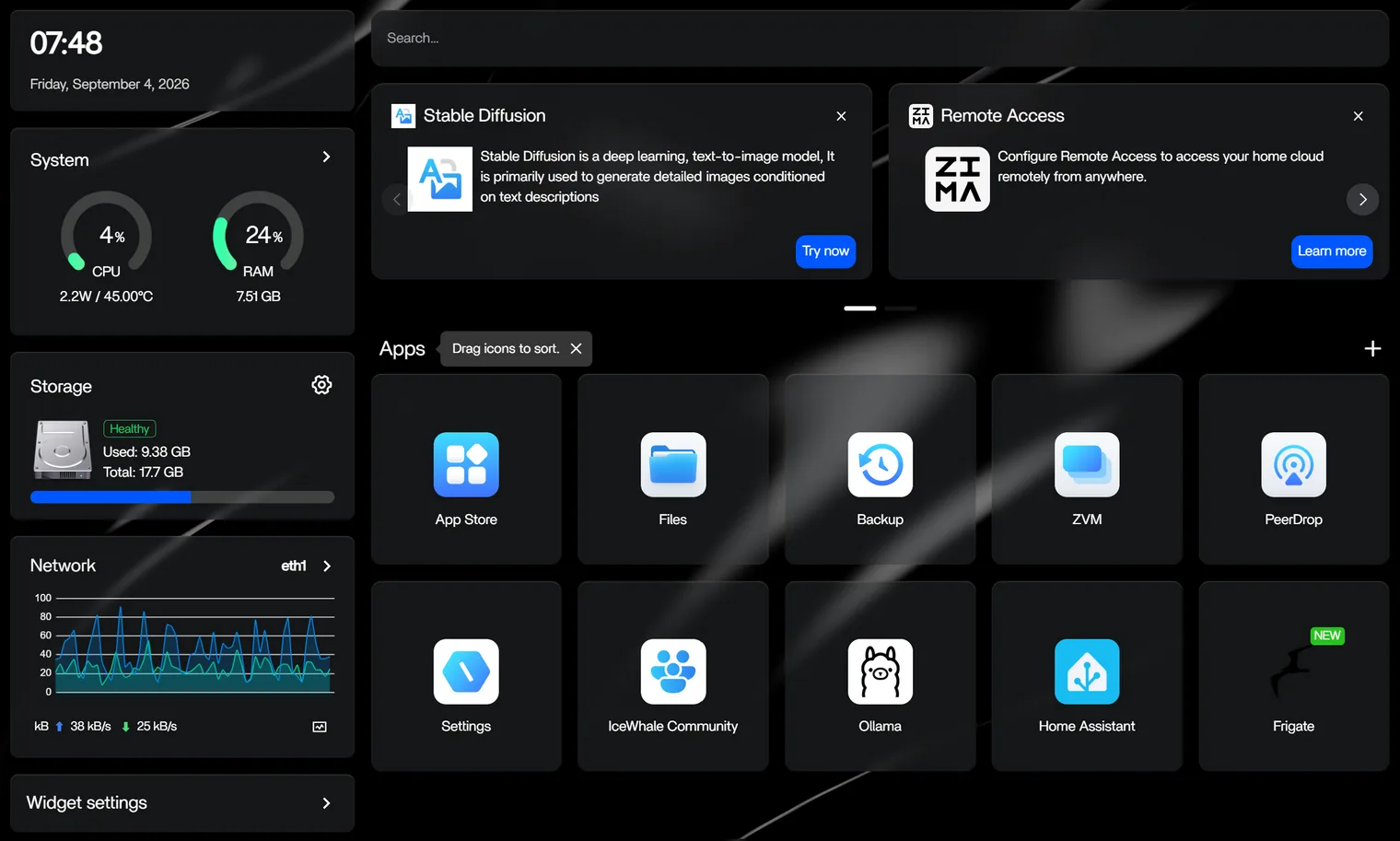
- Find Frigate in the ZimaOS App Catalog. Open App Store → search for “Frigate”.
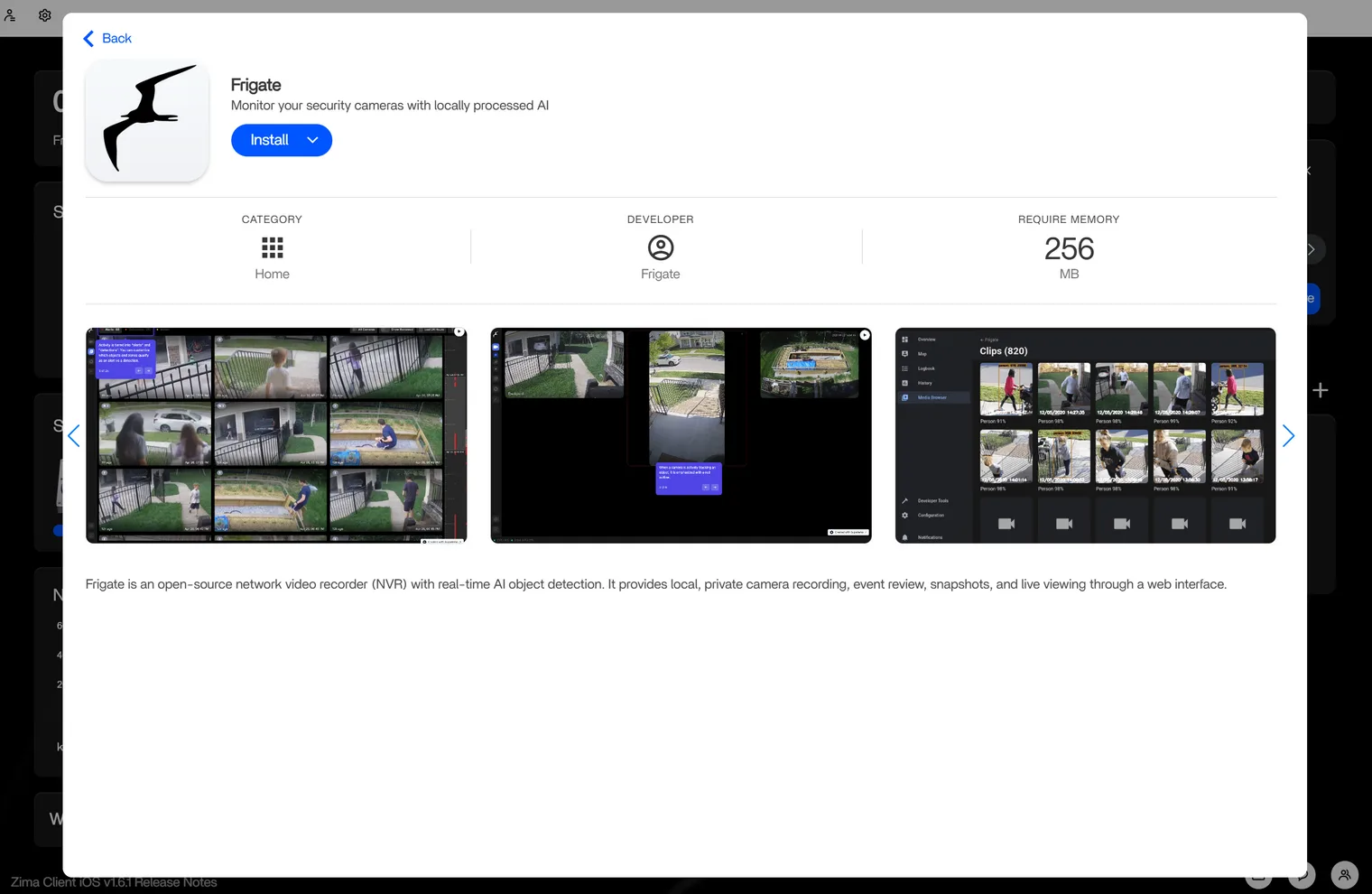
- It’s ready to use!
Configuration
The following steps are NOT required — you can get started right away with the DEFAULT configuration.
ZimaOS supports multiple configuration methods, including form-based editing and YAML secondary editing.
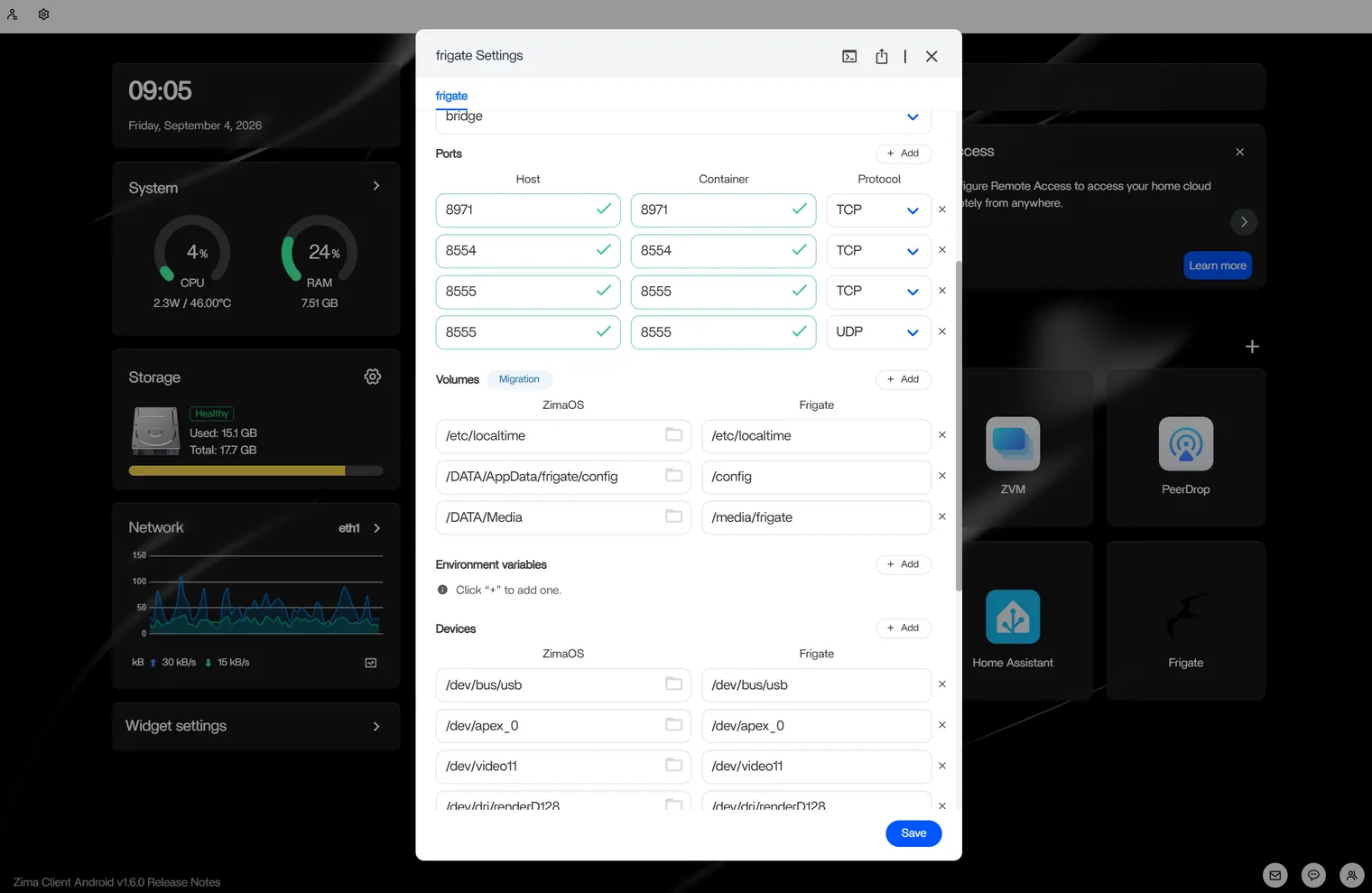
The main settings you may want to adjust:
- Volumes — where your Frigate config and recordings are stored (default:
/DATA/AppData/frigate/config, mounted to/config, and/DATA/AppData/frigate/media, mounted to/media/frigate). - Port — the external port you use to access the web UI (default: 8971).
- Detector device — (optional) map a PCIe Coral (
/dev/apex_0), USB Coral (/dev/bus/usb), or Intel/AMD iGPU (/dev/dri/renderD128) for hardware-accelerated detection.
First-time setup
- Open Frigate from your ZimaOS dashboard. The first time you open it, you may see a security warning — this is normal, as Frigate uses a self-signed certificate. Click Advanced, then Continue to … to proceed.
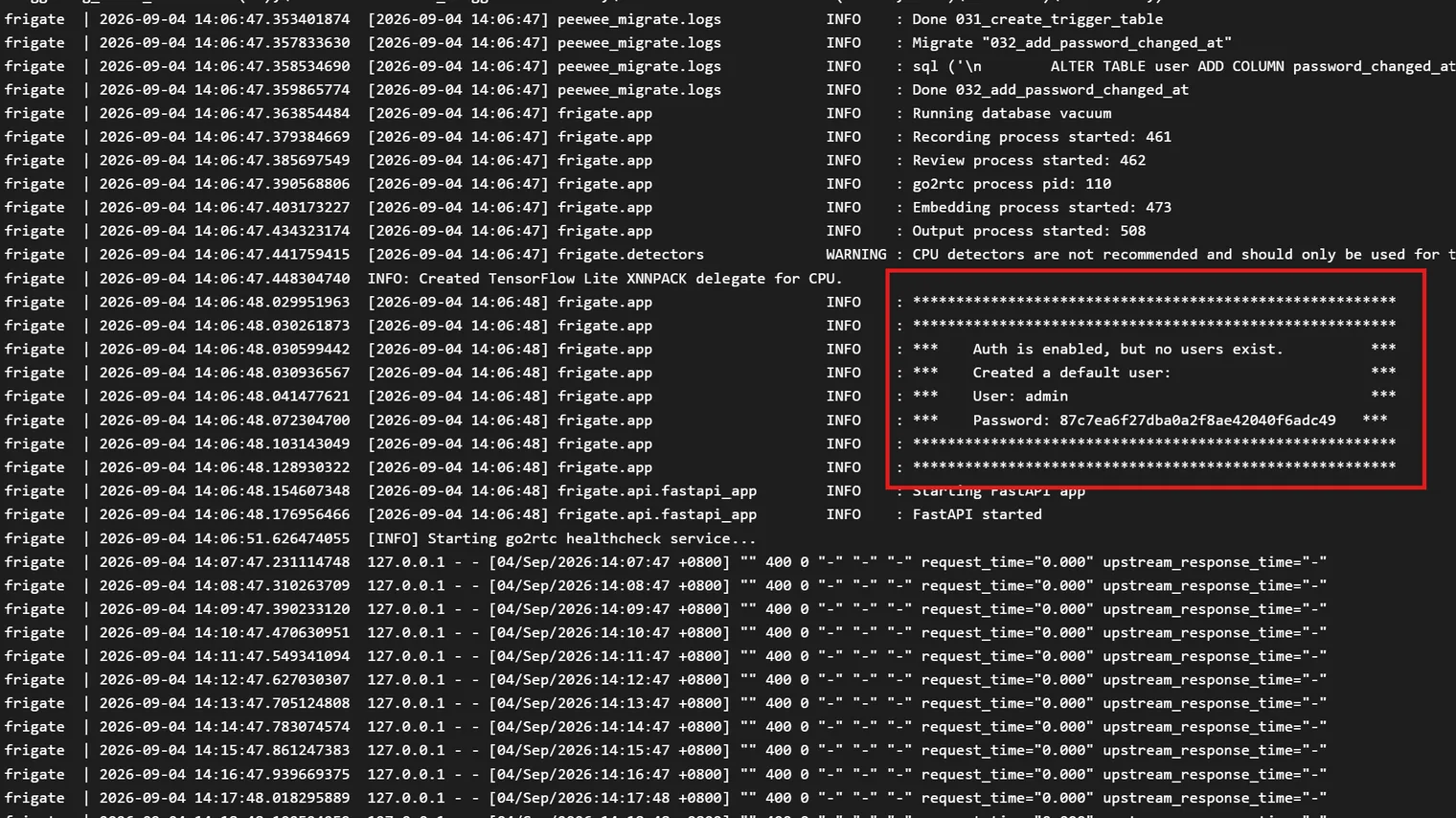
- On first login, you’ll need your initial username and password. Click the three dots in the top-right corner of the Frigate app icon → Settings, open Terminal and Logs, click Logs, then click the full-screen icon to enlarge the view.
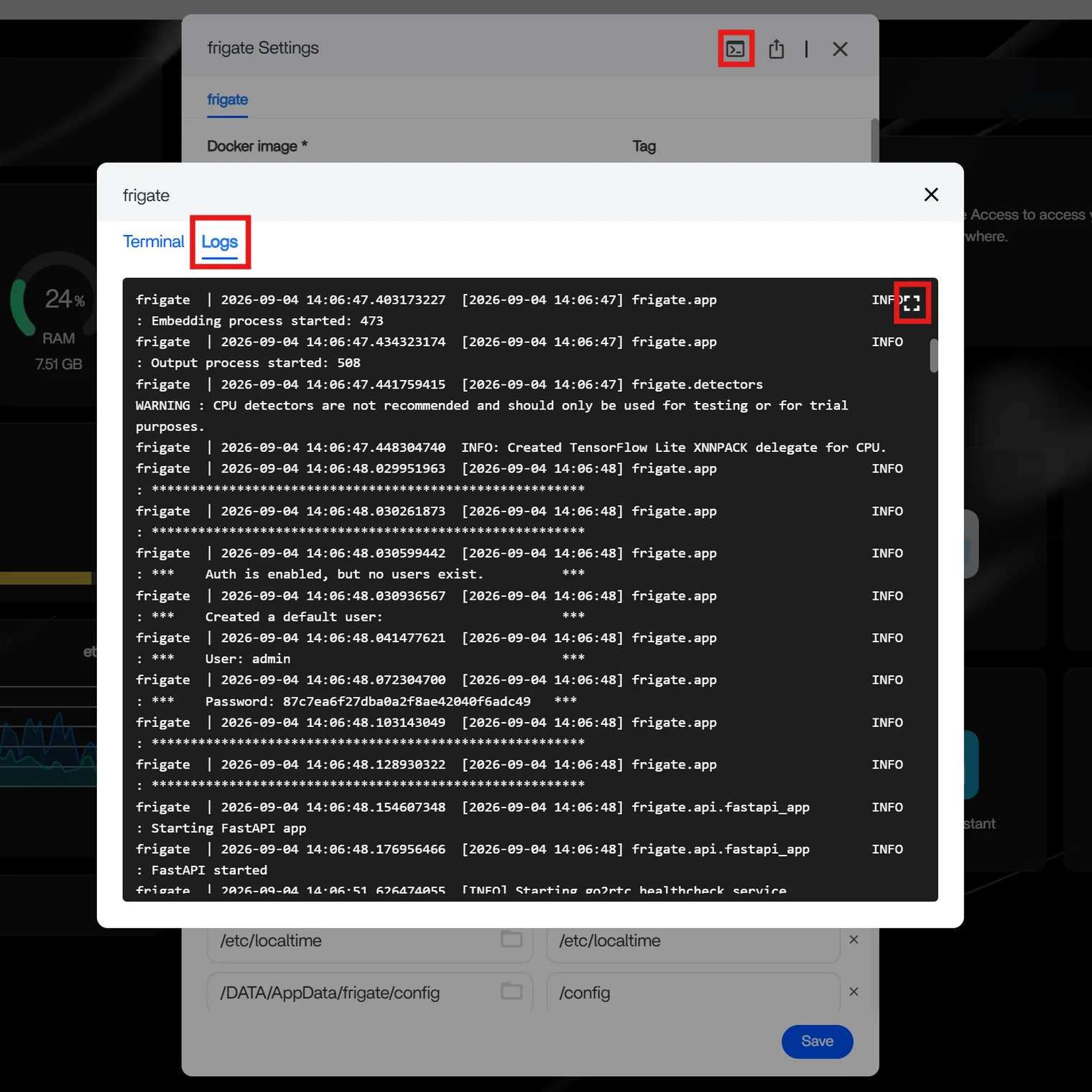
- Look for the section surrounded by asterisks (
****) — it contains your username and password. Use this information to log in to Frigate.
Add your cameras and configure detection, recording, and more by editing the
config.ymlfile at/DATA/AppData/frigate/config/config.yml. See the official documentation below for the full reference.Frigate is working when you can open its interface, sign in, and view a connected camera without a stream error. Open Live and confirm that the camera displays a current image.
Related Guides
- Pair Frigate with a local LLM for AI image descriptions of detected events — see AI Photo Description with Frigate and Ollama.
- Prefer a simpler, browser-based camera server? See NVR Camera Server for an alternative.
Official documentation
Frigate’s app-level settings — cameras, object detection, recording, snapshots, notifications, Home Assistant, hardware acceleration and more — all live inside the config.yml file and are independent of ZimaOS. For the full reference, follow the official Frigate documentation:
- Frigate documentation
- Configuration reference
- Cameras
- Object detection
- Detectors
- Hardware acceleration
- Recording
- Snapshots
- Zones & masks
- Notifications
- Authentication
- Home Assistant
Need Help?
If you run into any issues while installing or using Frigate on ZimaOS, join the ZimaSpace Discord community. Our team and community members will be happy to help.