
Overview
Nginx Proxy Manager is natively supported in the ZimaOS App Catalog. See the Nginx Proxy Manager App Store page for the latest app details.
Nginx Proxy Manager is a free, open source tool that puts a clean web UI on top of Nginx. It lets you set up reverse proxies, SSL certificates (via Let’s Encrypt), and access lists in minutes — so you can expose your self-hosted apps to the internet over HTTPS without editing config files by hand. The app is built with self-hosting as a first class citizen.
Prerequisites
- A running ZimaOS installation.
- (Optional) A domain name pointing to your server’s public IP, if you want automatic HTTPS certificates via Let’s Encrypt.
App Catalog
- Find Nginx Proxy Manager in the ZimaOS App Catalog. Open App Store → search for “Nginx Proxy Manager” → Install.
Tip: When installing for the first time, you might get a “there are ports in use” prompt. See the FAQ below for how to handle it.
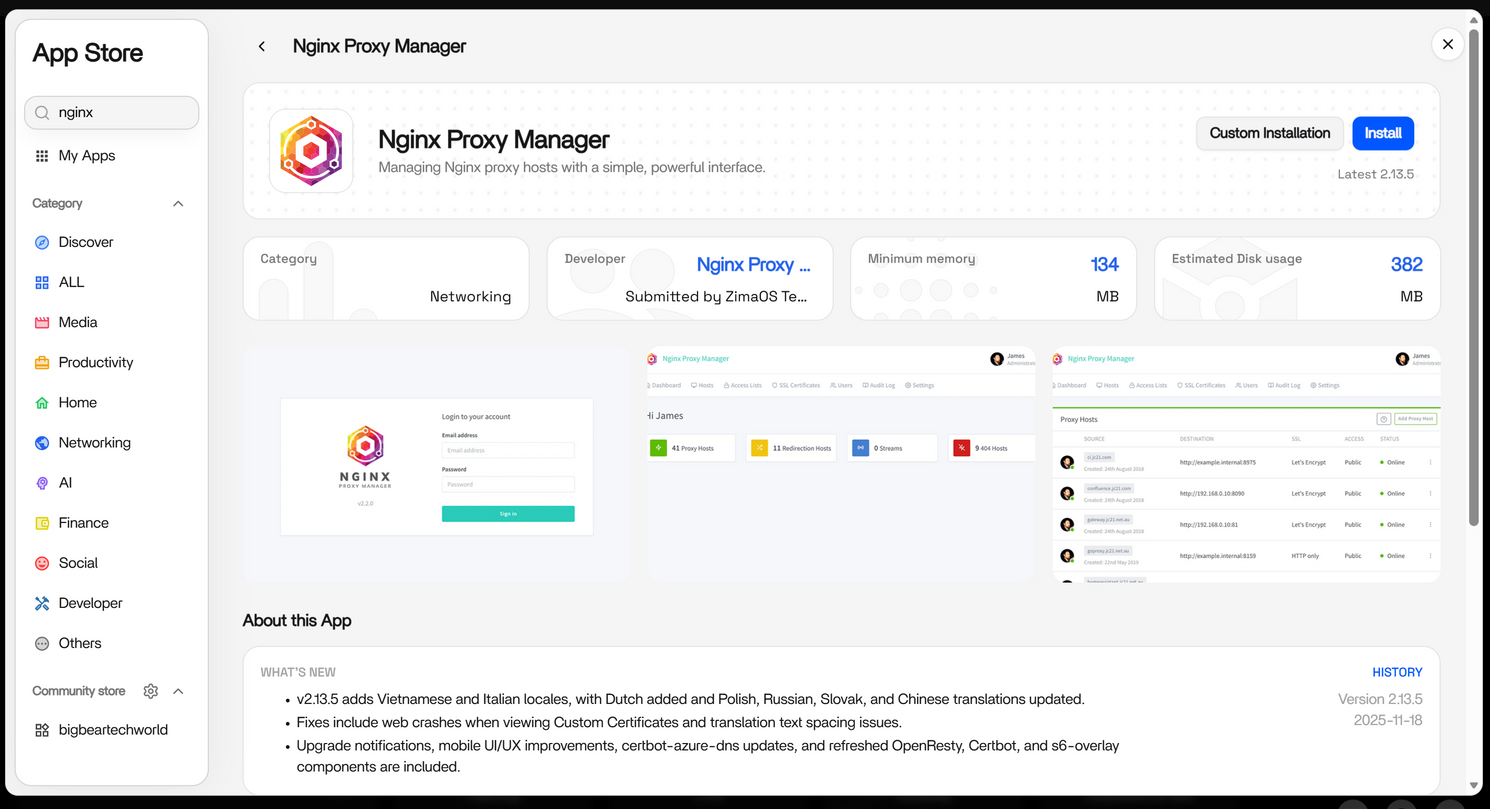
- It’s ready to use!
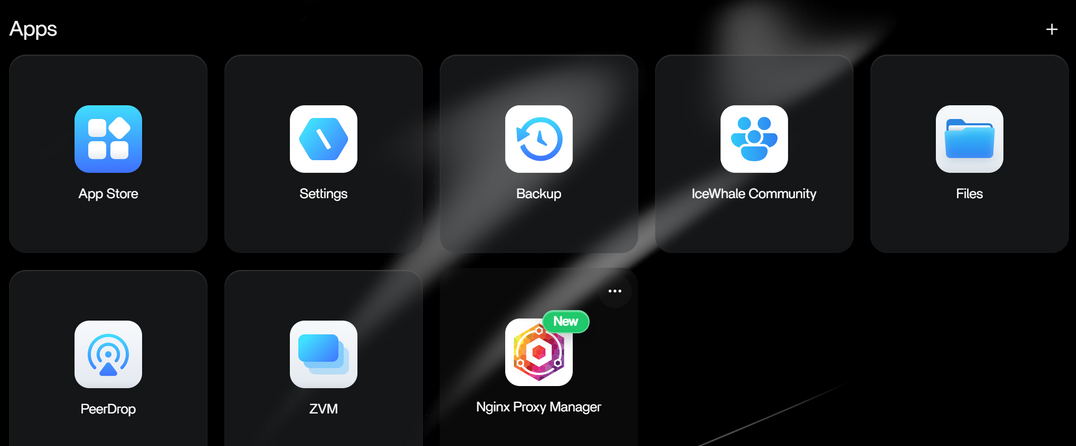
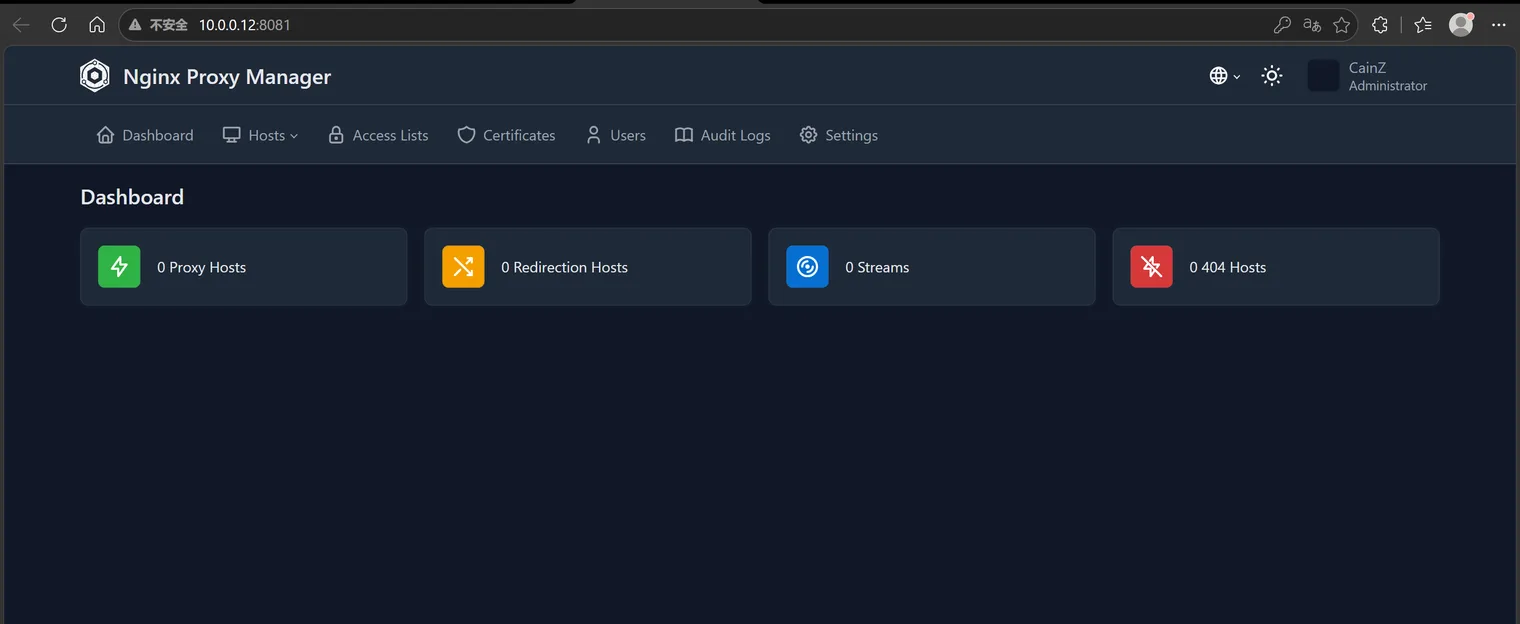
- After you sign in, add your first proxy host.
Getting started
Log in to the Nginx Proxy Manager admin UI at
http://your-zimaos-ip:81.Add your first Proxy Host:
- Domain Names — enter the domain or subdomain that points to your ZimaOS.
- Forward Hostname / IP and Forward Port — the address of the service you want to expose.
- Toggle Block Common Exploits and Websockets Support as needed.
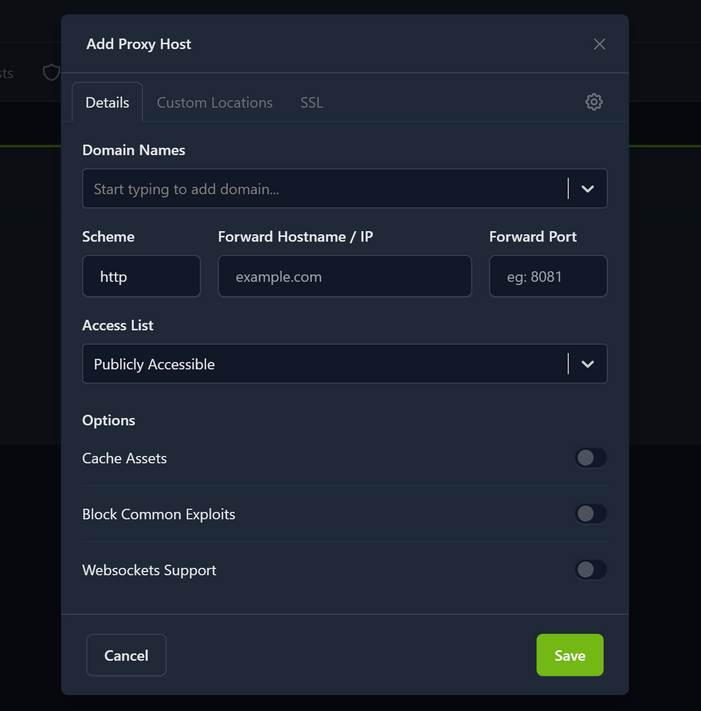
- On the SSL tab, request a free Let’s Encrypt certificate and enable Force SSL for automatic HTTPS.
Now your services can be reached through a friendly domain over HTTPS — Nginx Proxy Manager handles routing, SSL, and access control for you.
The proxy is working when opening your domain in a browser loads your app over HTTPS with no certificate warning.
Before You Expose Services
A reverse proxy makes apps public — make sure each one deserves it:
- Put an Access List in front of services that have no login of their own.
- Keep the admin UI (port 81) off the internet; manage it from your local network or over Tailscale instead of exposing the port.
- Start with a service that has its own authentication, and only widen access once you have verified how it behaves publicly.
FAQ
“there are ports in use”
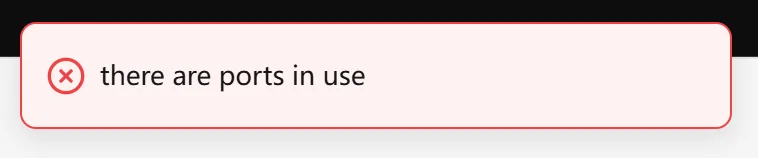
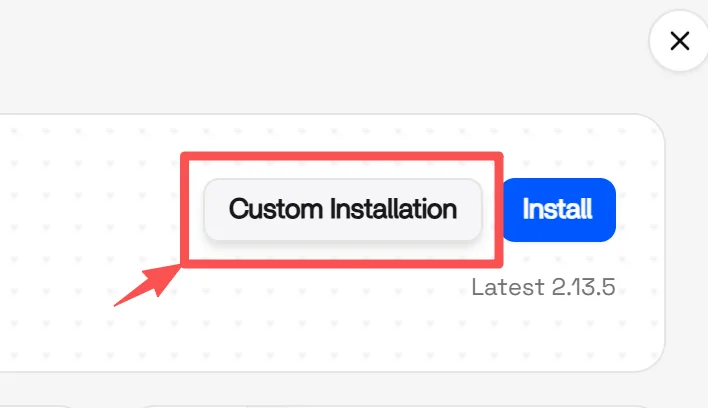
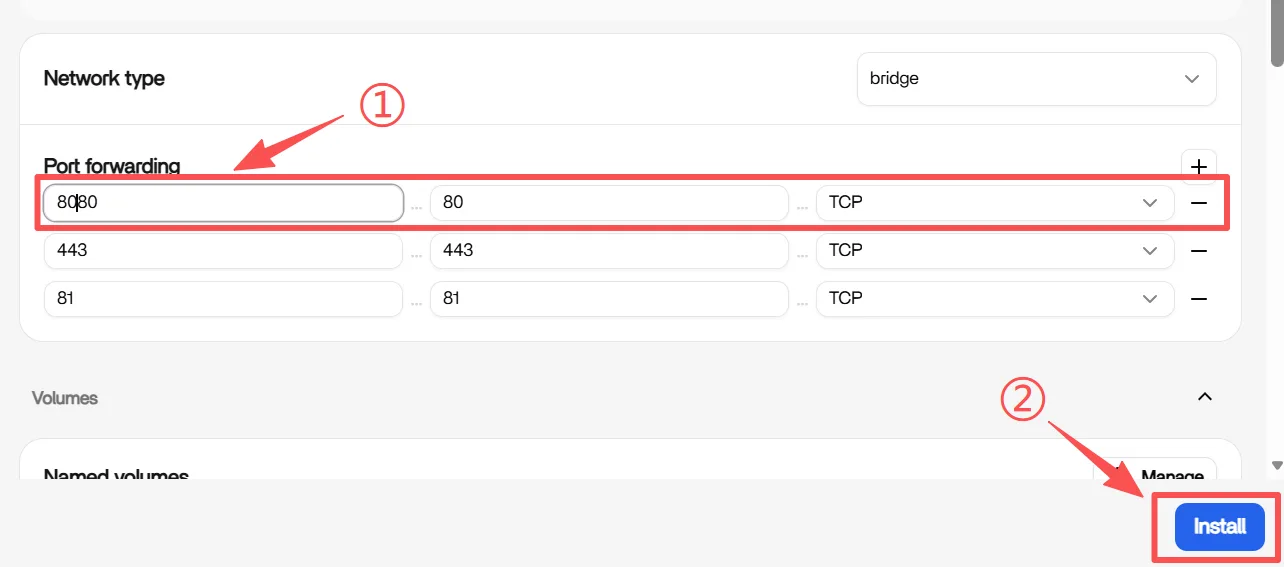
Nginx Proxy Manager uses ports 80 (HTTP), 81 (admin UI), and 443 (HTTPS). Port 80 is usually taken by the ZimaOS Gateway, so remap it manually: choose Custom Installation, change the mapping for port 80, then click Install. (Remap any other ports that are also in use — if you remap 81, the admin UI address in Getting started changes with it.)
Related Guides
- Exposing services without opening ports at all? See Tailscale WireGuard Remote Access.
Need Help?
If you run into any issues while installing or using Nginx Proxy Manager on ZimaOS, join the ZimaSpace Discord community. Our team and community members will be happy to help.