
Overview
AdGuard Home is natively supported in the ZimaOS App Catalog. See the AdGuard Home App Store page for the latest app details.
AdGuard Home is a network-wide ad and tracker blocking DNS server that runs on your own hardware — it blocks ads, trackers, and malicious domains for every device on your network, from phones to smart home devices, without installing anything on the devices themselves.
Prerequisites
- A running ZimaOS system.
- Ports 82 and 3001 available on the device — these are ZimaOS host ports mapped to AdGuard Home’s own port 80 (web interface) and 3000 (setup wizard).
- Port 53 must also be free for DNS.
App Catalog
- Find AdGuard Home in the ZimaOS App Catalog. Open App Store → search for “AdGuard Home” → click Install.
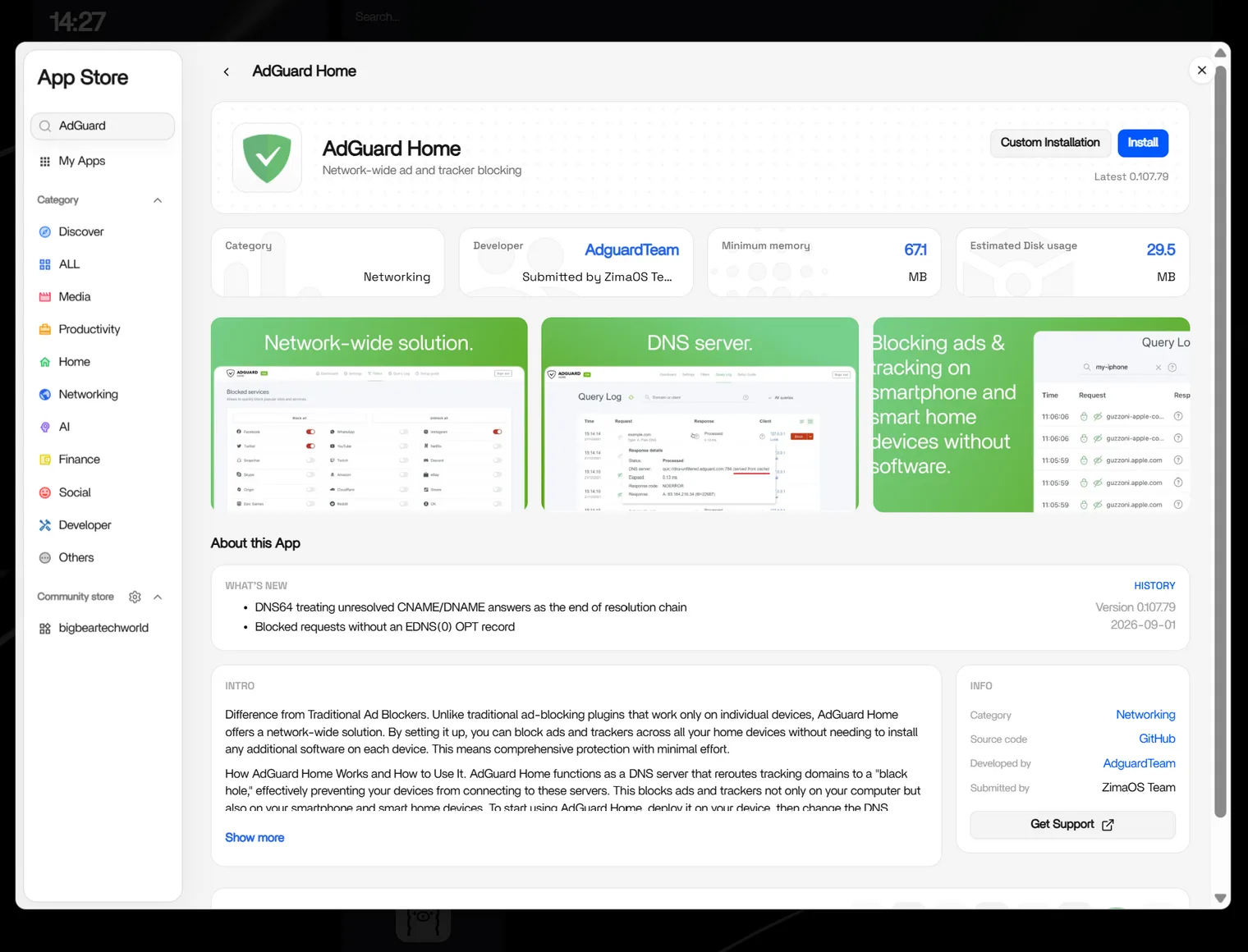
- It’s ready to use!
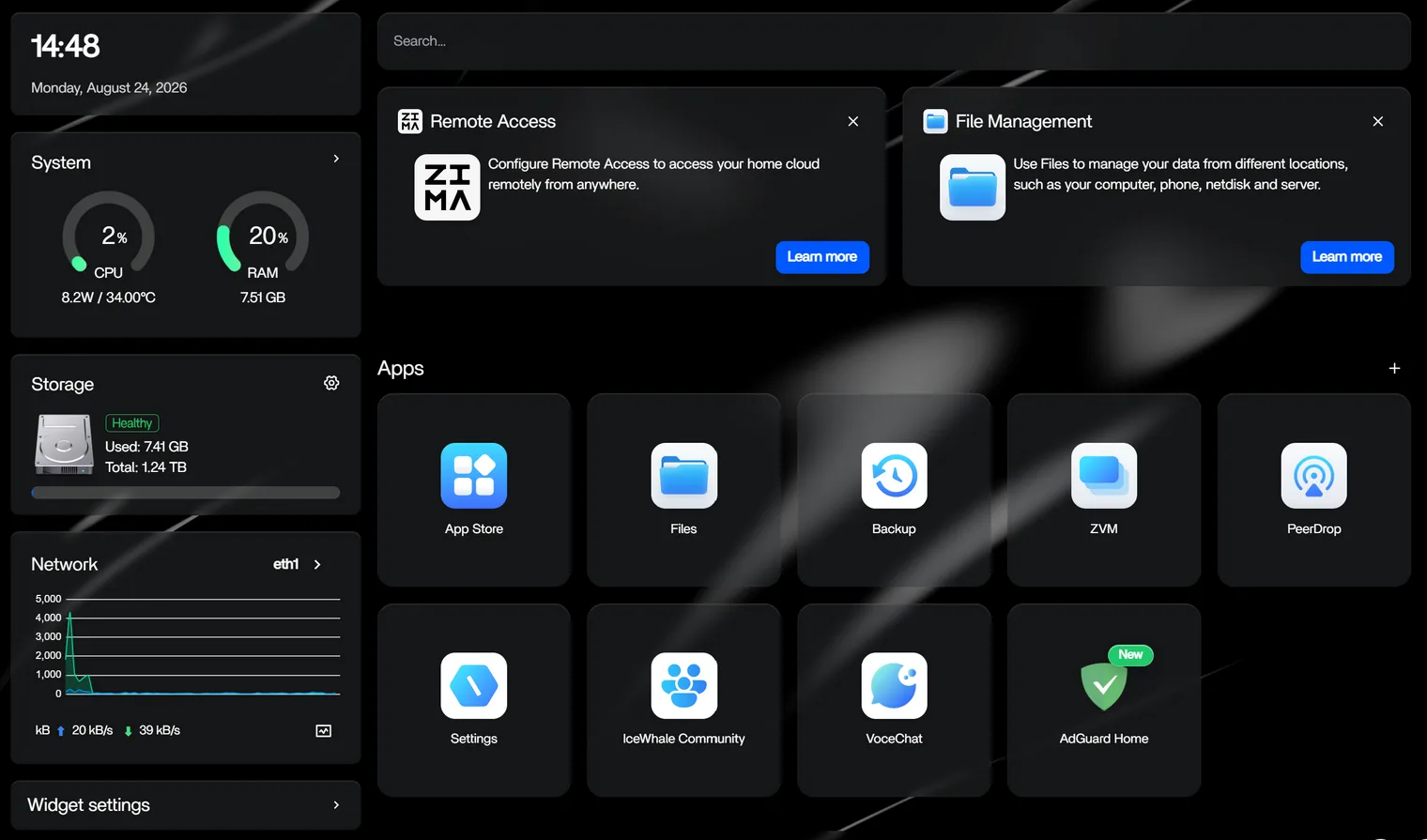
Configuration
After the download completes, open the app settings and add a port-forwarding rule:
- Click the ‘+’ button under Port forwarding, and add a rule mapping
82to80.
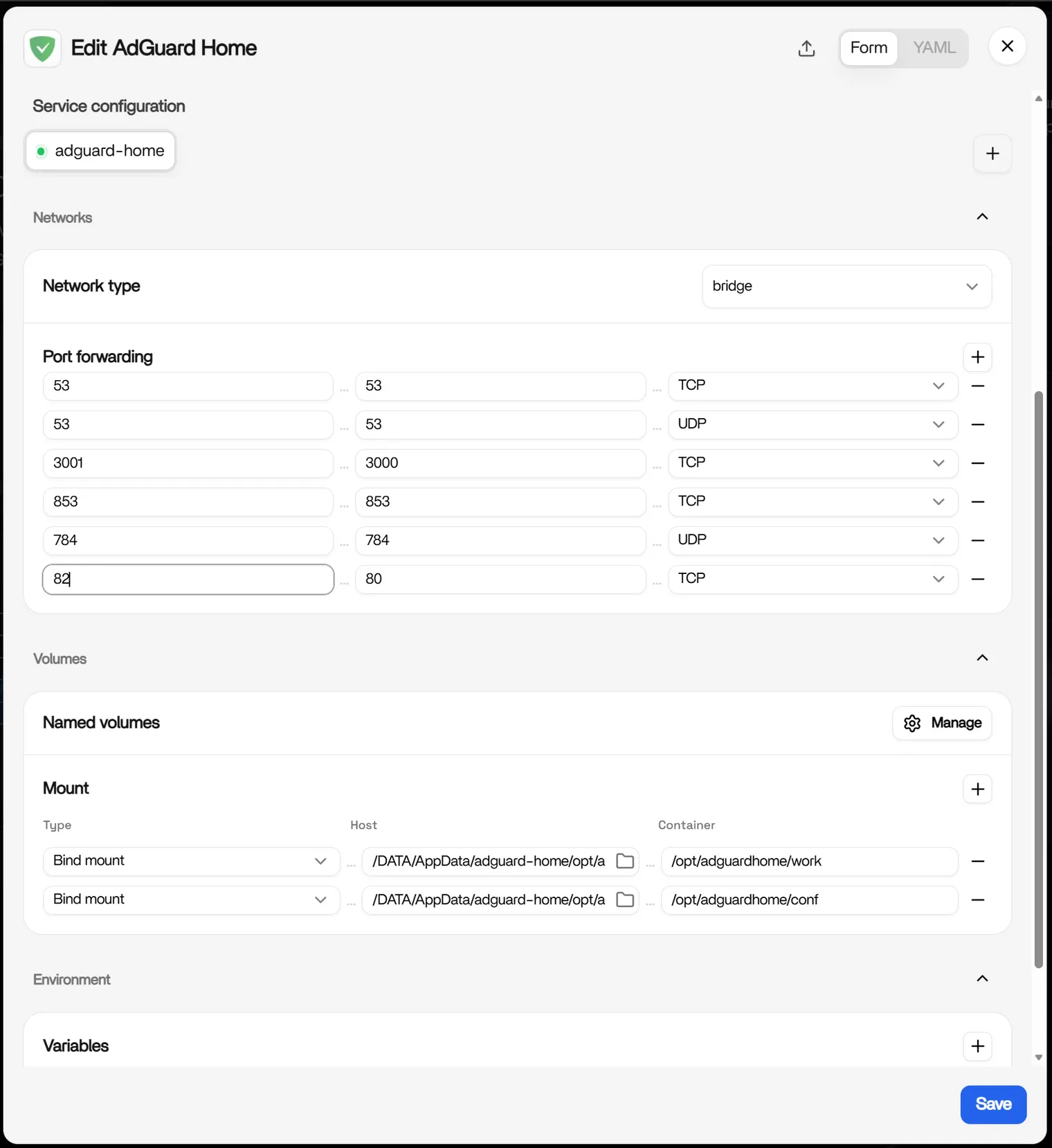
Tip: If adding the rule reports an error, port
82is likely already in use by another app. Change82to another free port, and remember to update every mention of82to match. Do not change the53port mapping — it is required for DNS.
First-time setup
- Click the AdGuard Home icon to open the initial setup.
- Keep all the default settings and complete the setup, creating your admin username and password.
The AdGuard Home admin interface listens on all network interfaces by default. To change this configuration, see AdGuard’s guide on running AdGuard Home securely.
After setup
- Return to the ZimaOS dashboard and open the app settings again. In the Web URL (webURL) field, change
3001to82.
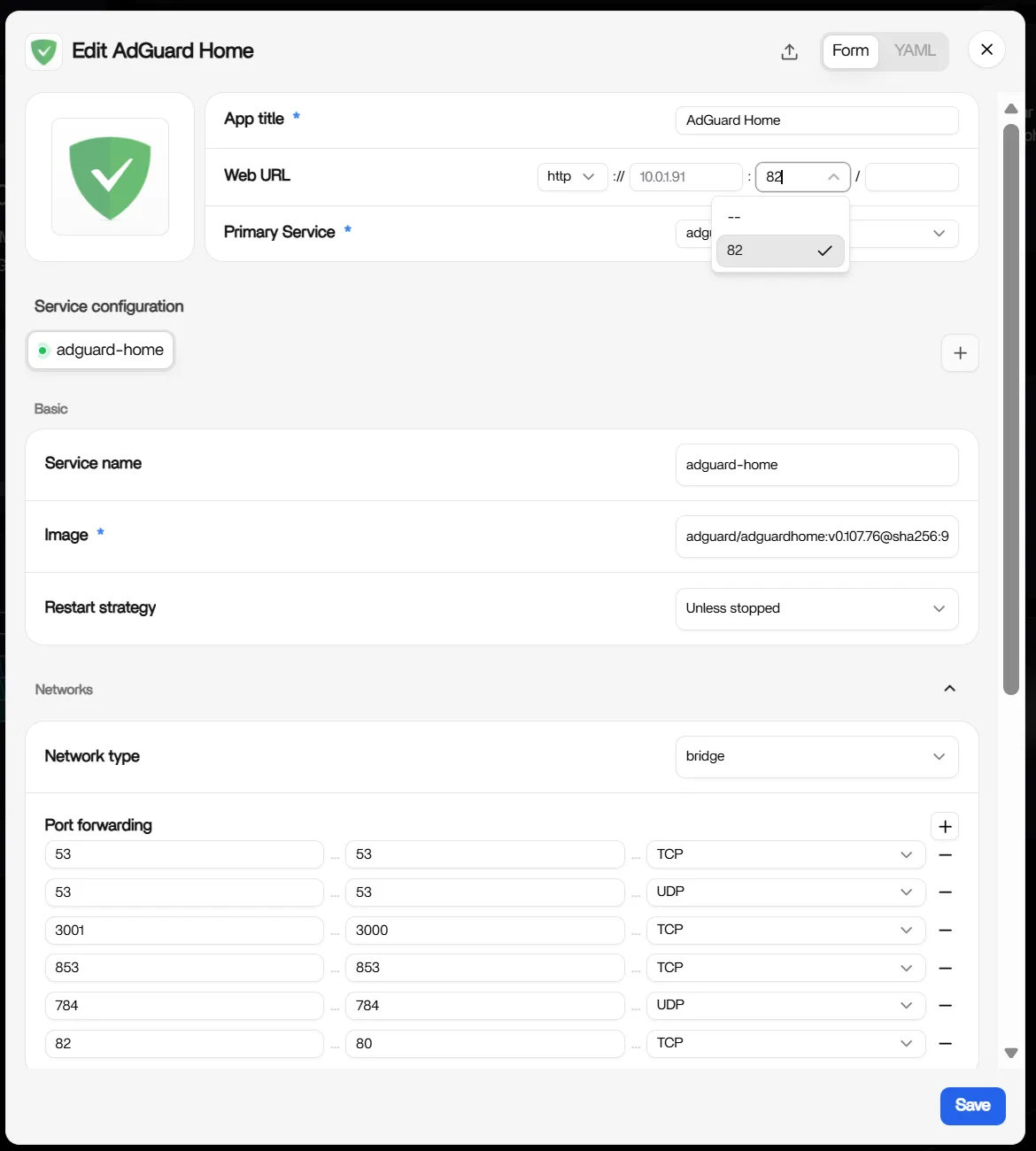
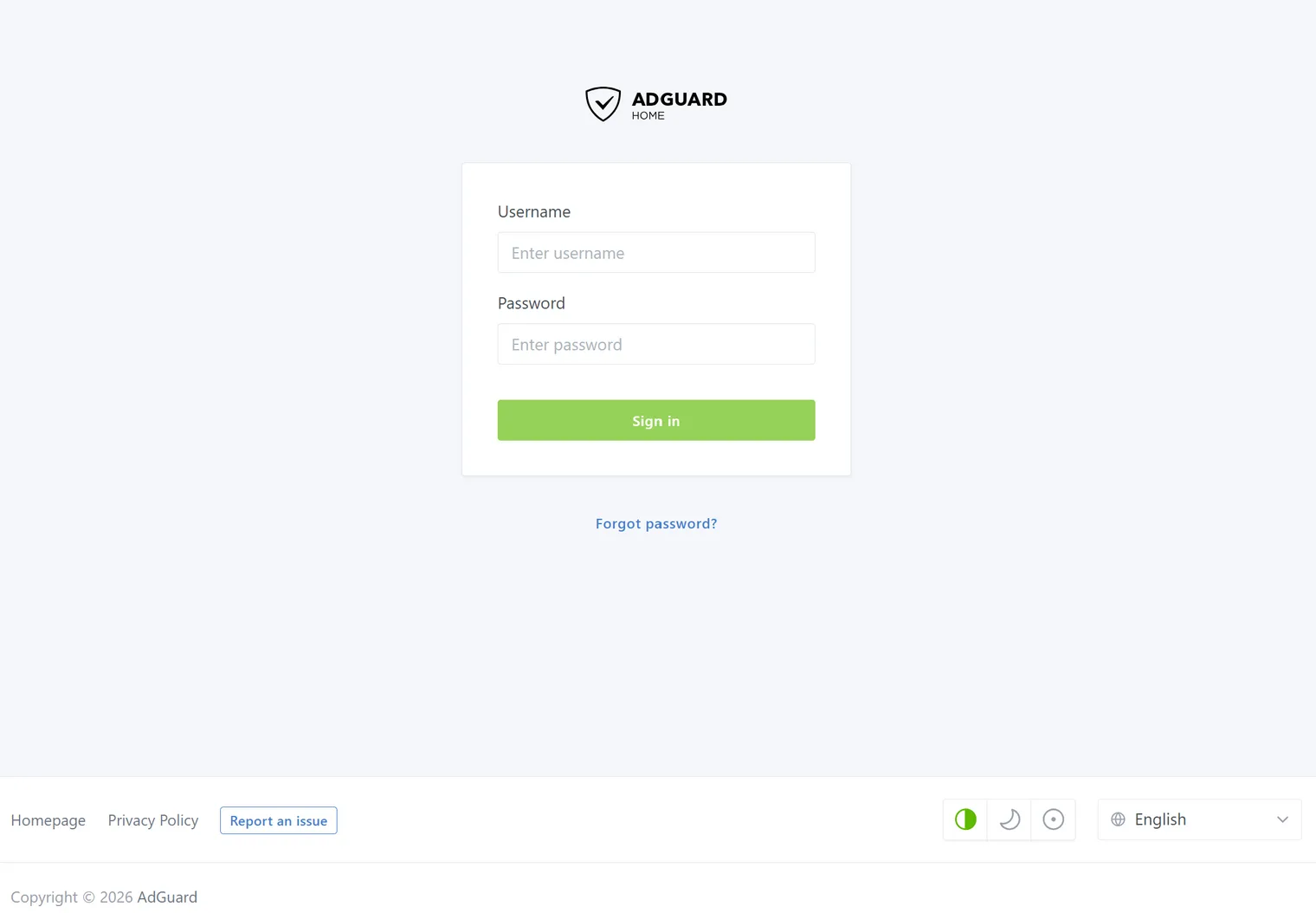
- Click the AdGuard Home icon and log in with the username and password you set during setup.
Set a static IP
Before you point your router at AdGuard Home, give the ZimaOS device a fixed address. If it keeps a DHCP-assigned address and that address later changes, every device on your network will lose DNS resolution until it is updated.
- Open ZimaOS Settings → Network and select your network interface.
- Switch it from automatic (DHCP) to Manual, then fill in the fields.
- Save the settings.
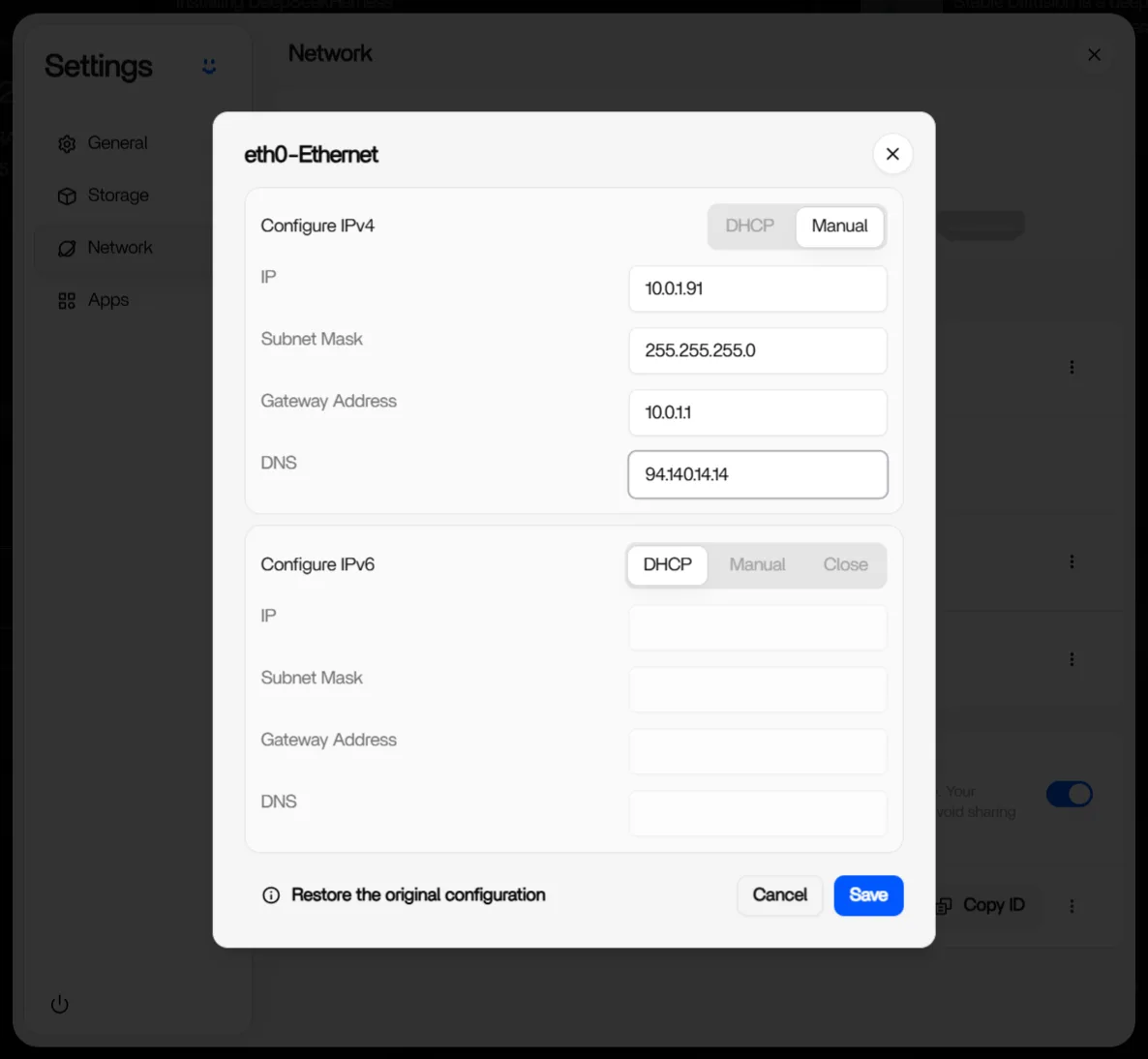
The fields shown in the screenshot, with examples — replace these with the values that match your own network:
- IP address: e.g.
10.0.1.91 - Subnet mask: e.g.
255.255.255.0(or a prefix length such as /24, depending on your setup) - Gateway: e.g.
10.0.1.1 - DNS: e.g.
94.140.14.14(primary),94.140.15.15(secondary)
Alternatively, you can reserve the address on your router’s DHCP page so the device always receives the same IP.
Point your router to AdGuard Home
After you have finished configuring AdGuard Home, open your router settings and find the DHCP/DNS section, then enter the address of the device running AdGuard Home — for example 10.0.1.91. Save the settings and you are ready to go.
Some routers do not allow setting a custom DNS server at all. In that case, you can use AdGuard Home’s own DHCP server instead.
Adding blocklists
AdGuard Home ships with the AdGuard DNS filter enabled by default, so filtering works as soon as setup is complete. To filter more aggressively, open Filters → DNS blocklists → Add blocklist to add extra DNS blocklists — any domain on these lists is blocked for every device on your network.
What AdGuard Home blocks
DNS-based blocking works by domain, so it can block:
- ads and trackers loaded from dedicated ad and tracking domains
- malicious and phishing domains
- telemetry from apps and smart home devices
Please note: AdGuard Home cannot remove ads served from the same domain as the content, such as YouTube in-video ads and most in-app ads. Those require a device-level ad blocker. For YouTube and in-app ads on your phone or computer, try AdGuard Ad Blocker with the code ZIMAGUARD30 for 30% off.
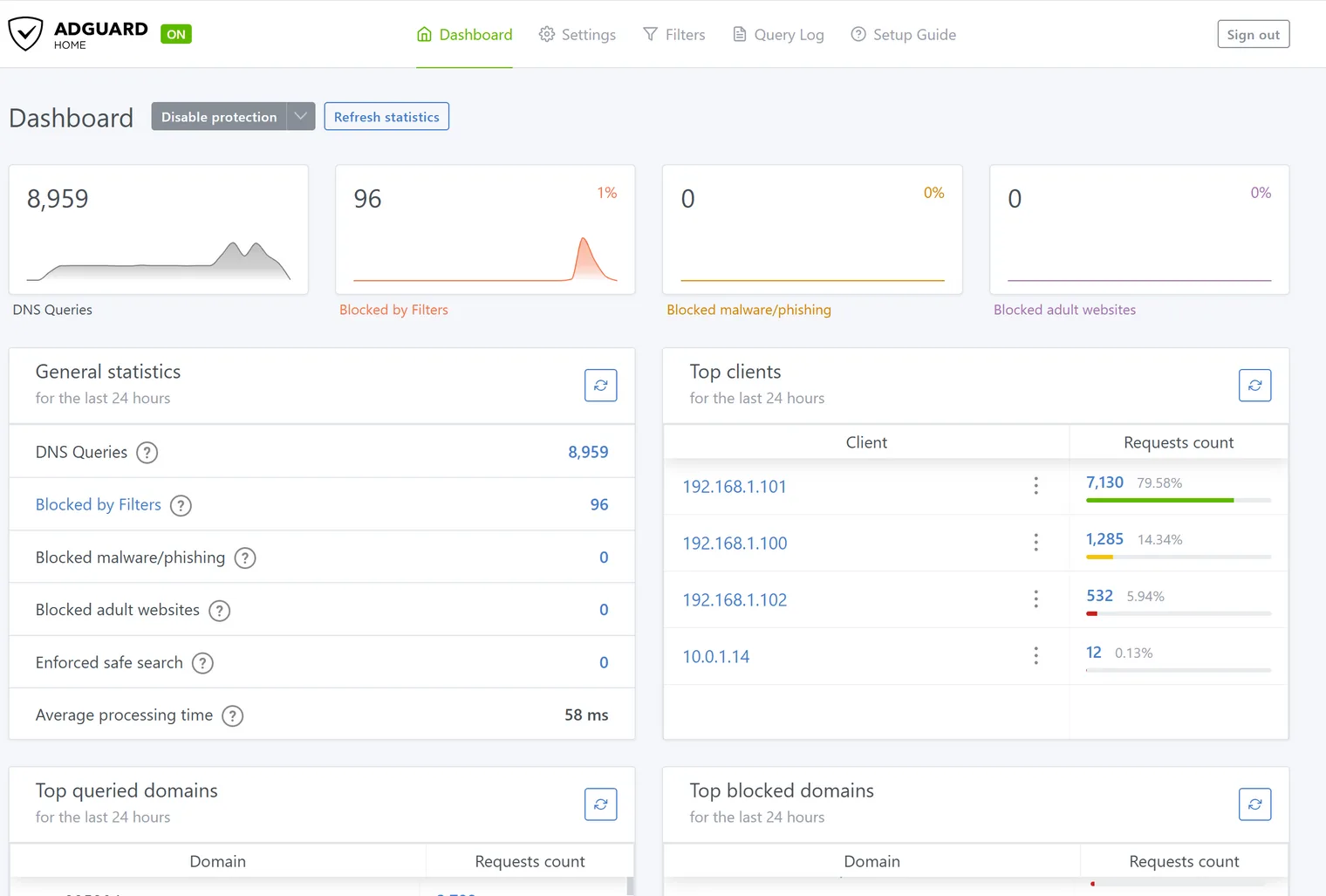
Network-wide filtering is active when client requests appear in AdGuard Home’s Query Log and blocked requests appear in the Dashboard statistics.
Updates
AdGuard Home runs as a Docker container, and auto-updates are disabled in Docker installations by design. The Update button inside the AdGuard Home interface will therefore not work. To update, install the latest version from the ZimaOS App Store.
Related Guides
- Looking for another option? See Pi-hole Setup.
Need Help?
If you run into any issues while installing or using AdGuard Home on ZimaOS, join the ZimaSpace Discord community. Our team and community members will be happy to help.