
Overview
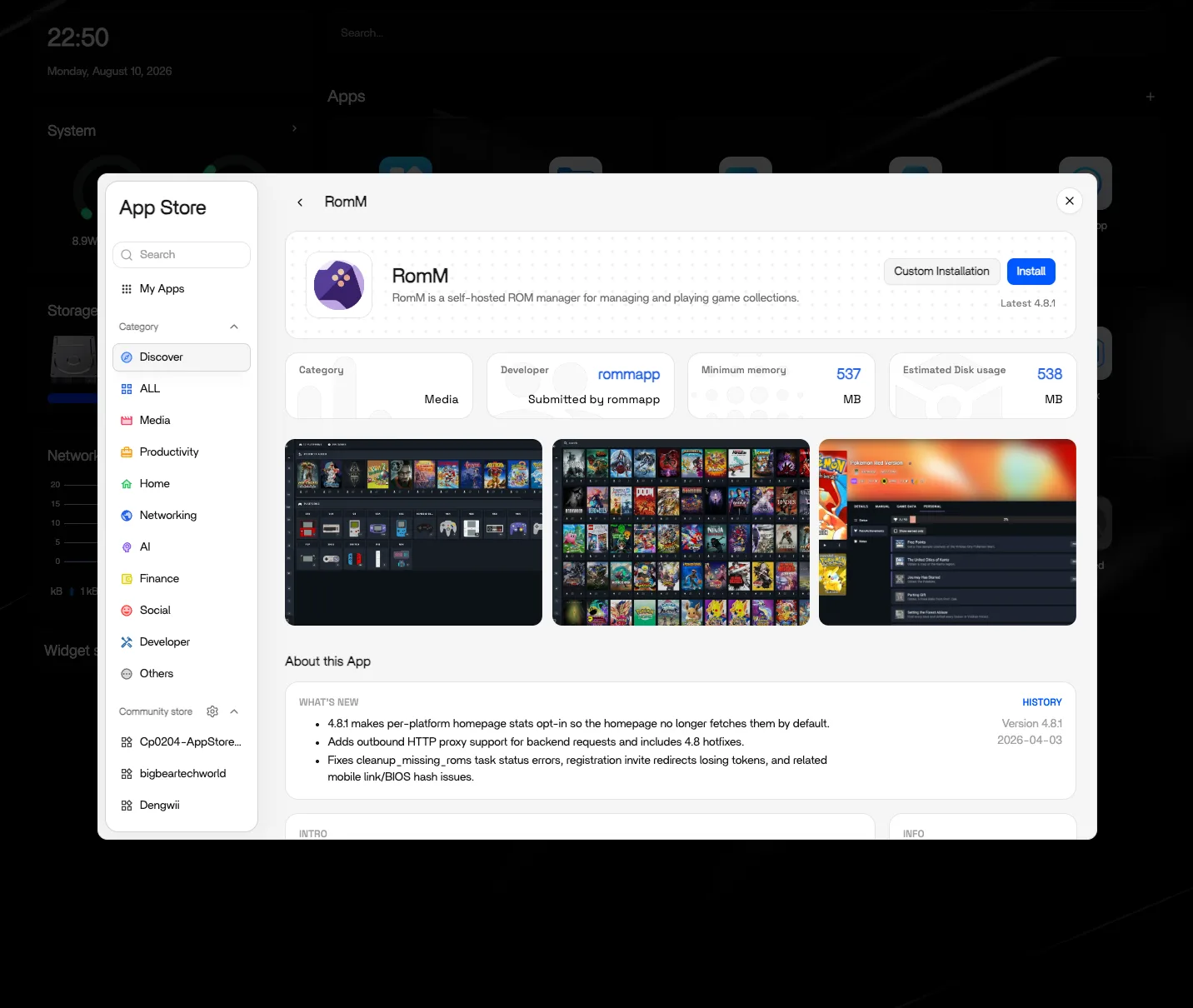
RomM is natively supported in the ZimaOS App Catalog. See the RomM App Store page for the latest app details.
RomM is a self-hosted ROM library manager — it scans your game collection, pulls in box art and metadata, and gives you a browser-based library you can browse and share from any device on your network.
Prerequisites
- A running ZimaOS installation.
- Your library arranged in the expected folder structure.
App Catalog
- Find RomM in the ZimaOS App Catalog. Open App Store → search for “RomM”.
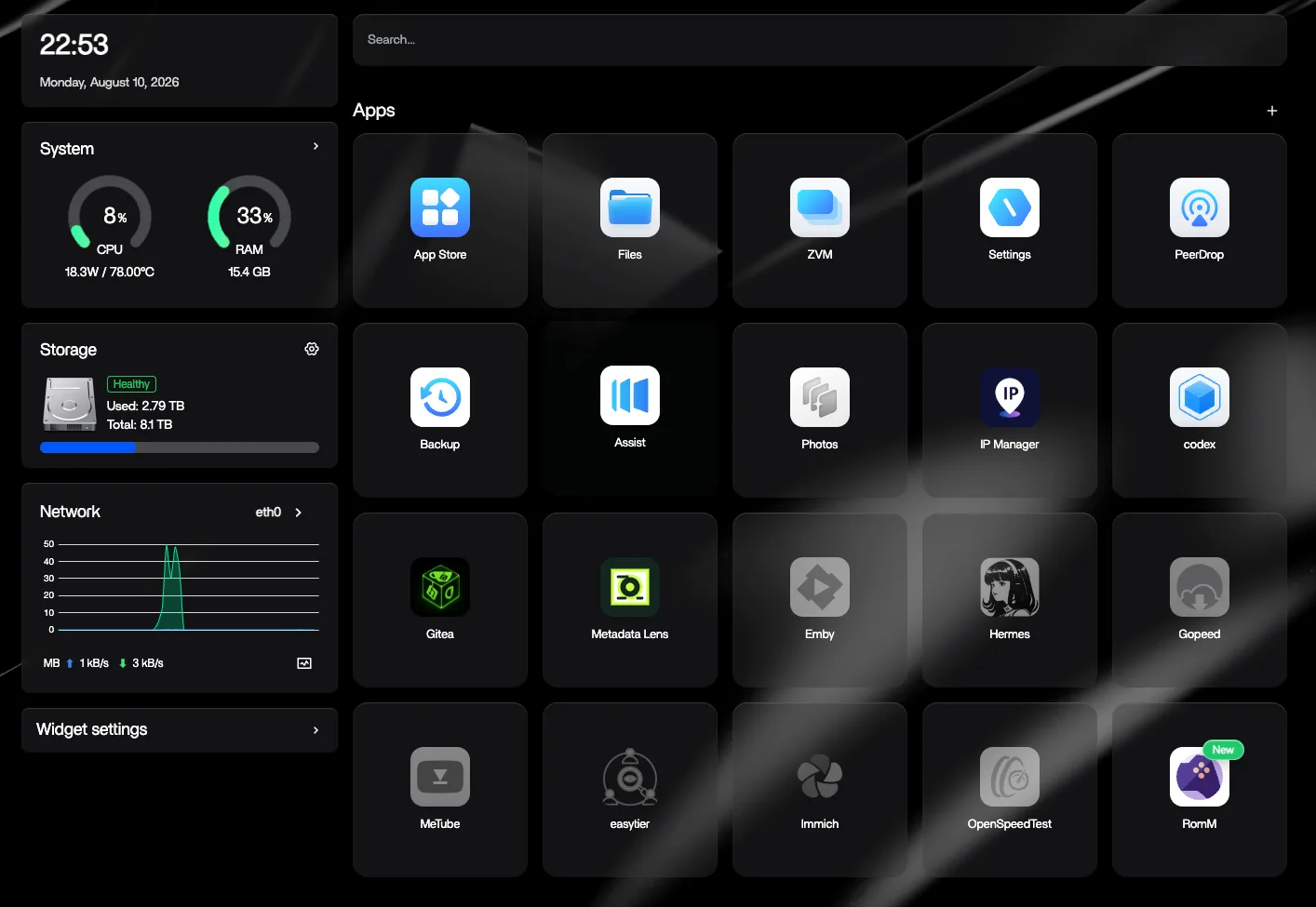
- It’s ready to use!
Configuration
The following steps are NOT required — you can get started right away with the DEFAULT configuration.
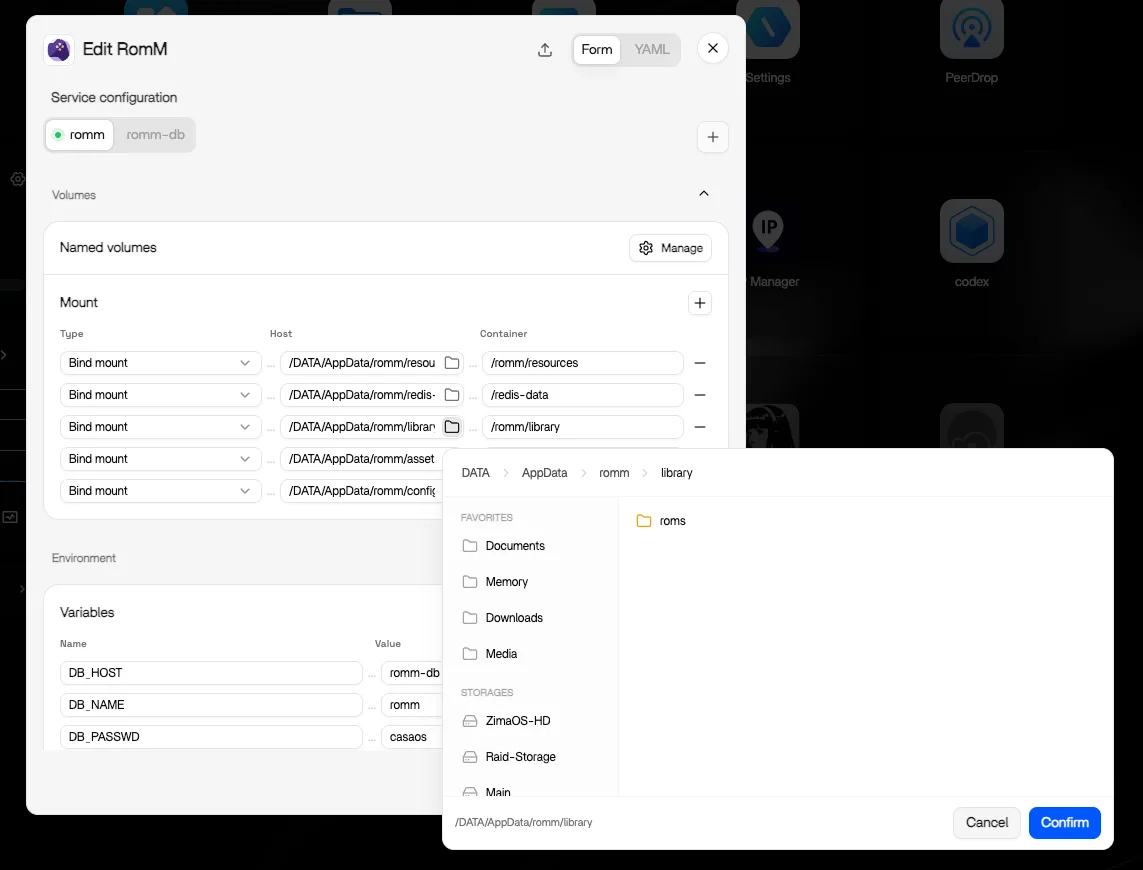
ZimaOS supports multiple configuration methods, including form-based editing and YAML secondary editing.
Import ROMs
Importing ROMs on ZimaOS is easy — just drag and drop. Open ZimaOS Files, navigate to the directory where your library is configured (default is AppData/romm/library/roms), and drag your files in to upload. RomM picks them up and adds them to your library with artwork and metadata.
RomM, RetroArch, and Batocera
These three tools cover different parts of retro gaming:
- RomM organizes the collection — it scans your files, pulls box art and metadata, and gives you a shareable library to browse. It is not the emulator itself.
- RetroArch plays the games — it is the emulation frontend that runs ROMs across dozens of systems.
- Batocera turns a whole device into a console — it is a dedicated retro-gaming OS you boot a ZimaBoard into, instead of an app on ZimaOS.
A common setup is to keep the collection tidy in RomM on ZimaOS, and play on a RetroArch or Batocera device.
Need Help?
If you run into any issues while installing or using RomM on ZimaOS, join the ZimaSpace Discord community. Our team and community members will be happy to help.