
Adminer is a lightweight, browser-based database manager that supports SQLite, MySQL, PostgreSQL, and other database systems. See the Adminer App Store page for the latest app details. This guide shows you how to install Adminer from the ZimaOS App Store and give it access to a SQLite database directory, using Emby as an example.
Important: Adminer provides direct access to application data. Back up the database before making changes, avoid exposing Adminer directly to the public internet, and use read-only queries until you understand the application’s database structure.
Before You Start
- ZimaOS is installed and running.
- You can access the ZimaOS web interface and App Store.
- If you want to inspect an existing SQLite database, you know which host directory contains its
.dbfiles. - You have a current backup of the database before performing write operations.
You can install Adminer without an existing database and configure the directory mount later.
Install Adminer
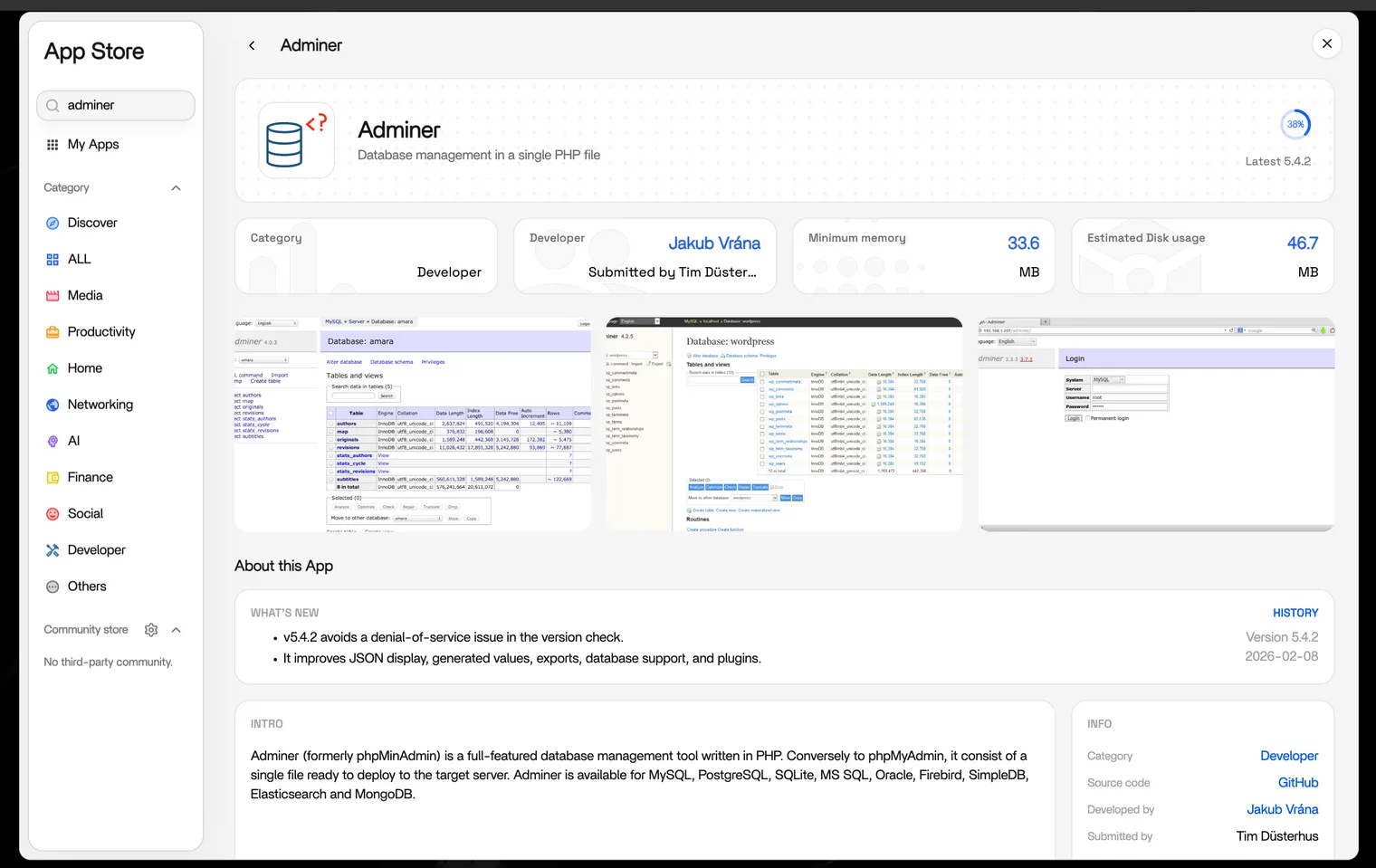
- Open the ZimaOS App Store.
- Search for Adminer.
- Open the Adminer listing and click Install.
- Wait for the installation to finish and confirm that Adminer appears on the ZimaOS dashboard.
Give Adminer Access to a Database Directory
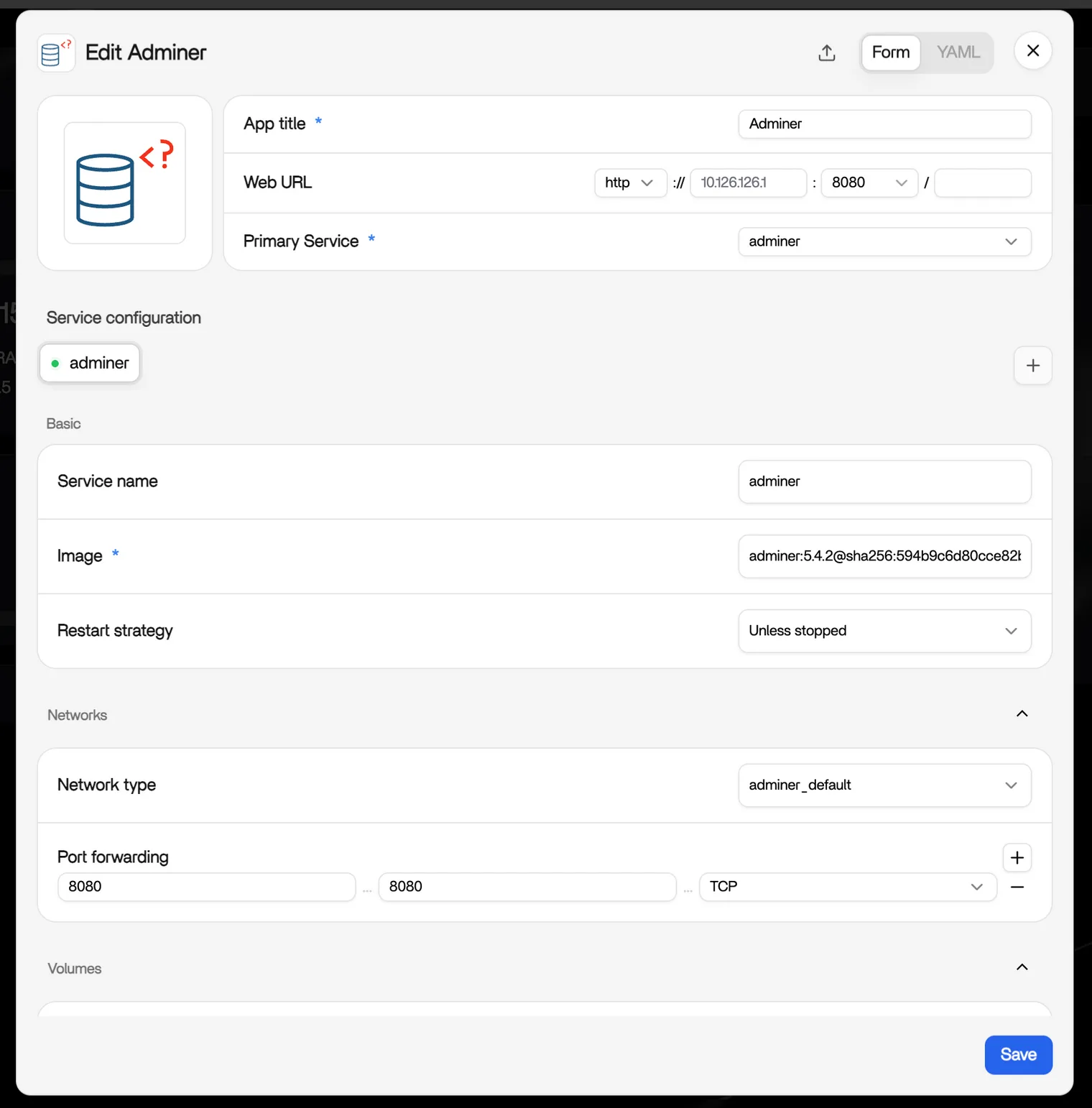
- On the ZimaOS dashboard, open the menu in the upper-right corner of the Adminer app tile.
- Select Manage Adminer to open the container configuration page.
- Expand Volumes, find Mount, and add a mount.
- Set the mount type to Bind mount.
- Under Host, select the directory containing the database files. For a default Emby installation, the directory is usually
/DATA/AppData/emby/config/data. - Under Container, enter
/config/data. - Click Save, then restart Adminer if ZimaOS does not restart it automatically.
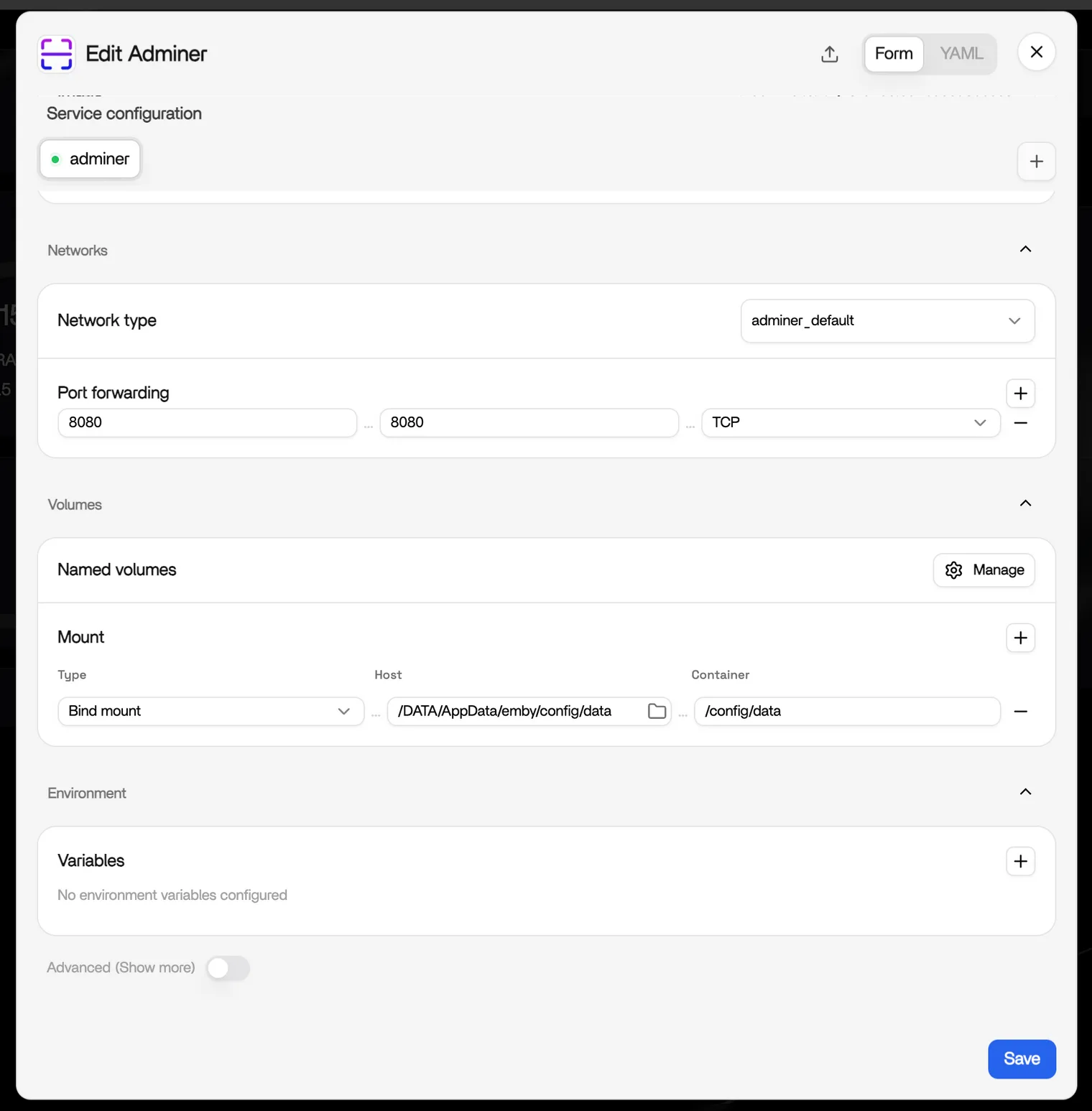
For another application, replace the Emby host path with that application’s database directory. Mount only the directory Adminer needs instead of granting access to a broader storage path.
Open a SQLite Database
- Open Adminer from the ZimaOS dashboard.
- Select SQLite as the database system if it is available in the installed Adminer image.
- Browse to the mounted directory and select the database file, such as
/config/data/library.db. - Enter any credentials required by the Adminer image and log in.
Adminer images and versions can differ in how they handle SQLite authentication. Adminer v4+ requires a password for SQLite connections — the official image won’t let you log in with a blank password. If the installed image rejects a blank-password SQLite connection, use a panel password plugin or a community image such as finwo/adminer (login with nopassword). Do not weaken unrelated application credentials or expose Adminer publicly. Review the image’s update and security status before long-term use.
Example: Inspect Emby’s Library Database
With the default Emby data directory mounted at /config/data, you may find these files:
library.dbcontains media-library metadata.users.dbcontains user-account data.
Use the SQL Command page to run read-only checks. To check SQLite database integrity, run:
PRAGMA integrity_check; |
An ok result indicates that SQLite did not find integrity errors. To inspect a small sample of Emby media names and stored paths, run:
SELECT Name, Path FROM MediaItems LIMIT 20; |
Database schemas can change between application versions. If a table or column is missing, confirm the schema before changing the query. Avoid UPDATE, DELETE, or schema changes unless you have a tested backup and understand the consequences.
Connect to Other Database Types
MySQL and PostgreSQL are network database services rather than standalone files. To connect to them, Adminer needs network access to the database host, the correct port, and valid database credentials. A volume mount alone is not sufficient.
If the database runs in another container, confirm that both containers can communicate through an appropriate Docker network. Do not expose the database port publicly just to make Adminer connect.
Security and Maintenance Tips
- Keep Adminer limited to your trusted local network or another secured access method.
- Back up databases before editing them, and stop the source application before replacing database files.
- Review the release date and security status before using a community-maintained Adminer image.
- Stop or remove Adminer when you no longer need direct database access.
Reference
Need Help?
If you run into issues while installing or using Adminer on ZimaOS, join the ZimaSpace Discord community. The IceWhale team and community members can help you troubleshoot the setup.