
When you install an app from the App Store, it stores its files somewhere on your drives. Knowing where those files live helps you back up the right folders, move data to a bigger drive later, and avoid surprises when an app disappears after an update.
Apps installed from the App Store run inside containers. Inside that container, the app has its own file system. But the data you care about is mapped to real folders on your drives, outside the container. Delete the container and your files remain. Native ZimaOS features like Files and VM are not containers, so this only applies to App Store apps.
Keep App Data Off the System Drive
Before installing anything, we recommend pointing your app data at the storage space you created in the Storage Setup tutorial. Here is why.
The system drive is usually small. If every app writes its data there, it fills up quickly. Photos synced through Immich, media scraped by Plex, documents indexed by Paperless — all of it lands on the system drive by default. Once it is full, updates fail, apps behave oddly, and the whole device slows down.
Setting the app data path to your main storage array from the start keeps things clean. Your system drive handles the operating system. Your storage array handles the data. If one drive fills up later, you can move individual apps to a different location without reinstalling.
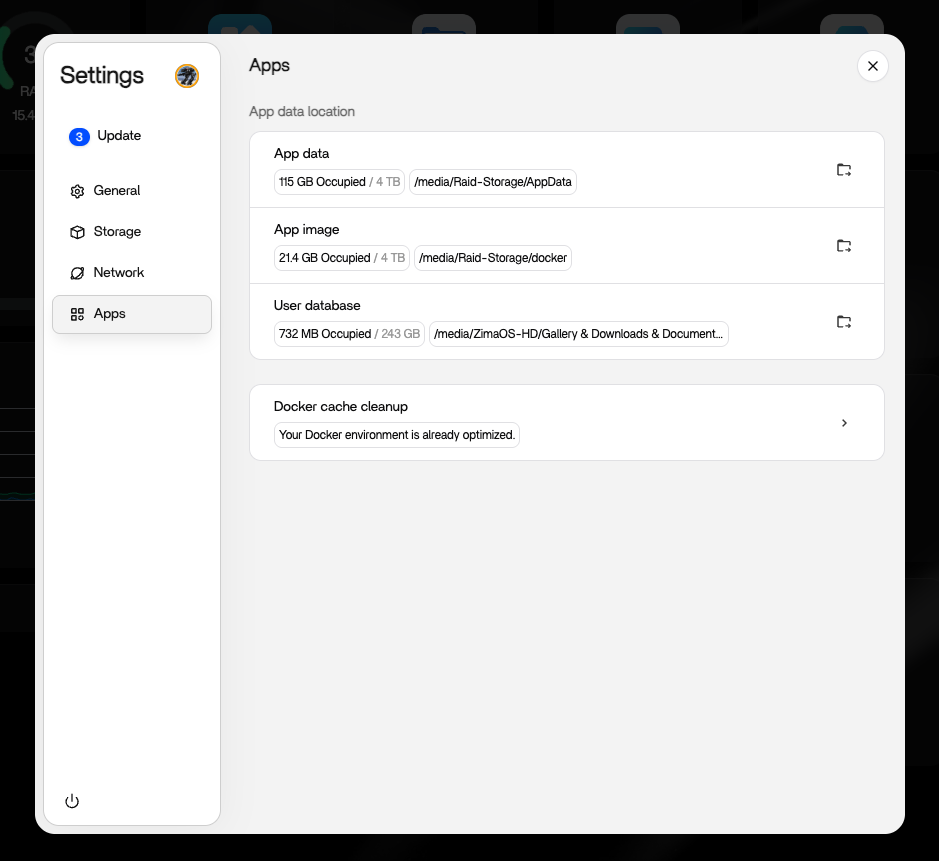
To set this up, go to Settings > Apps, find App data location, and set it to the storage space you created. ZimaOS will move the data for you.
Let me walk through how this works with Plex, the media server.
The Plex Example
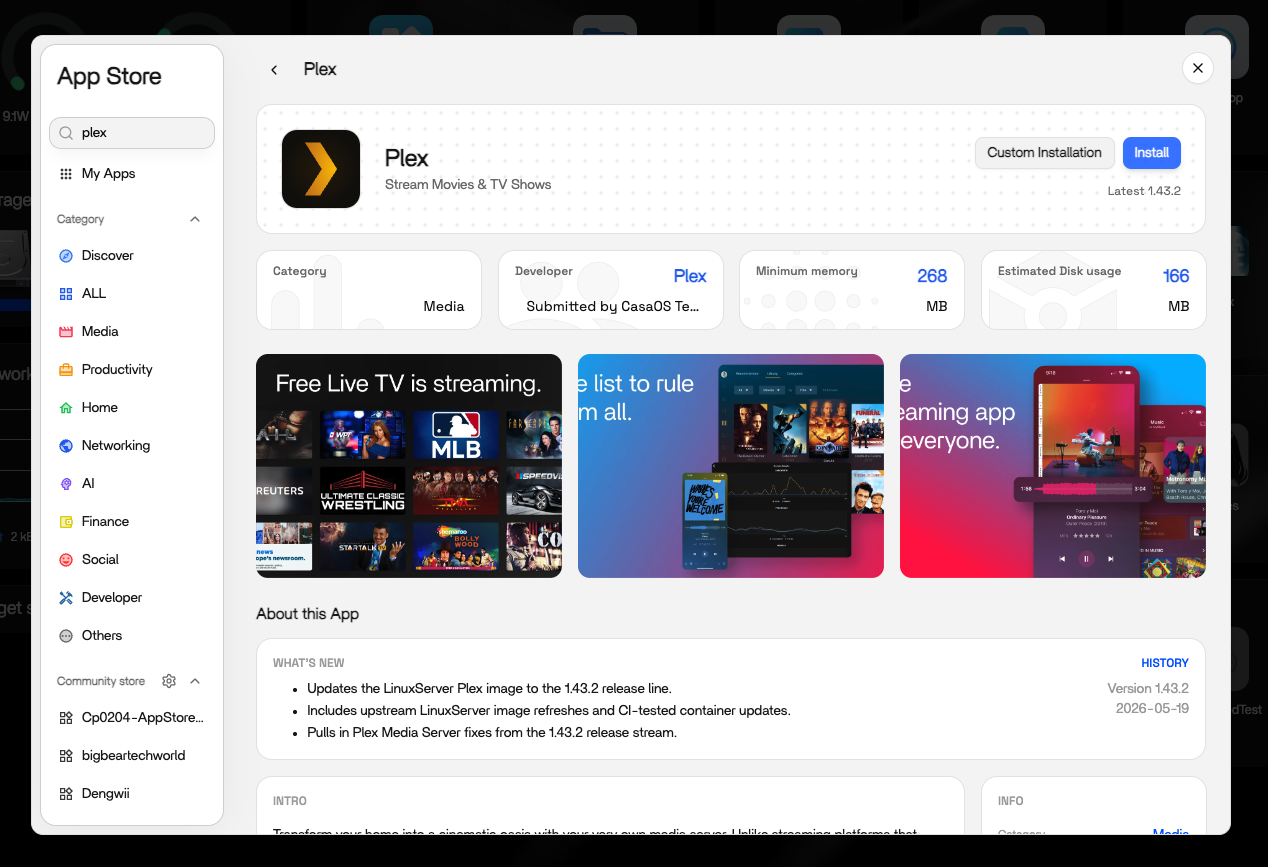
Install Plex and ZimaOS sets up two folders for it.
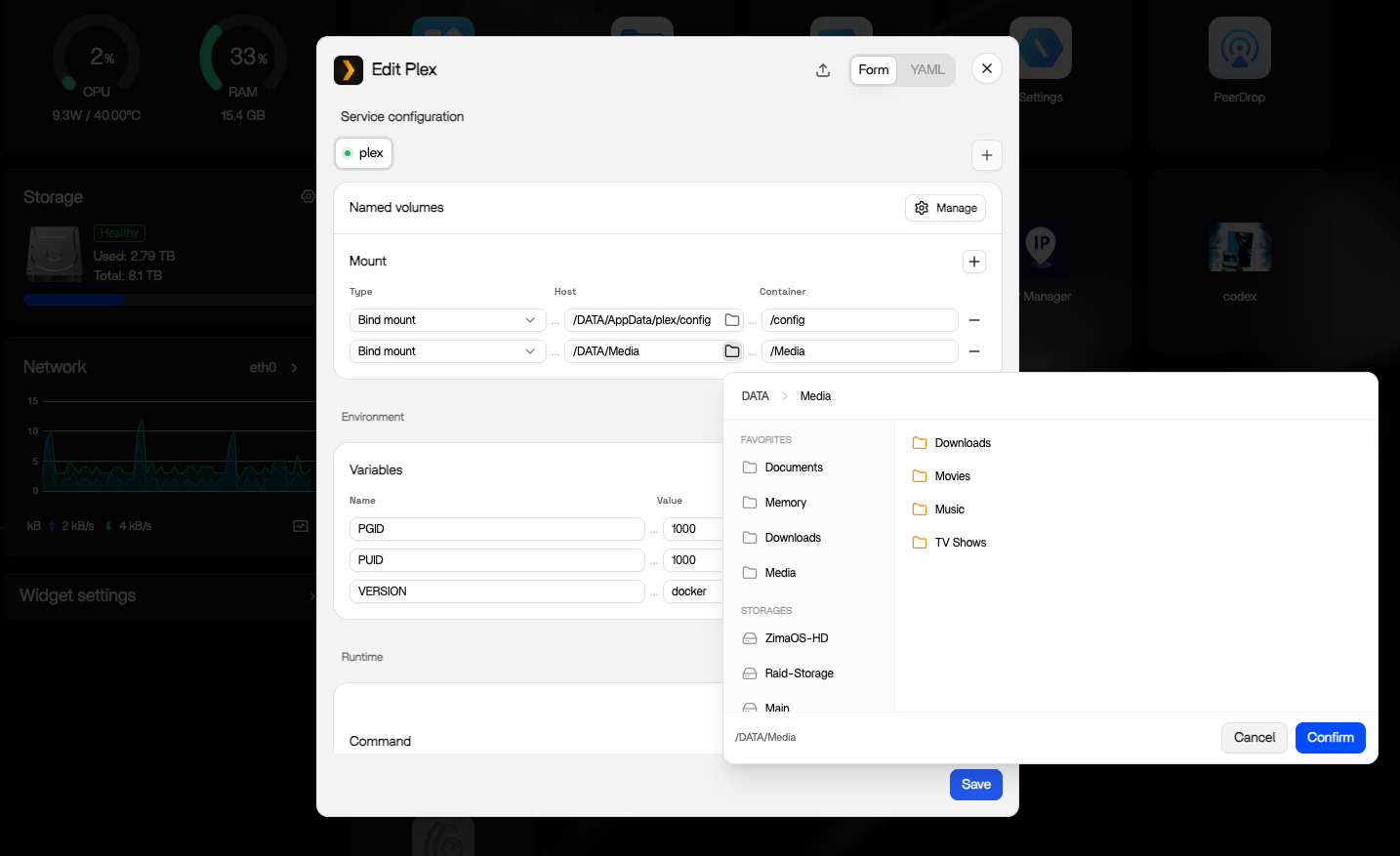
Config. Settings, database, preferences. Inside the container this is /config. On your drives it lives under your App data location — /DATA/AppData/plex/config by default, or your own storage space if you moved it. Survives reinstall and updates.
Media. Your movies and TV shows. Inside the container this is /media. On your drives it is the Media folder on your storage space. Put your video files there and Plex reads them directly.
You can see and change these paths by opening the app’s settings in ZimaOS. Each volume path has an edit button next to it.
Why This Matters
Two practical reasons to know your app paths.
First, when you set up backups, back up the folders on your drives — not anything inside the container. The container is disposable. The folders on your drives are not.
Second, if a drive starts filling up, you can point an app’s data at a different drive. Move the folder, then update the path in the app’s settings. No reinstall needed.
Clean Up App Cache
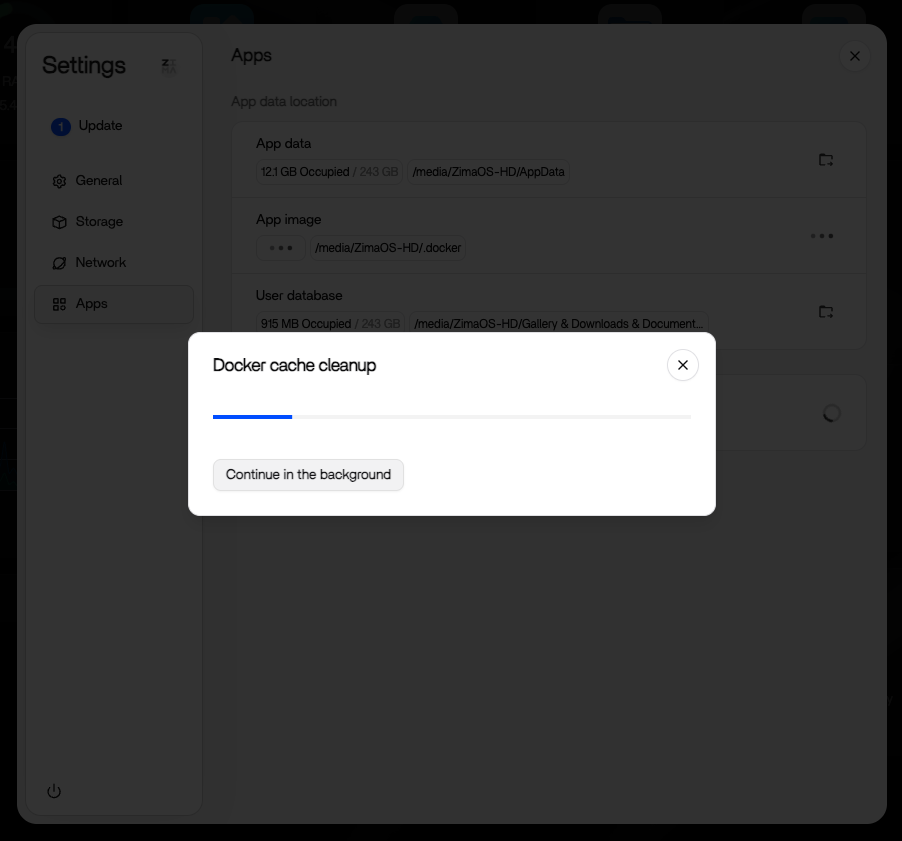
Over time, apps accumulate cached data that can quietly eat disk space. The Settings > Apps page shows how much space each app is using. If you see something growing unexpectedly, clear its cache there. The app itself keeps working, and you reclaim the space.
Next
- Storage Setup — decide which drives hold your data
- Data Migration — the built-in tool when a drive fills up
- App Store Overview — see what apps you can install