
If you just went through the Get Started guide, your device is online and ready. Remote access is open, storage is shared, your account is set up. That first moment of seeing the dashboard come together is genuinely satisfying.
Here is a tour of what ZimaOS can do, and where to find the detailed guides for each feature. Think of this page as a map. If something catches your eye, follow the link to go deeper.
Reach Your Device from Anywhere
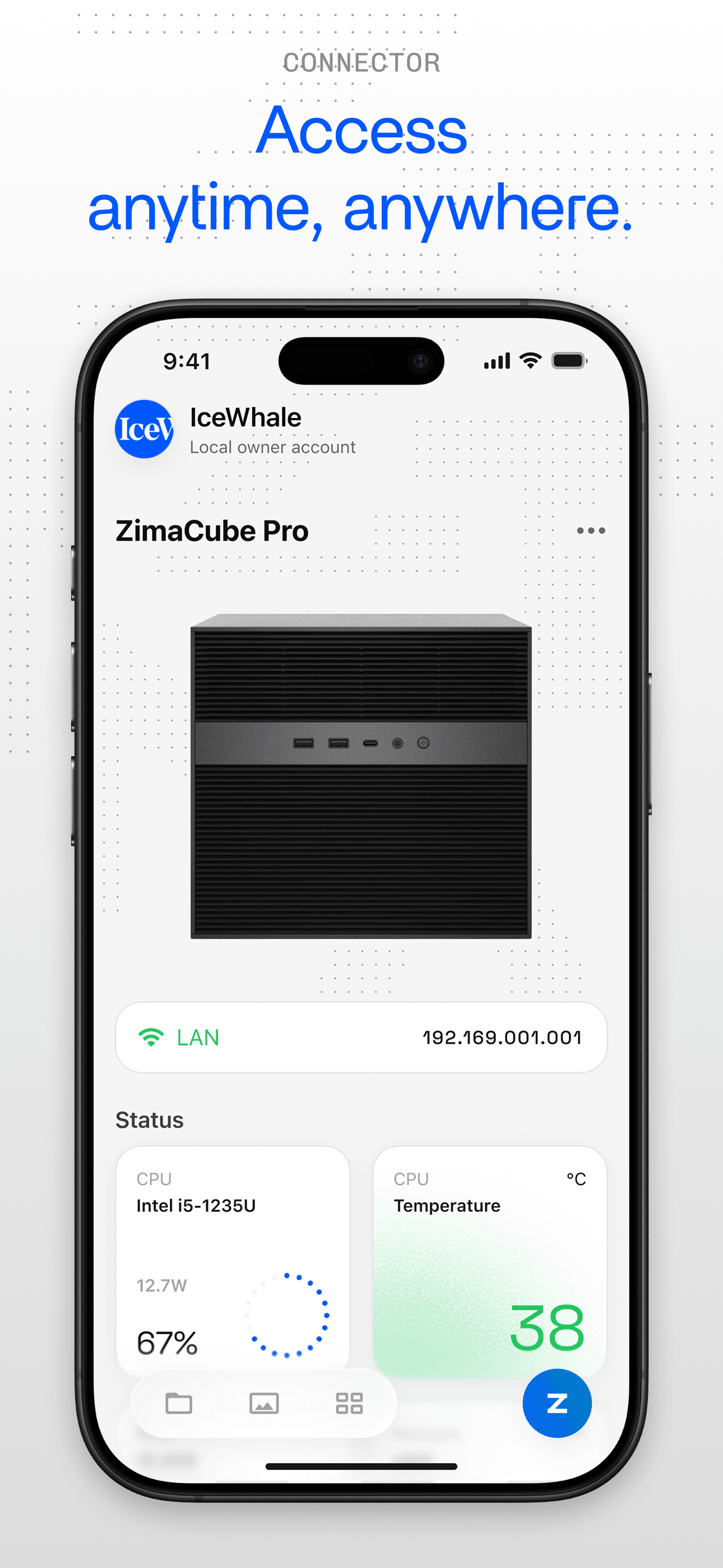
Most NAS devices make you configure port forwarding or set up a VPN to connect from outside your home. ZimaOS does not. The first time you connect through ZimaClient, an encrypted peer-to-peer channel is created automatically. After that, your device is reachable from anywhere.
Your data stays private. The connection is encrypted end to end, with no third-party server in the middle. You can turn remote access off in Settings whenever you want.
We do not collect, store, or have access to your personal files, connection logs, or usage data. Remote access runs over an encrypted peer-to-peer channel. No third-party server sits between you and your device. Our privacy practices are documented in full and open to community review.
|
|
|
|
Remote Access · Download ZimaClient
Store, Share, and Protect Your Files
How you set up storage depends on what you are using your device for.
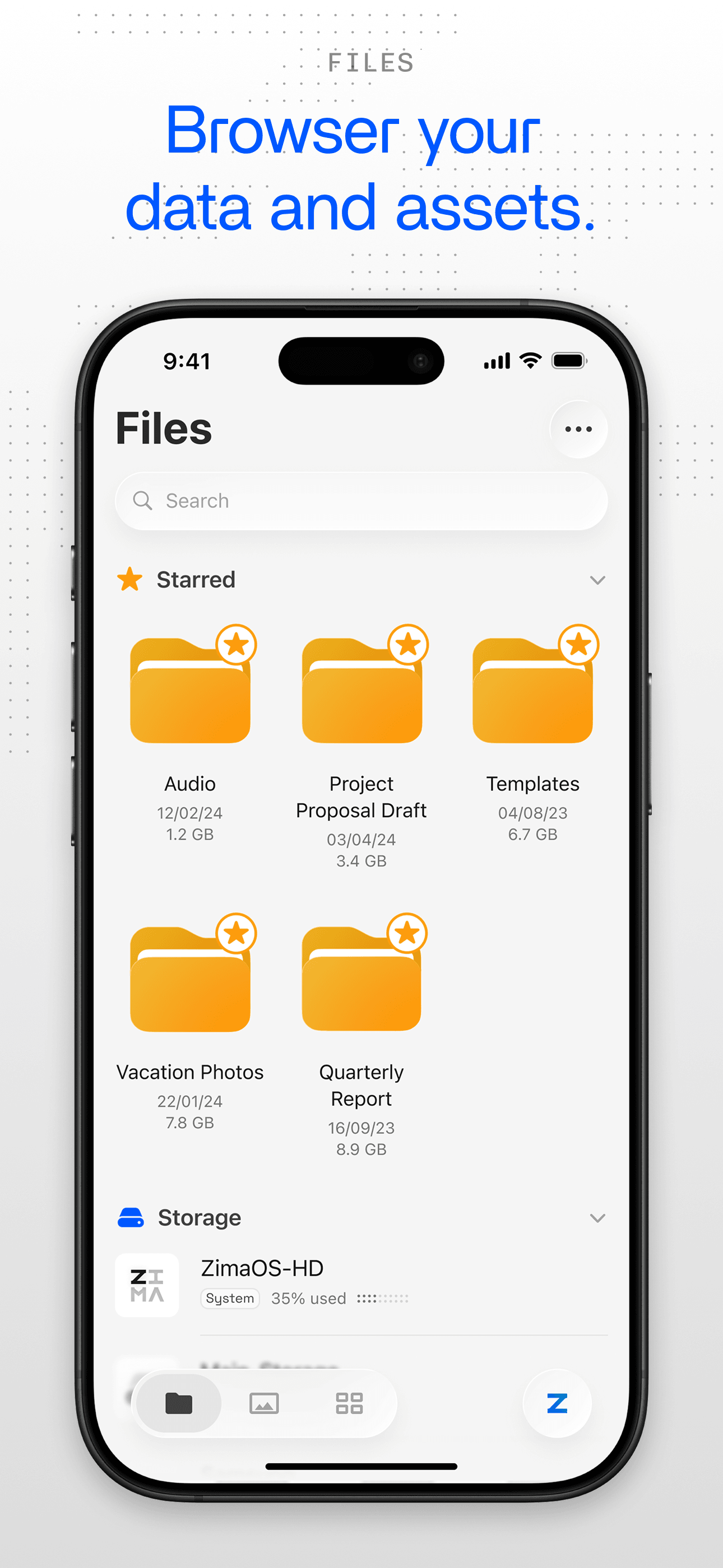
For most homes, we recommend starting with two identical drives in RAID 1. Your data is mirrored across both drives, so if one fails you lose nothing. Files appear in Finder and File Explorer on every computer in the house, with none of the upload waits or monthly fees that come with cloud storage. If you do want an offsite copy of your most important files, the Files app can connect to Google Drive, Dropbox, or OneDrive for selective backup.
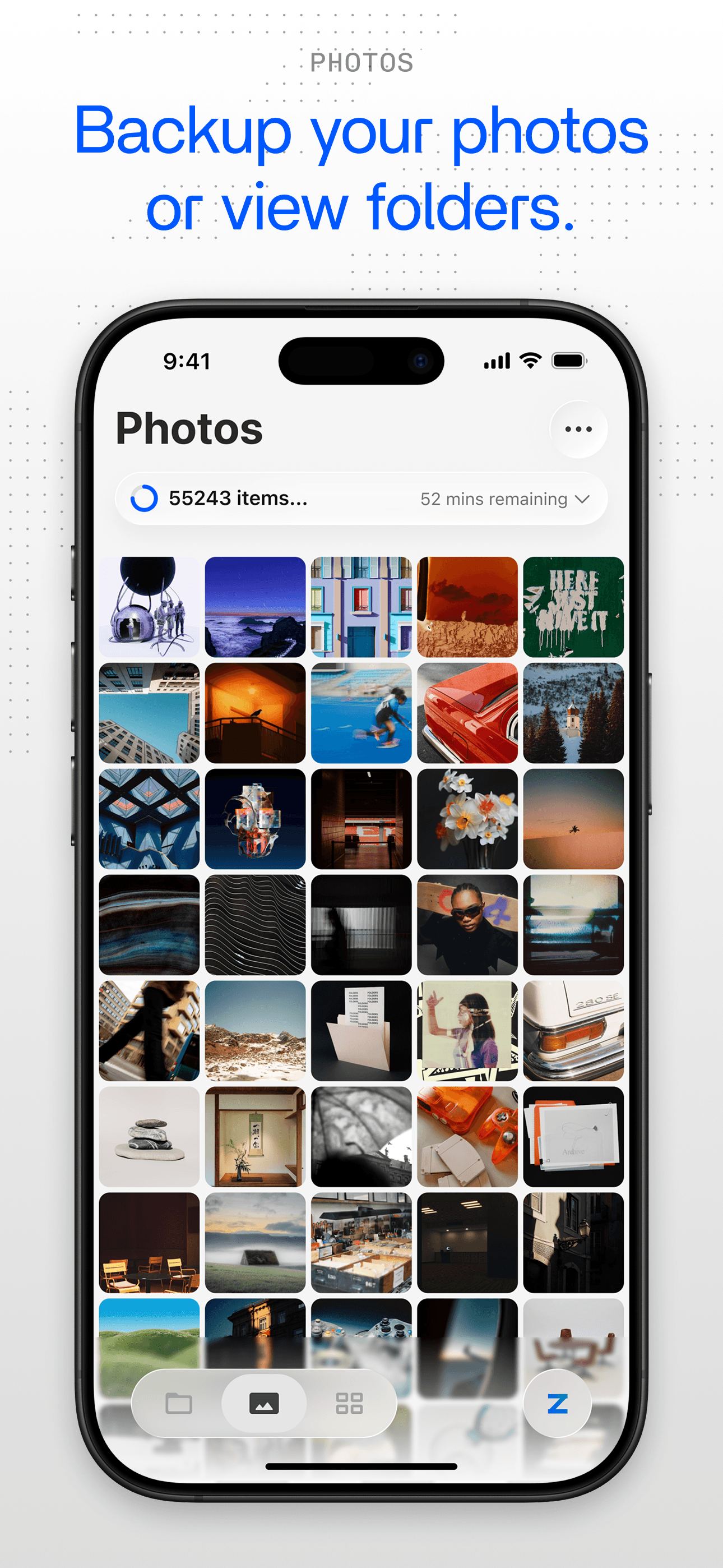
Your music, photos, and videos stream directly from the device to any screen on your network. For an extra layer of protection, the Files app can selectively back up your most important folders to Google Drive, Dropbox, or OneDrive.
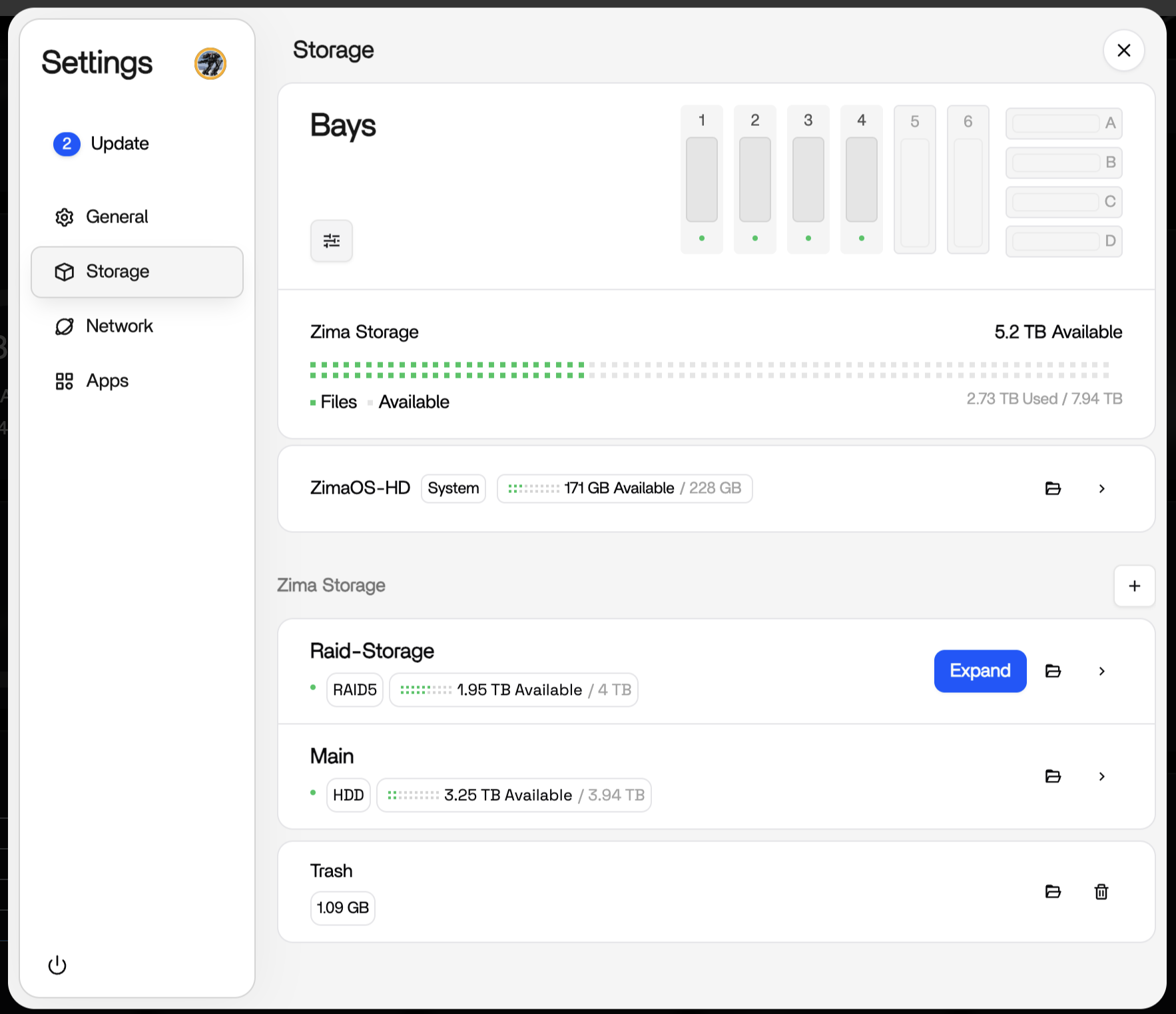
If you are running a small business or keeping irreplaceable family archives, RAID 5 gives you more usable space while still protecting against a single drive failure. Start with three drives and add more later. Your data stays online even while a failed disk is being replaced. ZimaOS also supports RAID 0, RAID 1, and RAID 6 for other scenarios.
If you want snapshots, checksums, and advanced data integrity, ZFS is available as well.
Once storage is configured, it appears automatically on your local network. On a Mac it shows up in Finder. On Windows, File Explorer. Access is protected by your ZimaOS account. You can create separate accounts for family members or teammates, each with their own read and write permissions.
Storage Setup · SMB File Sharing · Connect Cloud Drives · RAID Options · Data Migration
Install Apps with One Click
This is where your device goes from storing files to being a home server. The App Store was significantly expanded in ZimaOS 1.7.
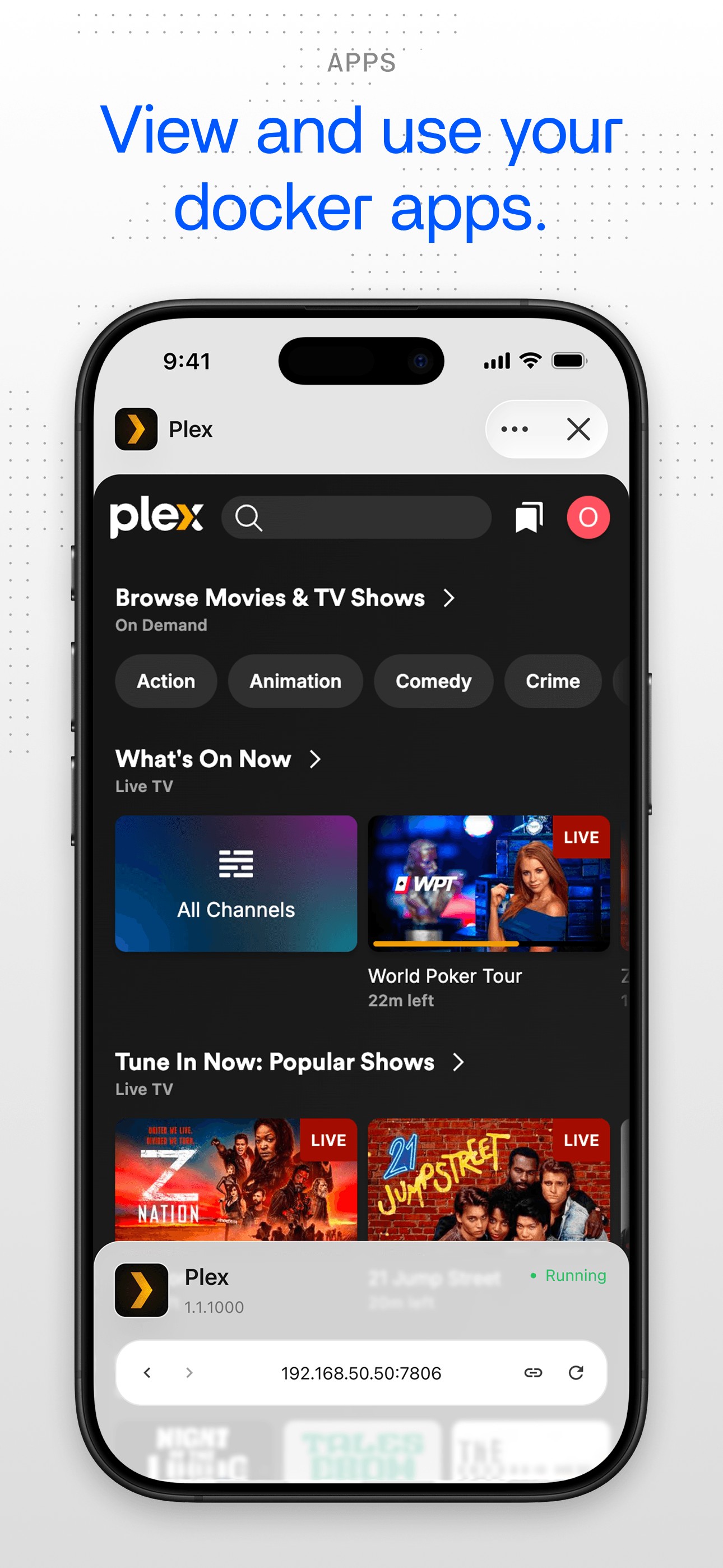
One-click install. Hundreds of applications are available with a single click. No Docker knowledge required. Install Pi-hole to block ads across your entire home network. Install Jellyfin to run your own streaming server. The interface is built for browsing, with categories and recommendations to help you find what you need.
Manage everything in one place. All your installed apps live on a single page. You can see which ones are running, check for updates, and adjust basic settings without touching a config file. If something goes wrong, the built-in logs and terminal are there when you need them.
For power users. Import any Docker Compose YAML file, edit configurations directly, and run multi-container stacks with full lifecycle control. ZimaOS handles the Docker layer so you can focus on what you are building.
The community maintains several third-party stores with hundreds more apps. Your hardware, your apps, your rules. Nothing depends on a subscription or someone else’s cloud.
App Store Overview — media streaming, self-hosted apps, AI, creative builds
Get Your Data In First
I know the App Store is tempting. You probably already scrolled through it and picked out three things you want to try. But if I could go back and do my first setup again, I would sort out storage before I install anything. It saves a headache later.
Start with your drives. A single disk is the simplest path. Two identical drives in RAID 1 give you redundancy without complexity. RAID 5 scales across three or more disks when you need more space with protection. USB drives work for overflow or portable storage. The Storage Setup page matches each scenario to a recommended configuration, with RAID Options as the technical reference.
Next, decide where your app data lives. Every app you install stores its files somewhere on your device. The App Storage Paths guide shows you where, and how to move that data to a larger drive later. Setting this up early saves you from migrating app data down the line.
Then bring your content in. Phone Backup and Computer Backup cover the devices you use every day. Move from Another NAS and Connect Cloud Drives handle the two most common sources.
These guides and more are organized in the ZimaOS Overview under Setup & Storage. After that, install whatever you want. You earned it.