
Hard drives fail, files get deleted by accident, and houses have floods. A backup plan is what stands between those moments and losing everything.
One thing to be clear about first: RAID is not a backup. RAID protects you from a single drive failure while the device keeps running. It does nothing against accidental deletion, ransomware, or a power surge that takes out the whole machine. A real backup plan covers those too.
The 3-2-1 Rule
The 3-2-1 rule is the standard answer to the question of how many backups are enough.
- 3 copies of your data: the original plus two backups, so no single failure destroys everything.
- 2 different types of media: such as the drives in your device plus an external USB drive, to diversify the risk.
- 1 copy offsite: somewhere physically separate, so a fire or theft at home does not take all copies with it.
ZimaOS supports this strategy at the system level. One app covers every ring of the plan.
One App, Every Direction
The 3-2-1 rule asks for copies in different places. Most NAS setups answer that by stitching together three or four different tools: one for USB copies, one for cloud sync, one for LAN transfers. ZimaOS takes a different approach.
The Backup app works on a simple from-to idea. Pick where the data comes from: Cloud, LAN, USB, or Zima. Pick where it goes: a local disk, another Zima device, an external drive, or the cloud. Every combination is one task, one schedule, one journey.
That one abstraction covers the whole 3-2-1 plan: the working copy, the second media, and the offsite ring. You do not learn four tools. You learn one.
Set Up a Backup Task
- Launch the Backup app from the dashboard.
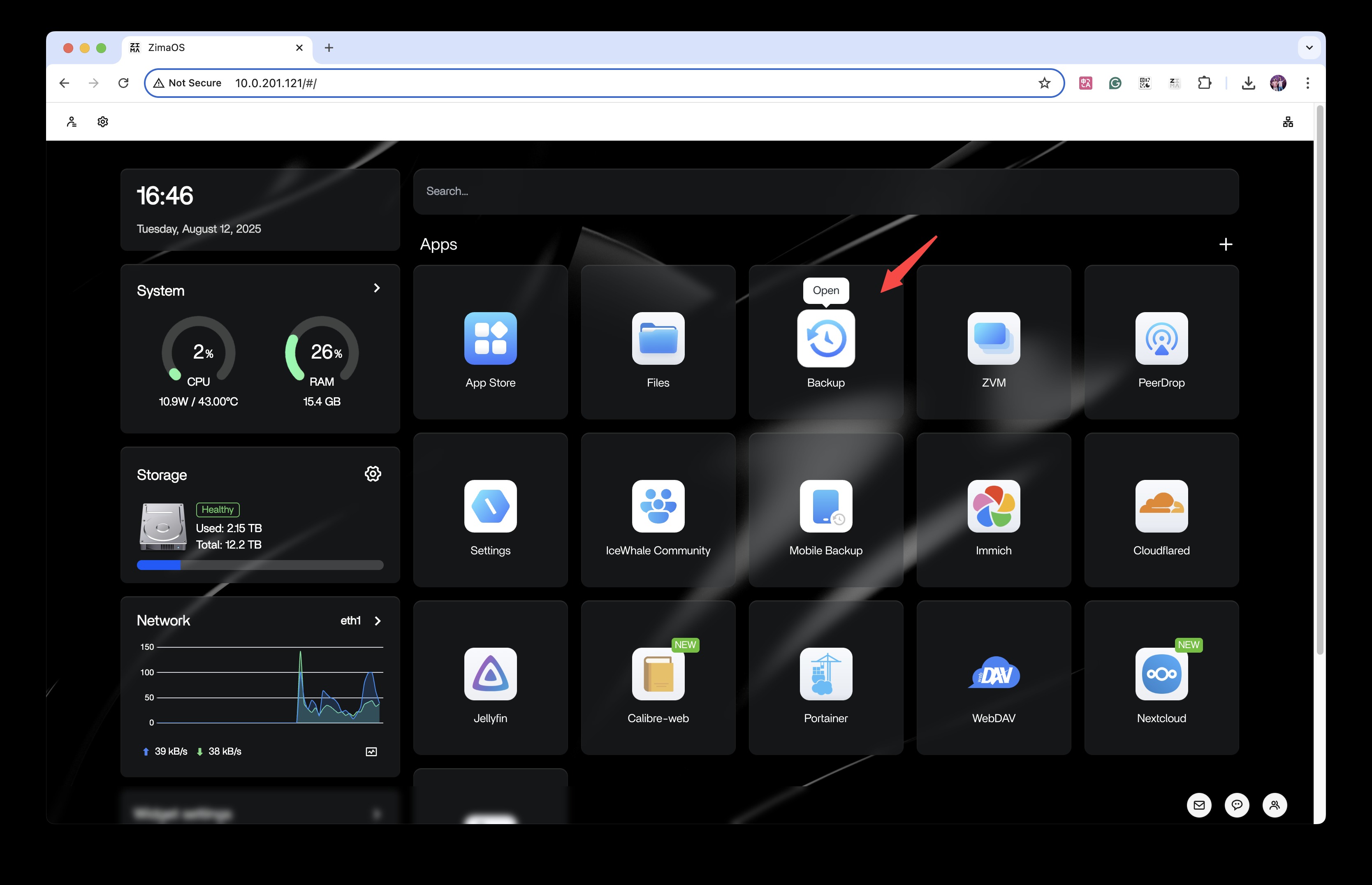
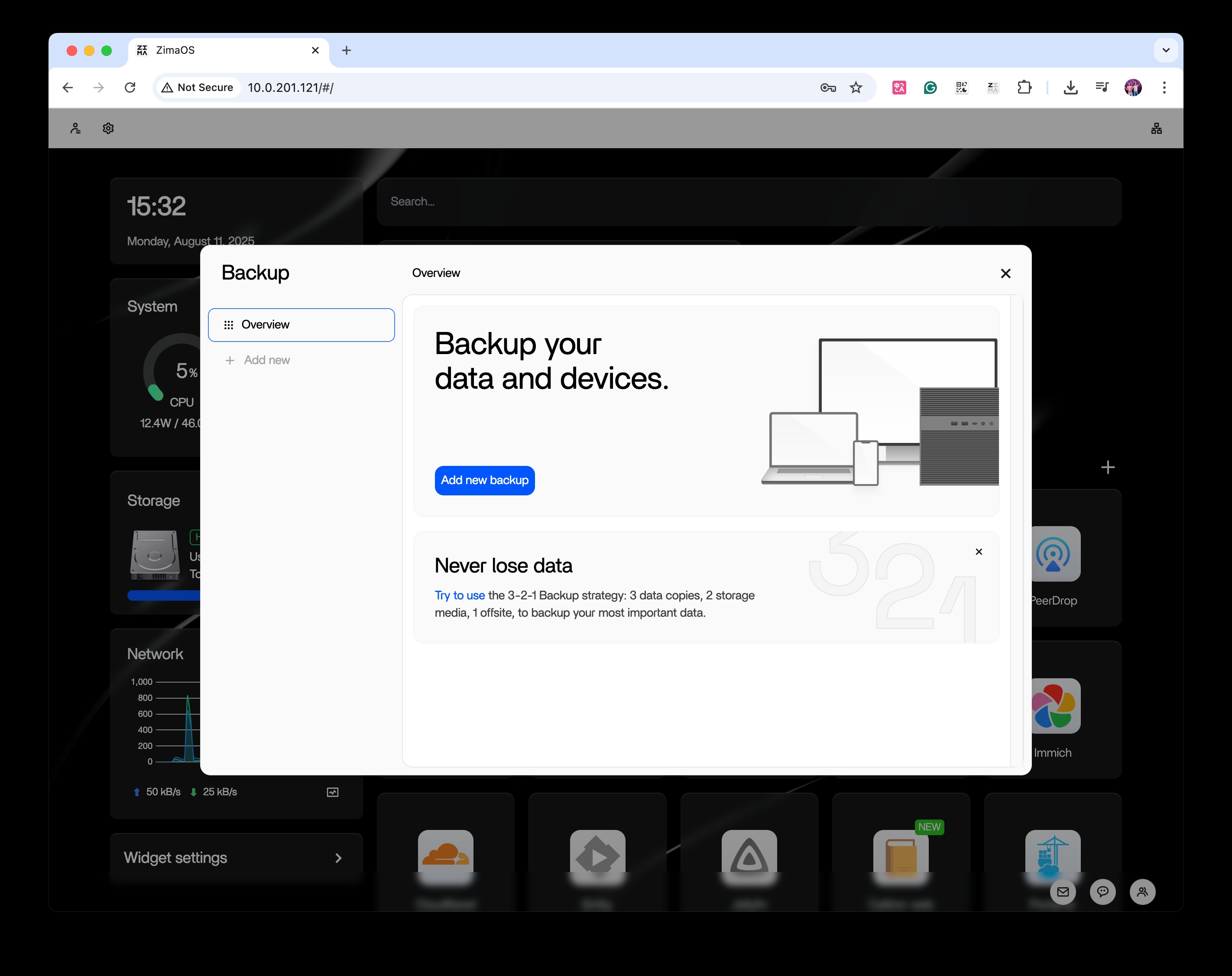
- Click Add new backup to open the task creation wizard.
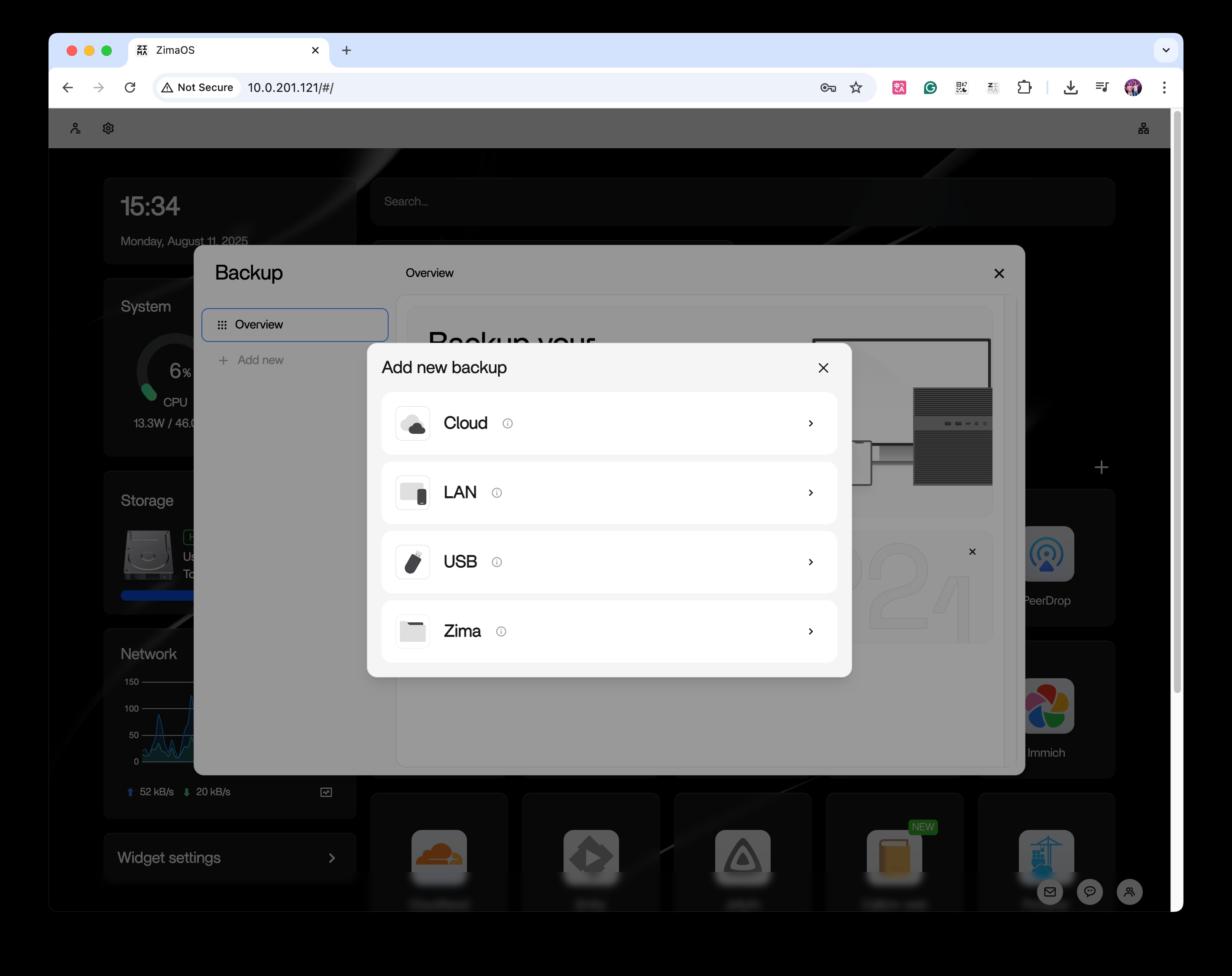
- Choose the data source: Cloud (Google Drive, Dropbox, and more), LAN (shared folders from other devices), USB (external drives), or Zima (files stored on this device).
Backups from Phone Backup and Computer Backup land in your storage as regular folders, so they fit into a backup task like anything else stored on the device.
If you picked a cloud source, sign in and authorize access.
Select the folders you want to back up, or the entire directory structure.
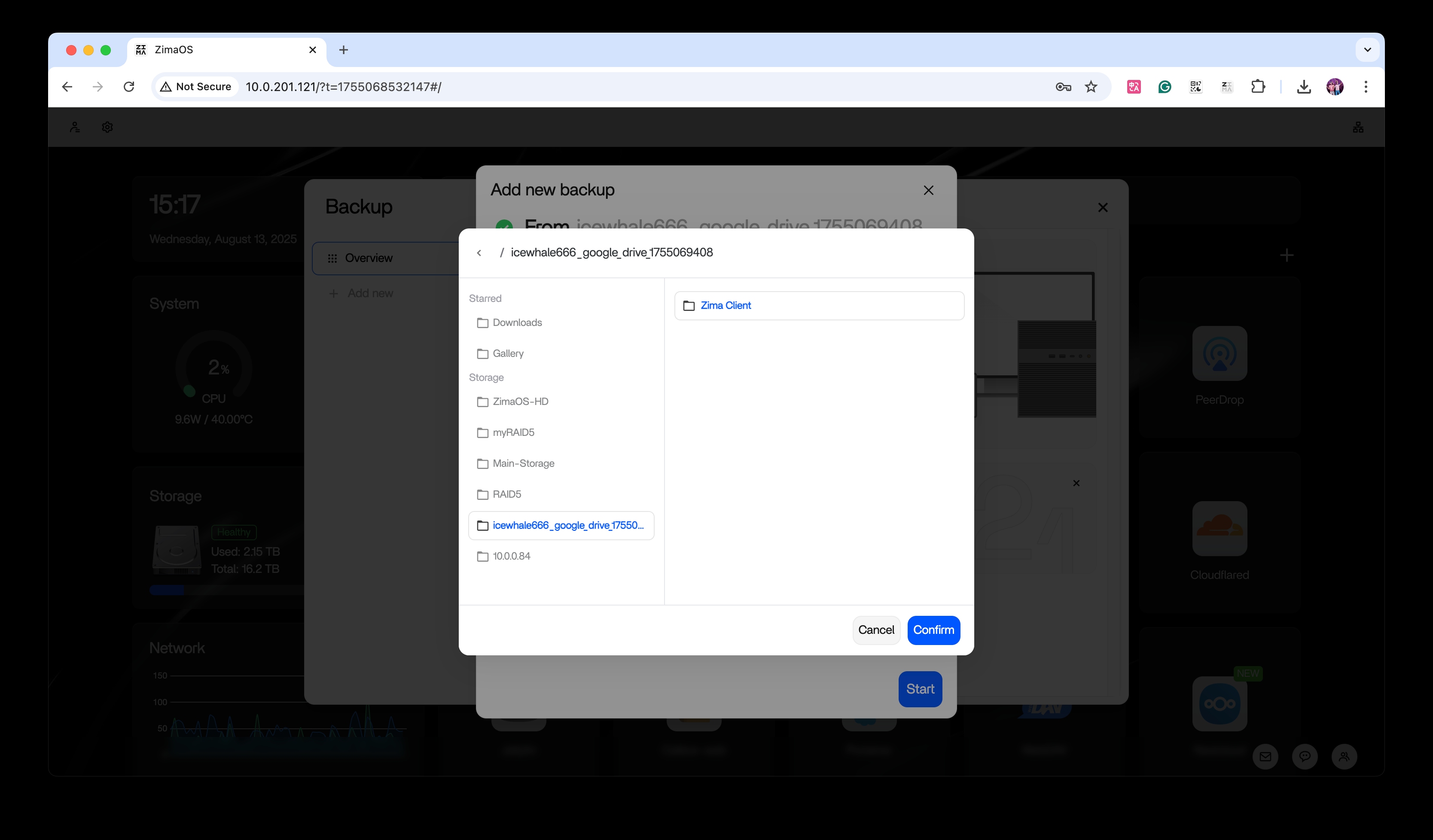
- Set the destination: a local disk, another Zima device, an external drive, or the cloud.
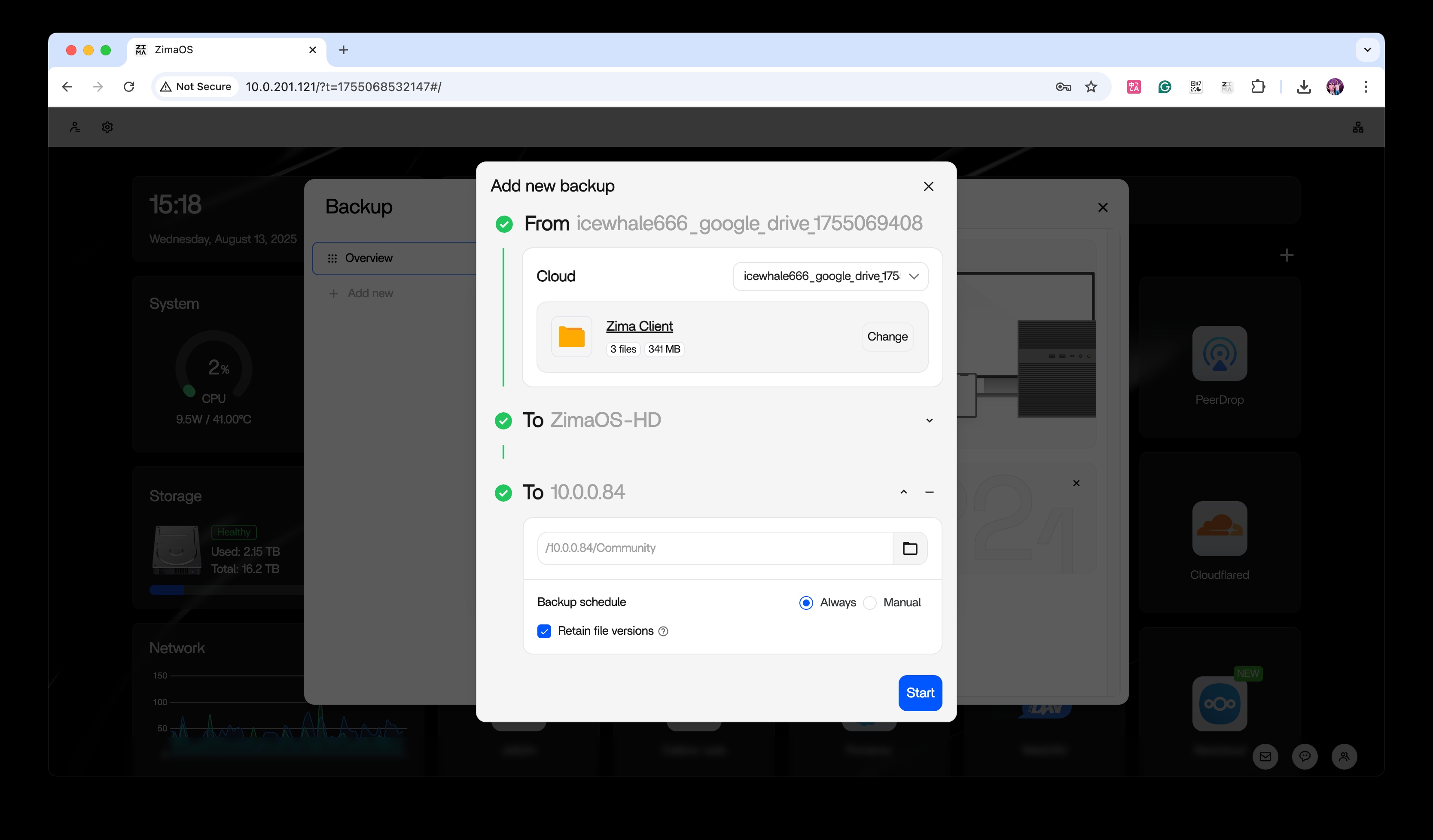
- Click Start. The backup runs with progress shown in real time.
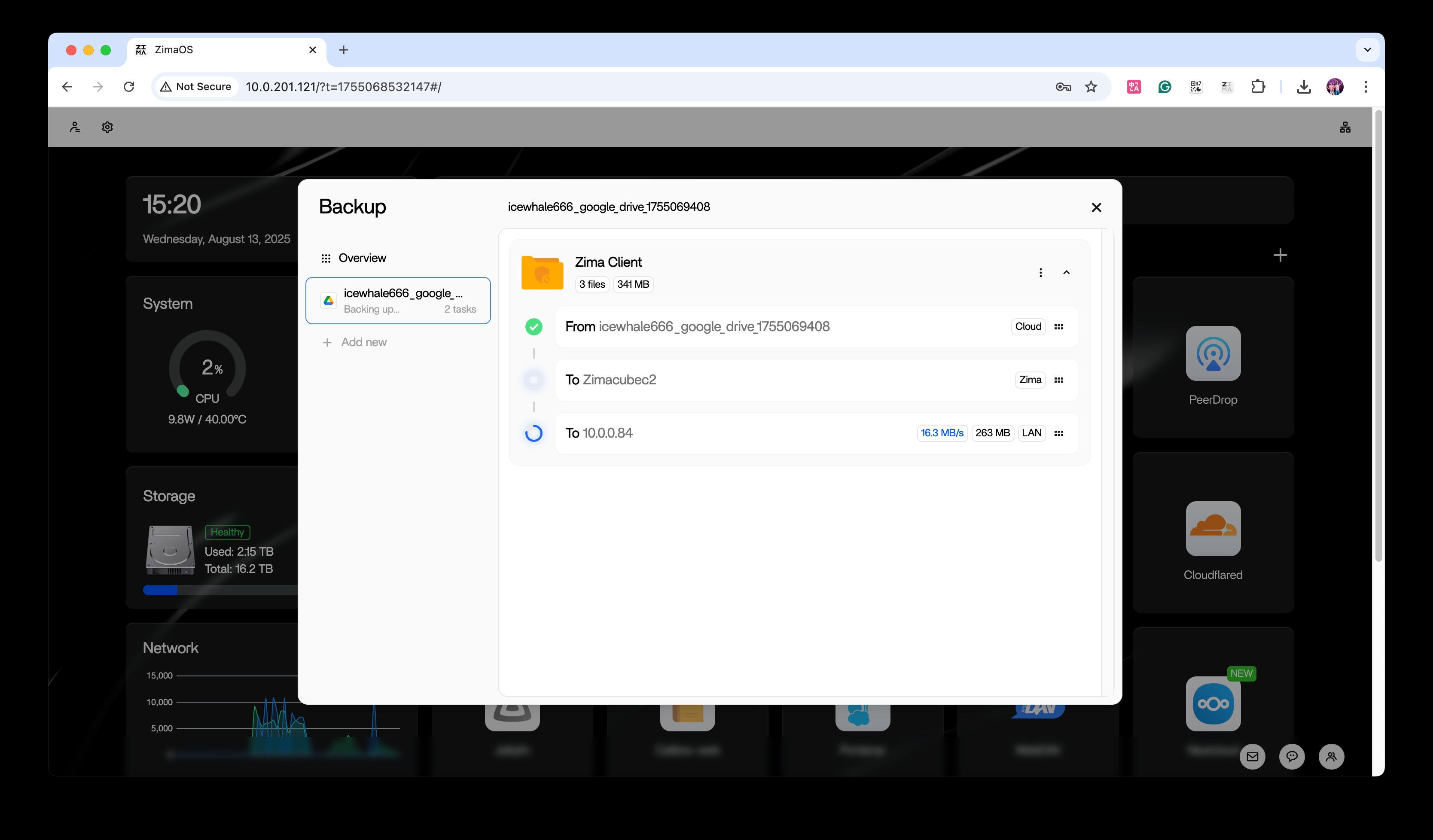
A video walkthrough of the same steps is available on YouTube.
Backup Automatically
A backup plan only works if it runs without you remembering to run it.
- Scheduled backup runs on its own at the interval you set.
- Multiple tasks can run side by side without interfering, so photos, documents, and app data each get their own schedule.
- Resume and fault tolerance continues an interrupted transfer instead of starting over.
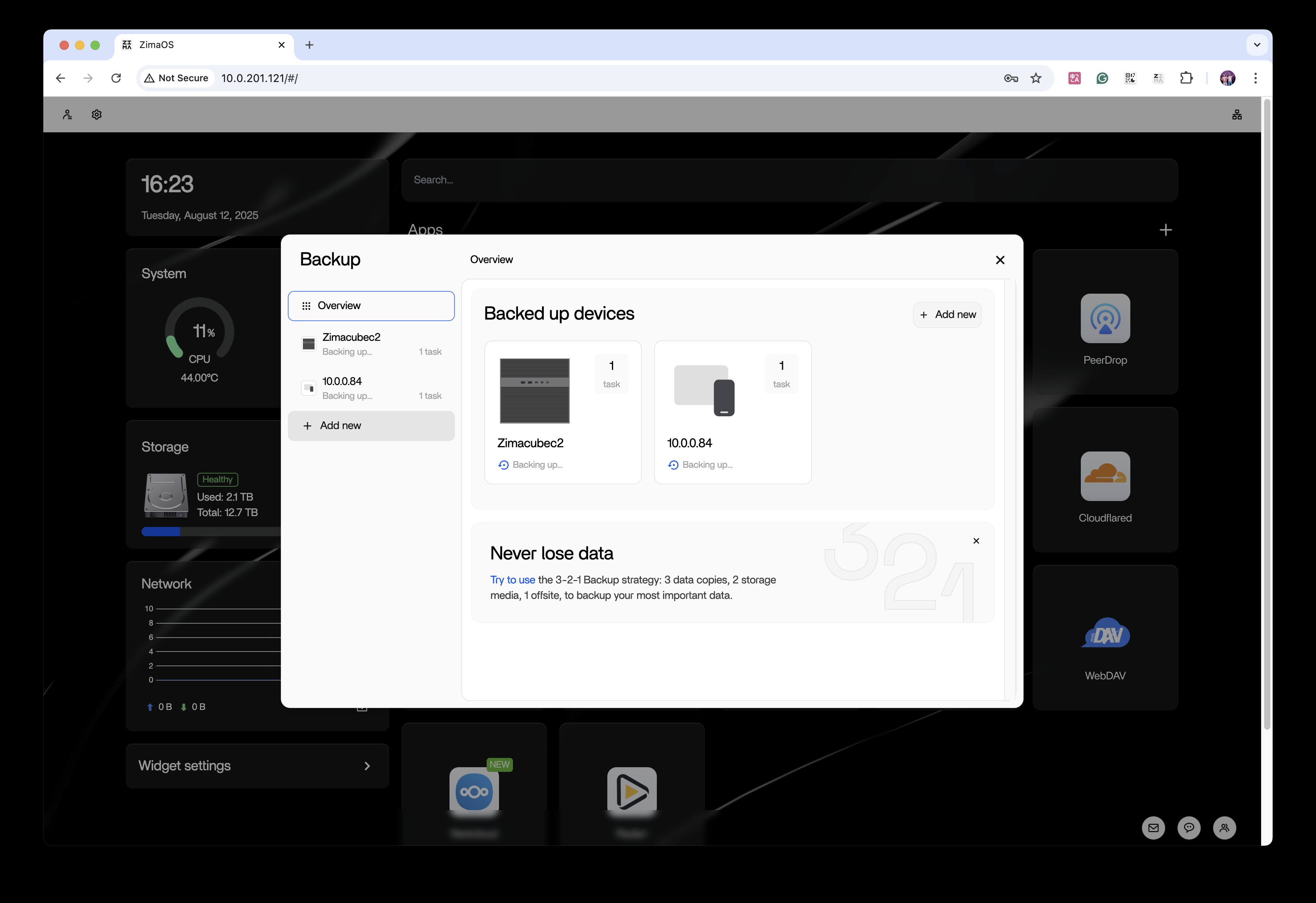
One Source, Many Destinations
Some folders deserve more than one copy. Family photos, work documents, financial records — when the data is irreplaceable, the 3-2-1 rule asks for it in several places at once.
The Backup app handles that with one source and many destinations. Point every task at the same folder, and give each task its own destination:
- Second media: the same folder to another local disk or another Zima device on the LAN.
- Offsite ring: the same folder to the cloud.
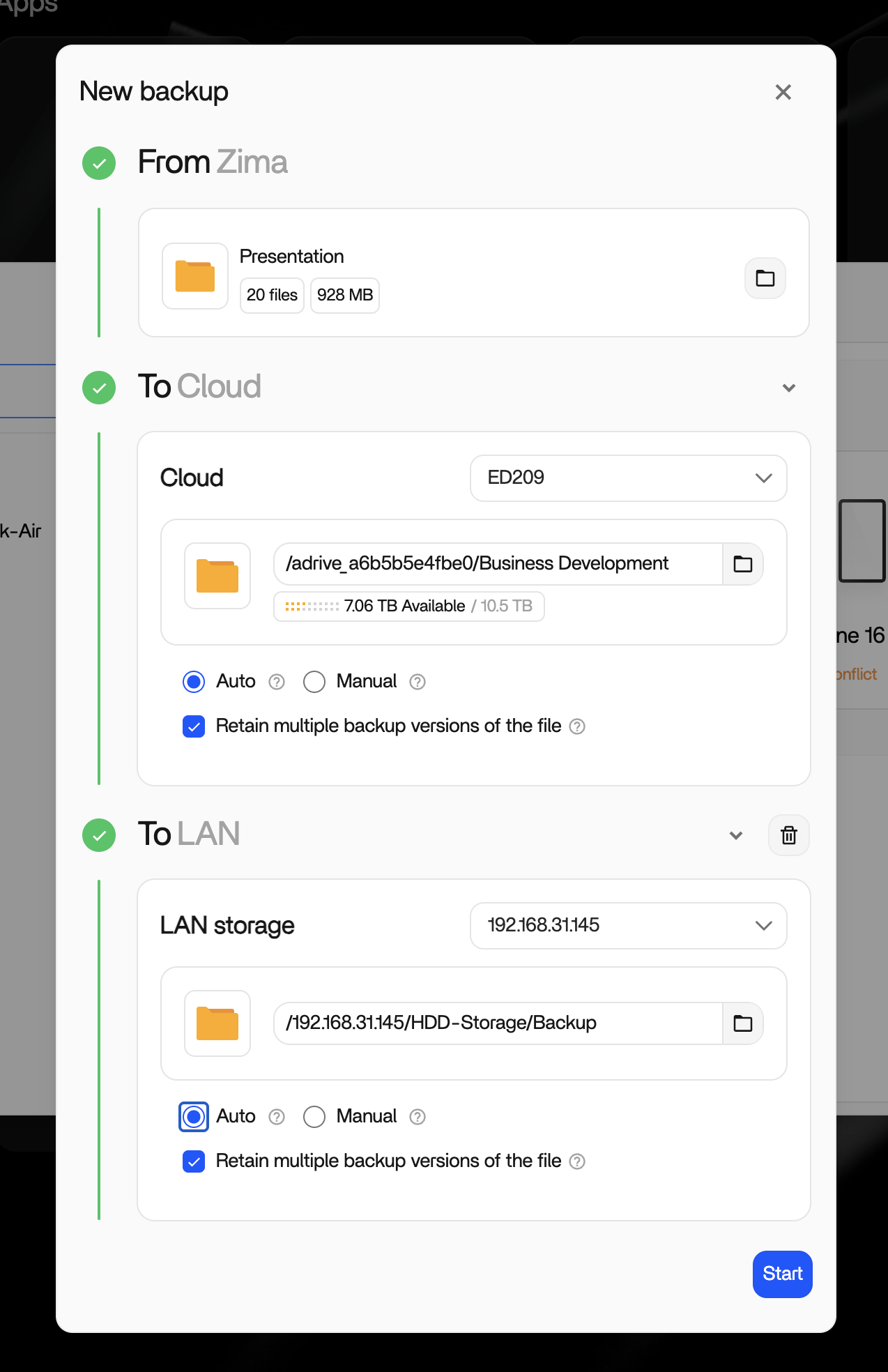
Each task keeps its own schedule, so the two rings can run at different rhythms — the local copy every night, the cloud copy once a week. The tasks are independent, so a problem with one destination never stops the other from running.
Cloud Sync Is Not Backup
A folder synced to the cloud is not a backup. Sync mirrors changes in both directions, so deleting a file locally deletes it everywhere. A backup keeps versions and only writes forward. When you use the cloud in your backup plan, use the Backup app’s cloud destination so you get versions and restore points, not a mirror of your mistakes.
The cloud also earns its place as the offsite copy in your 3-2-1 plan. See Connect Cloud Drives for working with cloud storage.
Restore and Verify
A backup you have never restored is a plan you have never tested. After your first backup finishes, restore one file and open it. Ten minutes of verification now beats discovering a silent problem the day you actually need the backup.
Next
- RAID Options — what RAID protects, and what it does not
- Phone Backup — get the phone data into the plan
- Connect Another NAS — the LAN ring of the plan